Video Editing vs Motion Graphics: Which Editor Do You Need?
Compare video editing vs motion graphics by task: tracks, trims, audio and captions versus layers, keyframes, masks, expressions and 3D composition.
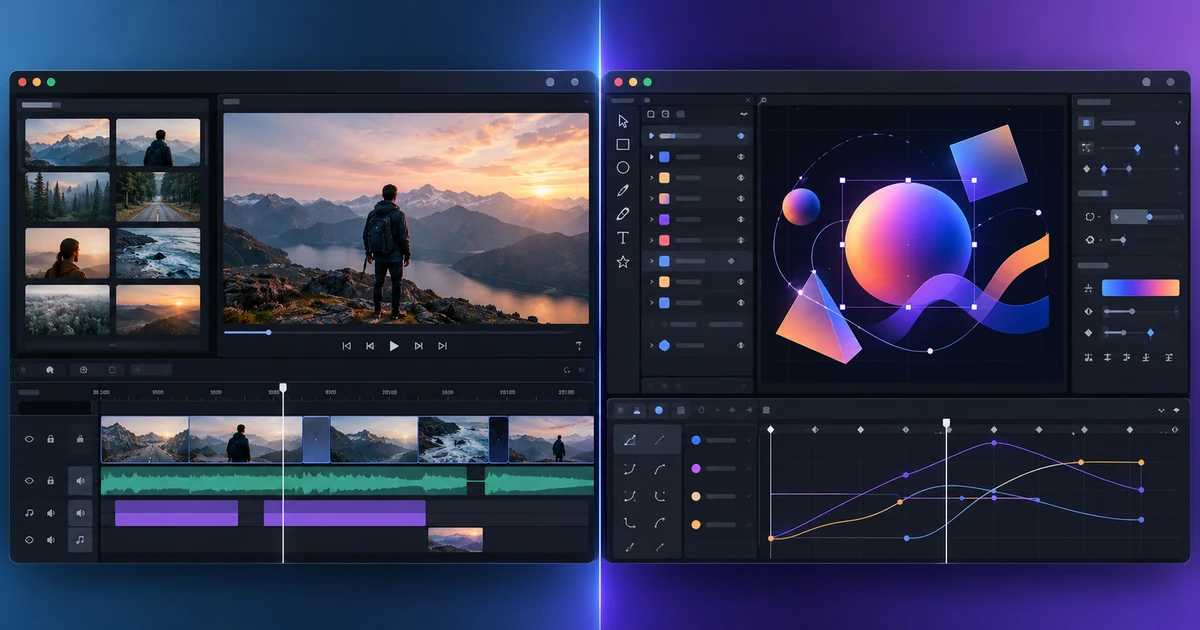
The confusing part of video editing vs motion graphics is that both tools have timelines, both can contain video, and both can animate properties. The difference only becomes obvious when you look at the work they are optimized to do.
Use FilmCraft when the core problem is a sequence of shots. Use EffectCraft when the core problem is a composition of animated layers.
That sounds simple, but the boundary matters because choosing the wrong editor creates friction for the entire project.
Choose a video editor when the story is built from clips
A video editor thinks in sequences and tracks. You import footage, select useful ranges, arrange shots, trim transitions and balance audio over time.
It is the natural choice for:
- interviews and documentaries;
- tutorials and screen recordings;
- social videos assembled from multiple clips;
- podcasts with picture;
- event coverage;
- narrative edits;
- any project with lots of dialogue, b-roll and music.
The strongest operations are editorial: insert, overwrite, ripple, roll, slip and slide. Audio and captions belong naturally beside the picture. If the project changes from 60 seconds to 45, you can reshape the sequence without manually moving dozens of independent animation layers.
The guide to editing video online with a multi-track timeline shows that workflow in detail.
Choose a motion editor when the scene is built from layers
A motion graphics editor thinks in compositions. Each layer has properties that can be animated, masked, blended, parented or driven by expressions.
It is the natural choice for:
- animated logos;
- title sequences;
- kinetic typography;
- explainer graphics;
- interface animation;
- visual effects shots;
- compositing;
- Lottie animation;
- projects that depend on precise keyframes rather than long-form shot selection.
Instead of asking “where should this clip cut?” you ask “how should this layer behave over these frames?” That is a different creative model.
Decision matrix
| Task | Better starting point | Why |
|---|---|---|
| Cut a 10-minute interview | Video editor | Fast source selection, ripple trims and audio tracks |
| Animate a logo reveal | Motion editor | Layer animation, masks and easing |
| Add subtitles to a tutorial | Video editor | Captions follow the edited sequence |
| Composite text behind a moving subject | Motion editor | Masking and layer compositing are central |
| Sync music across dozens of shots | Video editor | Track-based timing and trims |
| Build a Lottie icon animation | Motion editor | Vector layers and keyframes map to the deliverable |
| Add a simple animated lower third | Either | Video editor is faster if the graphic is simple |
| Create a 3D title treatment | Motion editor | Composition-based 3D controls fit the task |
The important word is starting. A real project can use both.
The handoff between the two tools
A common workflow is to edit the story in FilmCraft, then send only the shots that need graphics into EffectCraft. Create the title, visual effect or animation there, render it, then place the result back into the main video sequence.
That division keeps each tool focused on the work it handles efficiently.
The opposite approach—building an entire long-form edit inside a motion composition because one shot needs a graphic—usually creates unnecessary maintenance. Every timing change ripples into manual layer moves.
Where simple overlap is useful
Do not switch tools for work that the current editor handles comfortably. FilmCraft can usually animate scale, position, opacity and basic titles. EffectCraft can trim source layers and arrange short clips.
The switch becomes worthwhile when the project begins to fight the editor’s model.
Move from video editing to motion graphics when you need:
- several interacting animated layers;
- complex masks or mattes;
- detailed easing;
- expressions;
- compositing controls;
- 3D layer relationships.
Move back to video editing when you need:
- frequent structural cuts;
- long dialogue sequences;
- many audio tracks;
- captions tied to the full program;
- fast changes to overall duration.
Think about the final format too
If the deliverable is an ordinary video file, either tool can contribute. If the deliverable is Lottie, the motion environment should drive the design from the beginning. The guide to creating and exporting Lottie animations online explains why format constraints should influence the composition.
If the deliverable is a long program with a handful of motion inserts, the video editor should remain the master timeline.
The simplest rule
Ask what the audience experiences as the main structure.
If they experience shots arranged over time, start with video editing.
If they experience graphic elements changing over time, start with motion graphics.
Both workflows can be browser-based and both can be professional. The right choice is the one that matches the object you are manipulating: a sequence of clips or a composition of layers.
Frequently asked questions
What is the main difference between video editing and motion graphics?
Video editing is primarily about arranging time-based footage and audio into a sequence. Motion graphics is primarily about animating and compositing layers inside a composition.
Can a motion graphics editor cut a video?
Usually yes for simple trims, but it becomes inefficient for long-form shot selection, dialogue editing, track-based audio and frequent ripple changes. A dedicated video editor is better for those jobs.
Can a video editor create motion graphics?
It can usually create titles, transforms and simple keyframed graphics. More complex masking, expressions, compositing and layered animation are better handled in a motion environment.
Try these FreeAIGeneration tools
Related articles
-
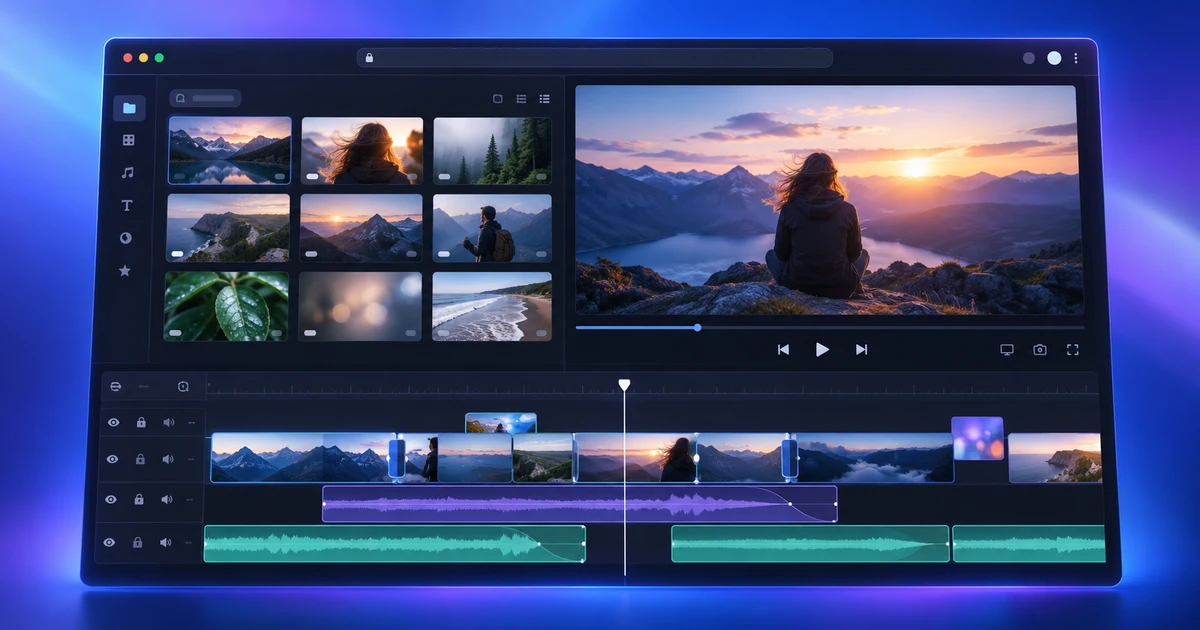
How to Edit Video Online with a Multi-Track Timeline
Learn how to edit video online with a real multi-track workflow: three-point edits, precision trims, audio, color, captions and export in FilmCraft.
Creative workflows Video editing Browser tools Multi-track timeline 5 min read
Published By Julia M. Gil
-
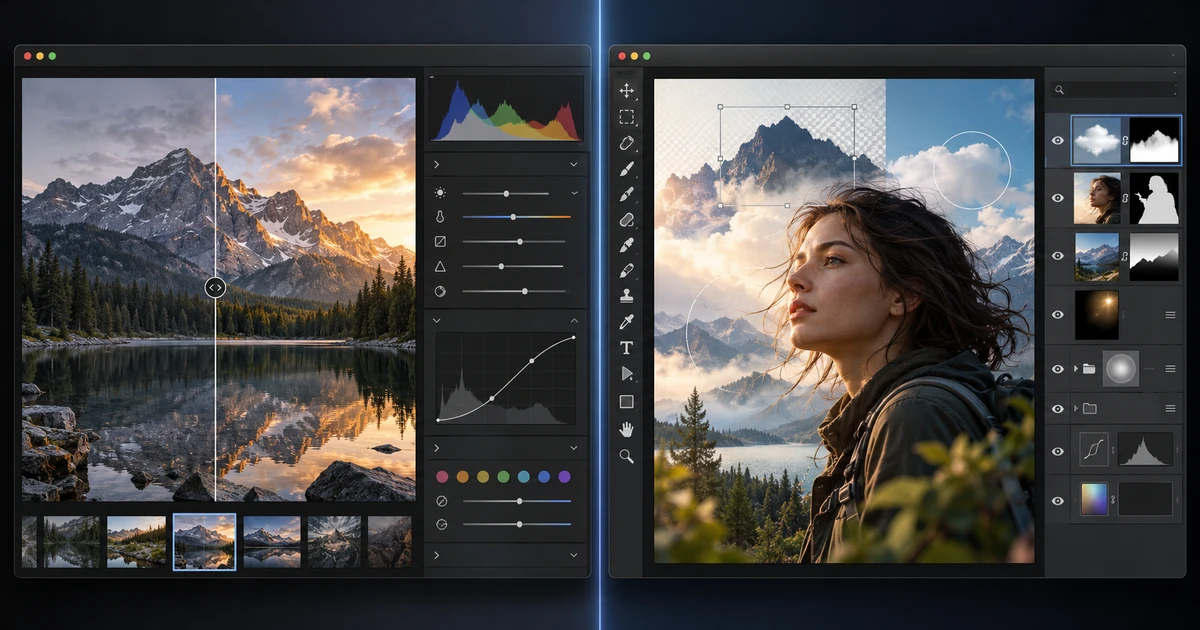
RAW Editor vs Photo Editor: Which Workflow Do You Need?
Understand RAW editor vs photo editor workflows, where development ends, where layer-based retouching begins and how to hand an image from one stage to the next.
Creative workflows RAW editing Photo editing Tool selection 4 min read
Published By Julia M. Gil
-
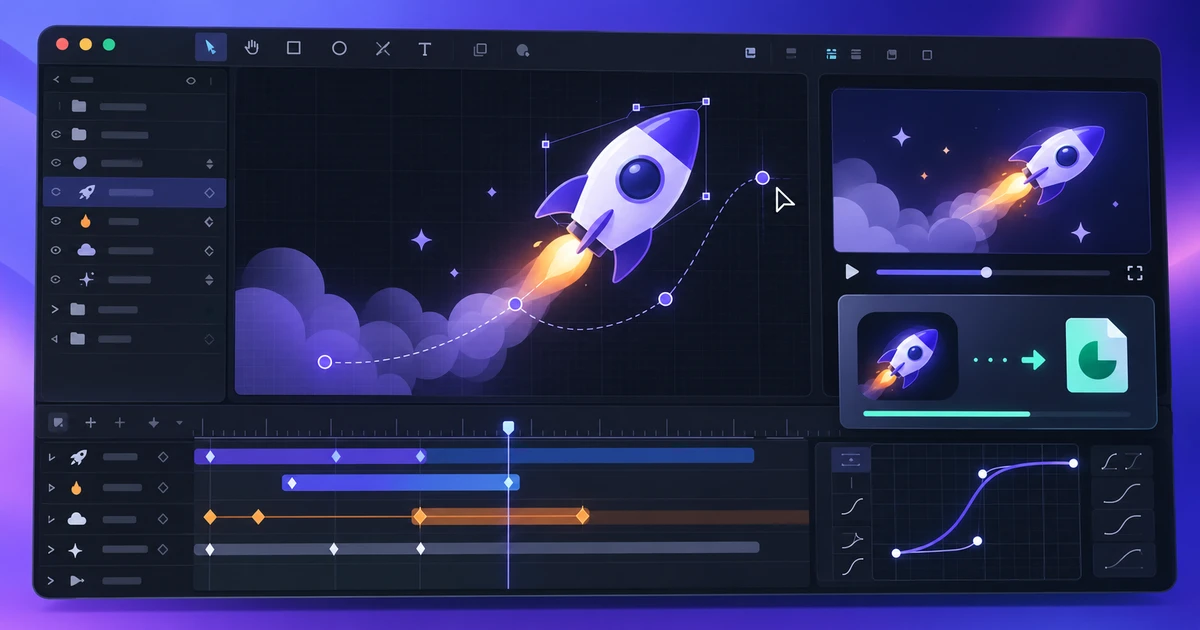
How to Create and Export Lottie Animations Online
Create Lottie animations online with shapes, text, keyframes, easing, masks and precomps, then simplify the motion for reliable web and app export.
Creative workflows Lottie Motion graphics Web animation 4 min read
Published By Julia M. Gil
Keep exploring
FreeAIGeneration is more than this article. The editors and calculators below are real, free and run in your browser.