RAW Editor vs Photo Editor: Which Workflow Do You Need?
Understand RAW editor vs photo editor workflows, where development ends, where layer-based retouching begins and how to hand an image from one stage to the next.
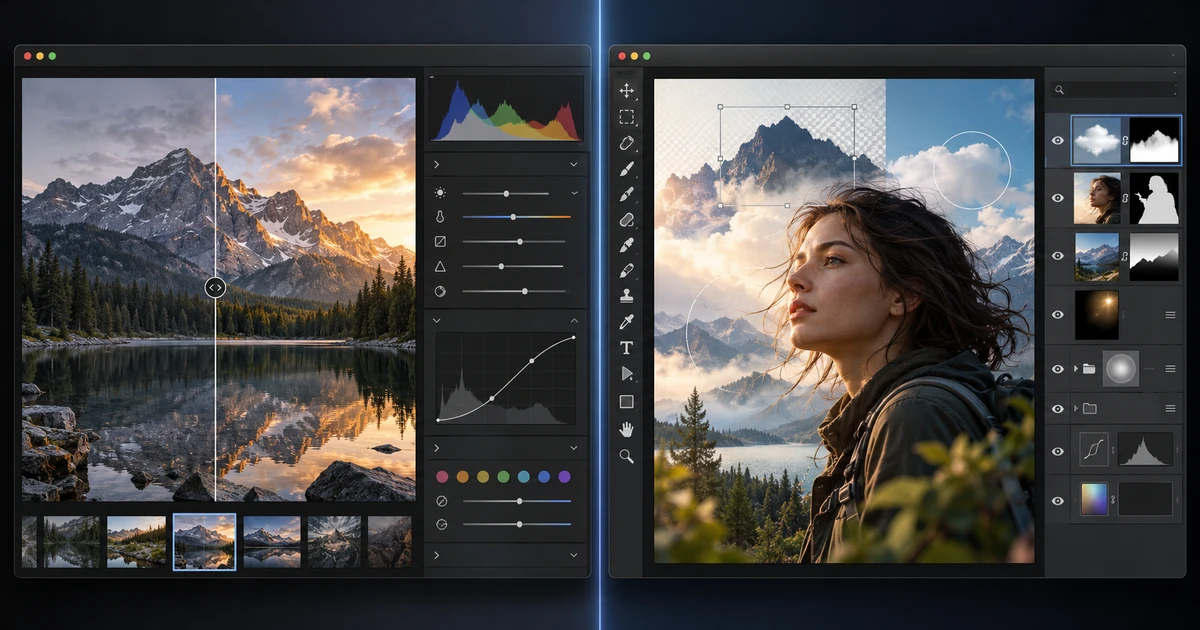
Choosing a RAW editor vs photo editor is less about which application has more features and more about which stage of the image you are working on. A RAW editor develops camera data. A photo editor modifies an already rendered image.
That distinction affects quality, reversibility and the order of your work. In the FreeAIGeneration workflow, LightCraft handles development and PhotoCraft handles pixel and layer work.
What a RAW editor is designed to do
A RAW file contains sensor measurements plus camera metadata. It still needs interpretation before it becomes a conventional image.
A RAW editor is therefore strongest at:
- exposure and highlight recovery;
- white balance;
- tone curves;
- color calibration and grading;
- noise reduction and sharpening;
- lens and geometry corrections;
- broad or masked local adjustments;
- cropping before the image is rendered.
These changes are typically stored as instructions. The source RAW remains untouched, which makes experimentation cheap and reversible.
If those are the only changes the photograph needs, stay in the RAW editor. There is no prize for adding a second application to a simple workflow.
What a photo editor is designed to do
Once the image has been rendered into pixels, a layer editor becomes the better environment for structural changes.
Use a photo editor for tasks such as:
- detailed object removal;
- compositing several images;
- complex selections and masks;
- typography;
- layer blend modes;
- mockups;
- pixel painting or cloning;
- reusable layer-based effects;
- editing layered PSD files.
Those operations are not “better” than RAW development. They solve a different class of problem.
Why the order matters
Suppose a portrait is one stop underexposed, slightly too warm and contains a distracting object in the background.
If you go directly to a pixel editor, you can brighten the image and change the color, but you are doing those adjustments after the RAW data has already been interpreted. If you develop the RAW first, you can make the exposure and white-balance decisions with greater latitude, then retouch the object on a strong rendered base.
A sensible sequence is:
- Develop the RAW in LightCraft.
- Set exposure and white balance.
- Recover highlights and open shadows where needed.
- Correct lens and geometry issues.
- Establish the broad color treatment.
- Export a high-quality rendered file.
- Open that file in PhotoCraft.
- Perform detailed retouching, compositing or typography.
The free RAW editing guide walks through the first half of that sequence.
A practical handoff example
Imagine a product photograph for a brochure. The RAW capture is slightly dark and the white background has a mild blue cast. The final layout also requires removing a support stand and placing a small badge beside the product.
In the RAW editor, correct exposure and white balance, adjust contrast and make the product color accurate. Crop and straighten if necessary. Then export at full working resolution.
In the photo editor, remove the support stand, refine the edge, add the badge on a separate layer and save a layered working file. If that working file is PSD-based, the guide to editing PSD files online explains what to verify when layers and photo-editor-specific objects are involved.
The key is that the tasks are divided by representation: sensor development first, pixel construction second.
Decision table
| Need | RAW editor | Photo editor |
|---|---|---|
| Fix white balance | Best choice | Possible, but later in the pipeline |
| Recover highlight detail | Best choice | Limited by rendered data |
| Correct lens distortion | Best choice | Possible, but less tied to RAW metadata |
| Remove a complex object | Limited | Best choice |
| Combine two photos | Not the goal | Best choice |
| Add text and graphic layers | Not the goal | Best choice |
| Make a non-destructive exposure variant | Best choice | Possible with adjustment layers |
| Edit a layered PSD | No | Best choice |
Do not flatten the stages into one vague idea of “photo editing”
Both tools can change brightness and color, which is why the distinction can feel artificial at first. The difference is what information they are operating on and what kind of edits they are built to manage.
A RAW editor works closest to the capture. A photo editor works closest to the finished composition.
For an end-to-end example that continues from RAW development through photo retouching, vector assets, brochure layout and PDF assembly, see the browser creative workflow.
The most efficient workflow is usually the simplest one: stay in RAW as long as the task is still development, move to a photo editor when the work becomes pixel- or layer-based, and preserve a clean handoff file between the two stages.
Frequently asked questions
Is a RAW editor the same as a photo editor?
No. A RAW editor develops sensor data using reversible exposure, color and lens adjustments. A photo editor works on rendered pixels and layers for retouching, compositing, text and more structural image changes.
Should I retouch before or after RAW development?
Develop the RAW first. Correct exposure, white balance, tone, lens issues and broad local adjustments before exporting a rendered image for detailed retouching.
Do I always need both editors?
No. If the image only needs exposure, color and crop corrections, the RAW editor may be enough. Add a photo editor only when the task becomes pixel- or layer-based.
Try these FreeAIGeneration tools
Related articles
-
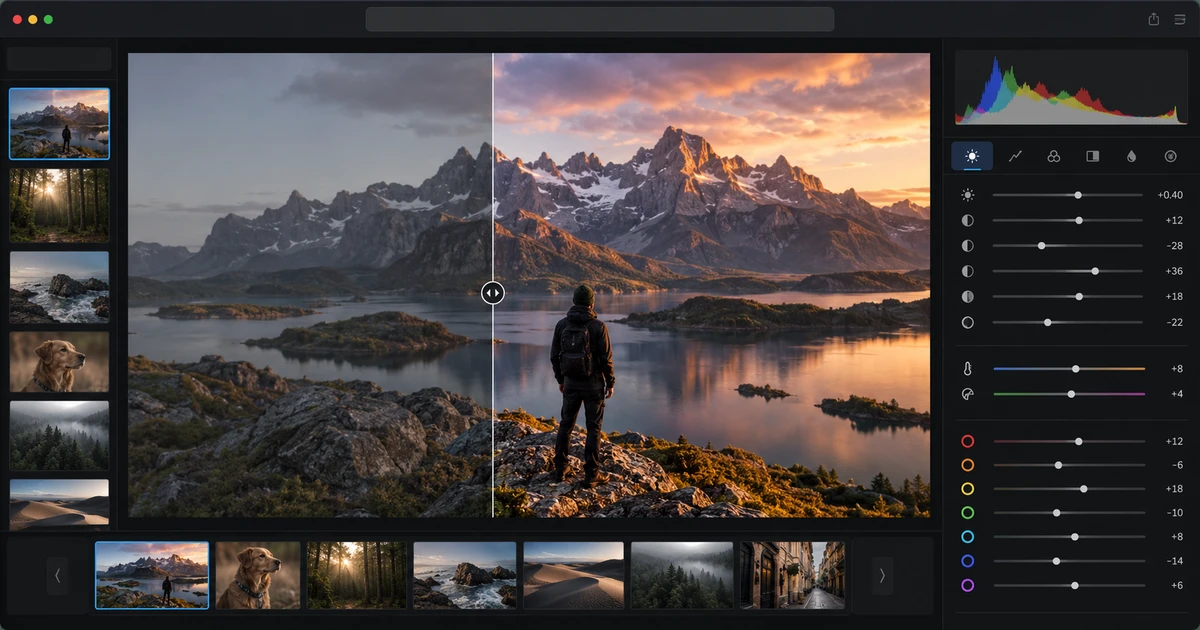
How to Edit RAW Images Online for Free: A Non-Destructive Workflow
Edit RAW images online with a non-destructive workflow for exposure, white balance, curves, color, masks, geometry and export before pixel retouching.
Creative workflows RAW editing Photo workflow Non-destructive editing 5 min read
Published By Julia M. Gil
-
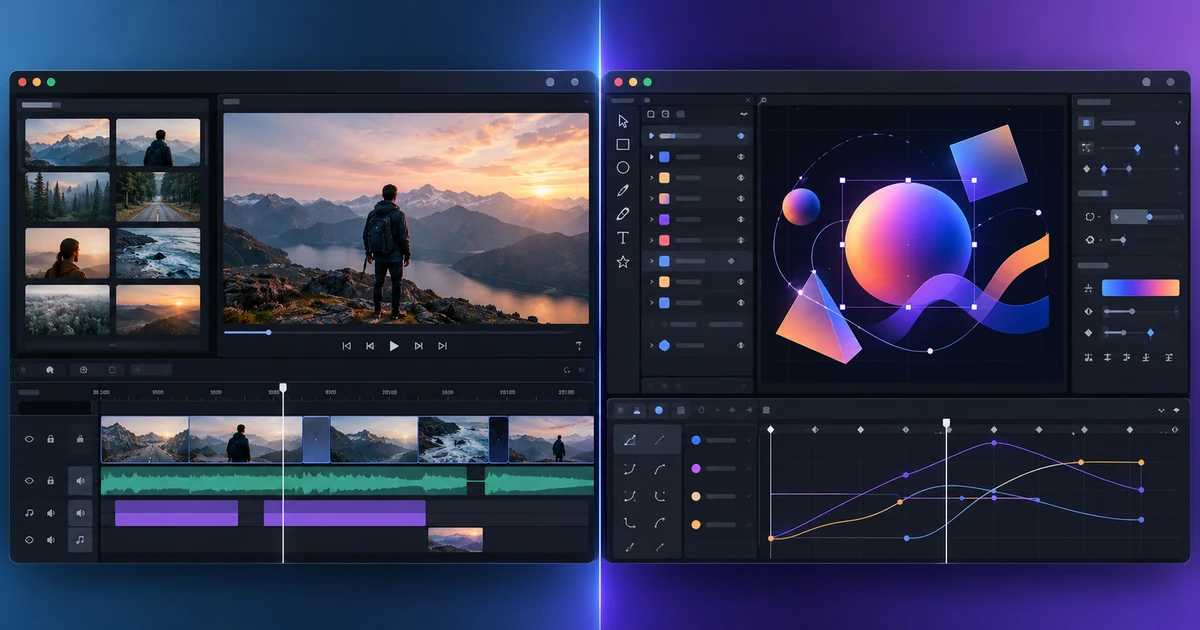
Video Editing vs Motion Graphics: Which Editor Do You Need?
Compare video editing vs motion graphics by task: tracks, trims, audio and captions versus layers, keyframes, masks, expressions and 3D composition.
Creative workflows Video editing Motion graphics Tool selection 4 min read
Published By Julia M. Gil
-
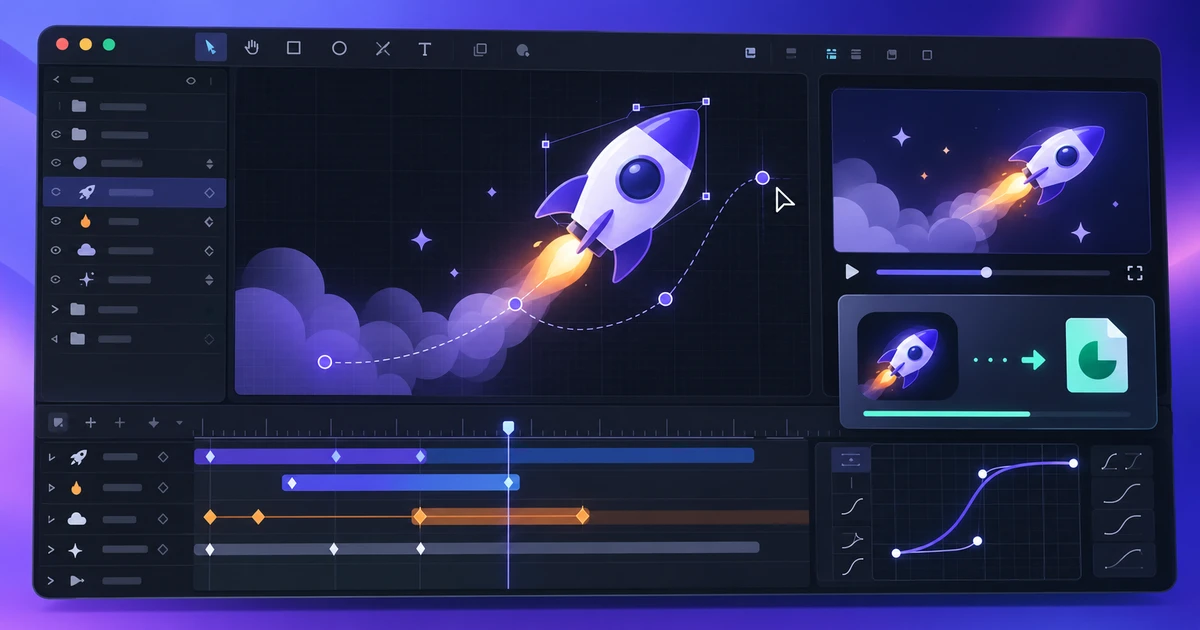
How to Create and Export Lottie Animations Online
Create Lottie animations online with shapes, text, keyframes, easing, masks and precomps, then simplify the motion for reliable web and app export.
Creative workflows Lottie Motion graphics Web animation 4 min read
Published By Julia M. Gil
Keep exploring
FreeAIGeneration is more than this article. The editors and calculators below are real, free and run in your browser.