How to Edit Video Online with a Multi-Track Timeline
Learn how to edit video online with a real multi-track workflow: three-point edits, precision trims, audio, color, captions and export in FilmCraft.
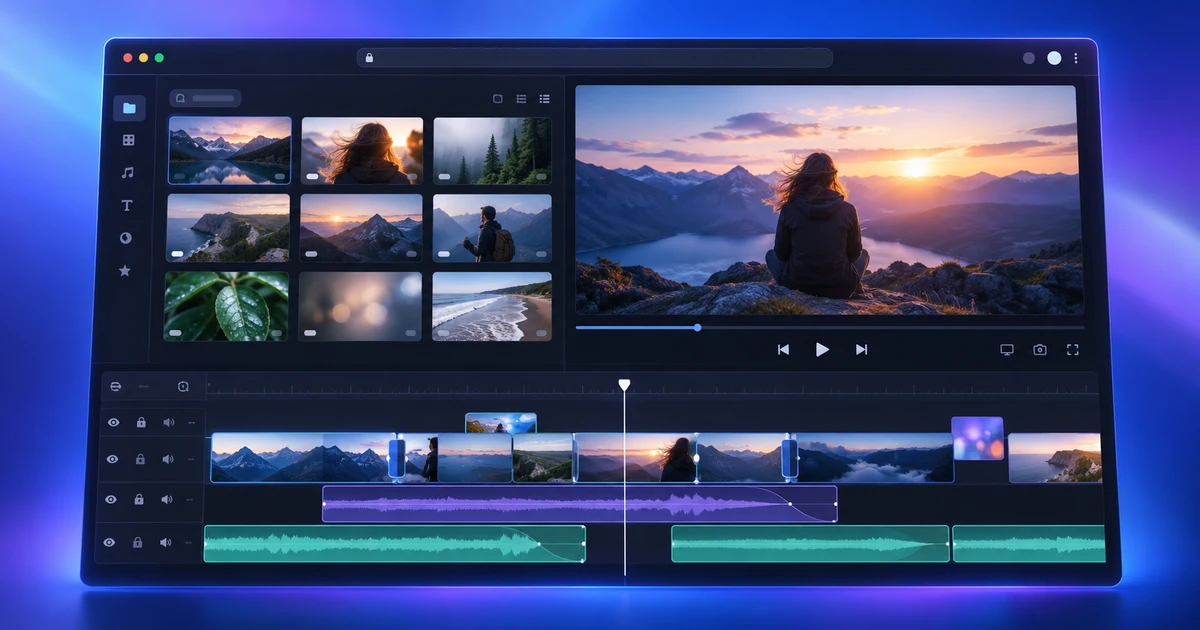
A browser editor does not have to behave like a lightweight clip trimmer. If the timeline gives you independent tracks, source-to-sequence editing, precision trims and proper audio controls, you can edit video online with essentially the same decision-making process you would use in a desktop NLE.
The useful question is not “can I put clips on a web page?” It is “can I make deliberate editorial decisions without fighting the interface?” This workflow uses FilmCraft from first import to final export and focuses on the operations that separate a real edit from a pile of clips.
Organize the footage before touching the timeline
Import the source video, voice-over, music, stills and graphics first. Then spend a few minutes making the project readable. Rename ambiguous camera files, separate interview material from b-roll and identify the takes you actually want to use.
That preparation matters more in a multi-track project than in a one-clip edit. Once the timeline contains several video layers, music, dialogue and graphics, “IMG_4827” stops being a harmless filename and becomes a search problem.
A practical starting layout is:
- V1: primary story footage or interview.
- V2: b-roll and cutaways.
- V3: titles, overlays and graphics.
- A1/A2: production sound or dialogue.
- A3: music.
- A4: sound effects or room tone.
You can add tracks later, but beginning with a simple purpose for each lane keeps the sequence understandable.
Build the first pass with three-point editing
Dragging every clip from a bin into the timeline works, but it becomes slow as soon as you are choosing specific moments from longer source files. A faster method is three-point editing.
Open a source clip, mark the useful start and end, then place the timeline playhead where that shot should enter. You have defined three points: source in, source out and destination. An insert edit places the shot while moving later material forward; an overwrite edit replaces the material already occupying that duration.
This is especially effective for interviews. Build the spoken narrative on V1 first, then add b-roll on V2 without disturbing the underlying dialogue. You are composing the story in layers rather than repeatedly breaking and rebuilding one track.
Use the right trim instead of rebuilding the cut
Most of the finesse in editing happens after the rough cut. Four trim operations are worth learning because each solves a different problem:
Ripple trim changes the duration of a clip and closes or opens the resulting space. Use it when the overall sequence should become shorter or longer.
Roll trim moves the cut point between two adjacent clips while preserving the combined duration. It is ideal when the transition feels early or late but the timing around it is already correct.
Slip changes which frames appear inside a clip without moving the clip itself. Use it when a b-roll shot sits in the right place but shows the wrong moment.
Slide moves a clip earlier or later while adjusting the neighboring clips to keep the sequence duration unchanged.
Once these are familiar, you stop treating every timing change as a delete-and-reinsert operation. That is when an online timeline starts to feel like an editing environment rather than a simple assembly tool.
Grade after the sequence is stable
Do not chase perfect color while you are still deciding which shots survive. First correct obvious exposure and white-balance problems so the cut is comfortable to watch. Once the structure is stable, match neighboring shots and then add the creative look.
A reliable order is:
- Normalize exposure and white balance.
- Match shots that appear next to each other.
- Adjust contrast and saturation for the intended look.
- Check skin tones and important brand colors.
- Watch the sequence continuously rather than judging isolated frames.
Color is contextual. A shot that looks attractive on its own can still jump badly when cut against the previous one.
Treat audio as part of the edit
Picture rhythm and audio rhythm are connected. Keep dialogue intelligible, use short crossfades to hide hard edits and lower music beneath speech instead of simply muting it. Room tone can make interview cuts feel continuous even when the picture changes.
Before export, listen once without watching. Sudden level changes, clipped syllables and awkward music entrances become much easier to notice when your eyes are not carrying the sequence.
Add captions before the final export check
Captions are not a decorative afterthought. They affect timing, safe areas and sometimes your choice of shot. Keep lines concise, avoid covering faces or essential interface elements, and check readability on a smaller screen.
If a caption sits over fast-moving footage, give the viewer enough time to read it. The right subtitle duration is governed by comprehension, not by how much text technically fits.
Export from the delivery requirement backward
Choose export settings based on where the video will be used. A social post, a presentation insert and an archive master do not need the same file. Confirm resolution, frame rate, aspect ratio and audio before starting the render.
Then watch the exported file from beginning to end. Do not assume that because the timeline looked correct, the deliverable is correct. Check the first and last frame, captions, transitions, audio sync and any sections with heavy compositing.
If your project is mostly animated layers, typography and keyframed graphics rather than shot-based storytelling, the better starting point may be a motion tool. The guide on video editing vs motion graphics explains that boundary. For a wider view of how the tools connect, see the browser-based creative workflow.
A good browser video edit is not defined by where the software runs. It is defined by whether the workflow lets you make precise choices, revise them quickly and deliver a clean result.
Frequently asked questions
Can a browser video editor handle a real multi-track timeline?
Yes, if it provides separate video and audio tracks, source and program monitoring, precision trim tools, keyframes and a controlled export workflow. The browser is only the delivery environment; the editing model is what determines whether the tool behaves like an NLE.
What is three-point editing?
Three-point editing uses three defined boundaries—typically an in and out point in the source plus an insertion point in the timeline—to place a shot precisely without dragging clips by eye. It is one of the fastest ways to build an intentional sequence.
Should I edit audio before or after the picture?
Start with usable dialogue and a rough music bed while shaping the picture, then do detailed level, fade and cleanup work after the sequence is stable. That prevents you from polishing audio for shots that may still be removed.
Try these FreeAIGeneration tools
Related articles
-
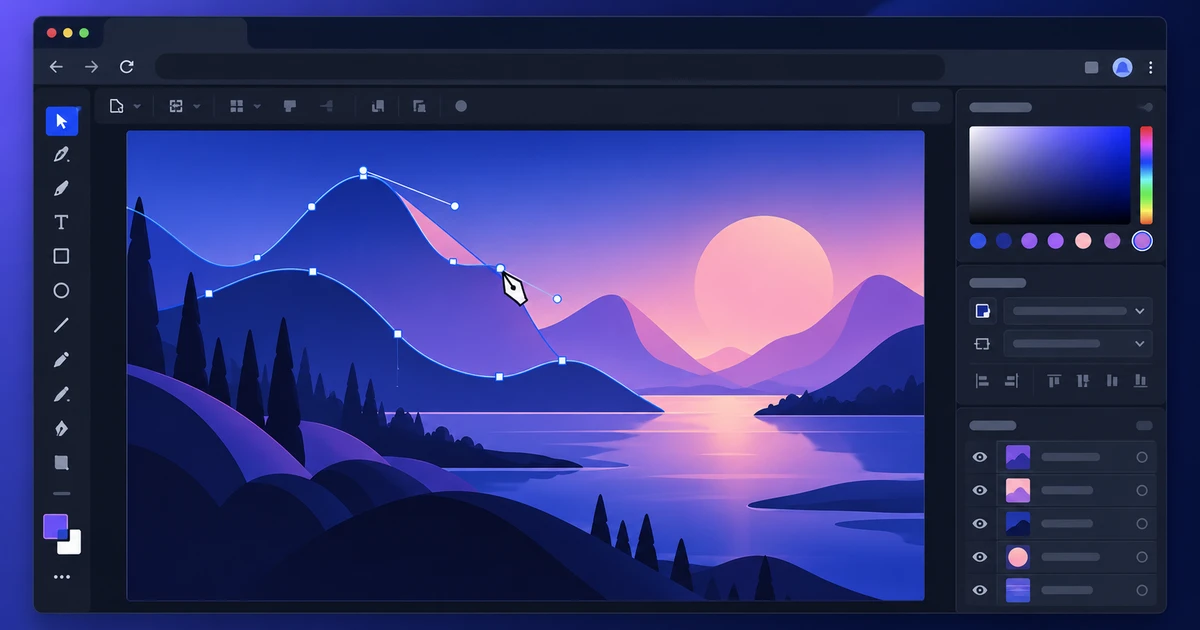
How to Open and Edit AI Files Online
Open AI files online, inspect what remains editable, change vector paths and text, and export safely while understanding vector-file compatibility limits.
Creative workflows Vector editing AI files Browser tools 5 min read
Published By Julia M. Gil
-
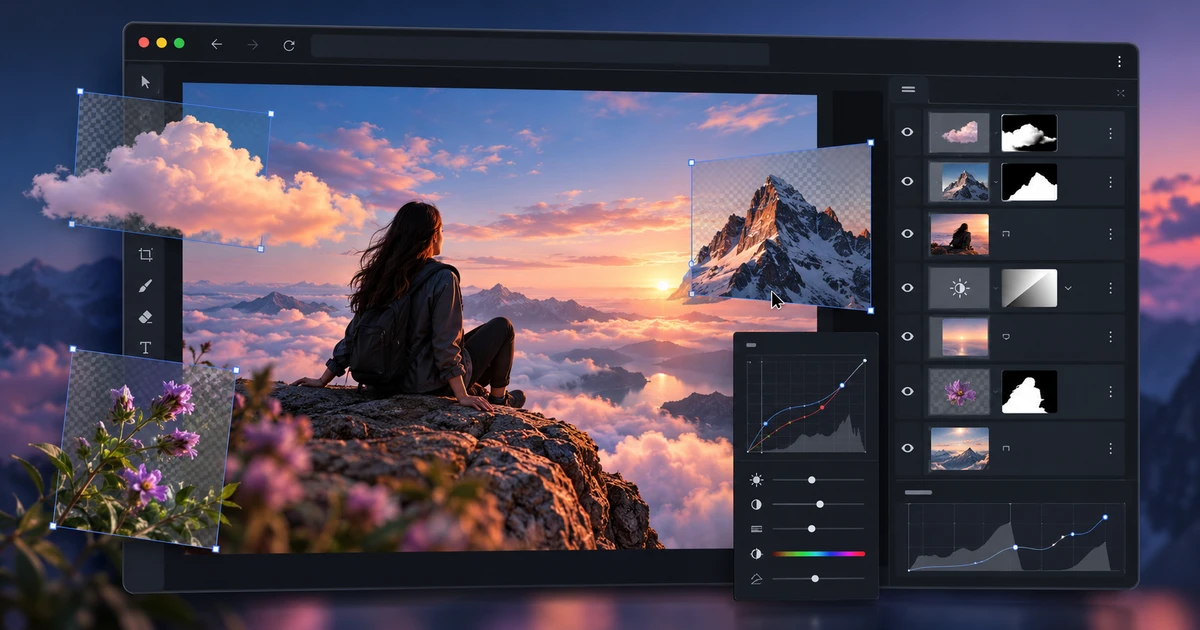
How to Open and Edit PSD Files Online Without Flattening Layers
Open and edit PSD files online while preserving layers where supported. Learn what to check for masks, adjustments, smart objects and filters before export.
Creative workflows PSD editing Layered images Browser tools 4 min read
Published By Julia M. Gil
-
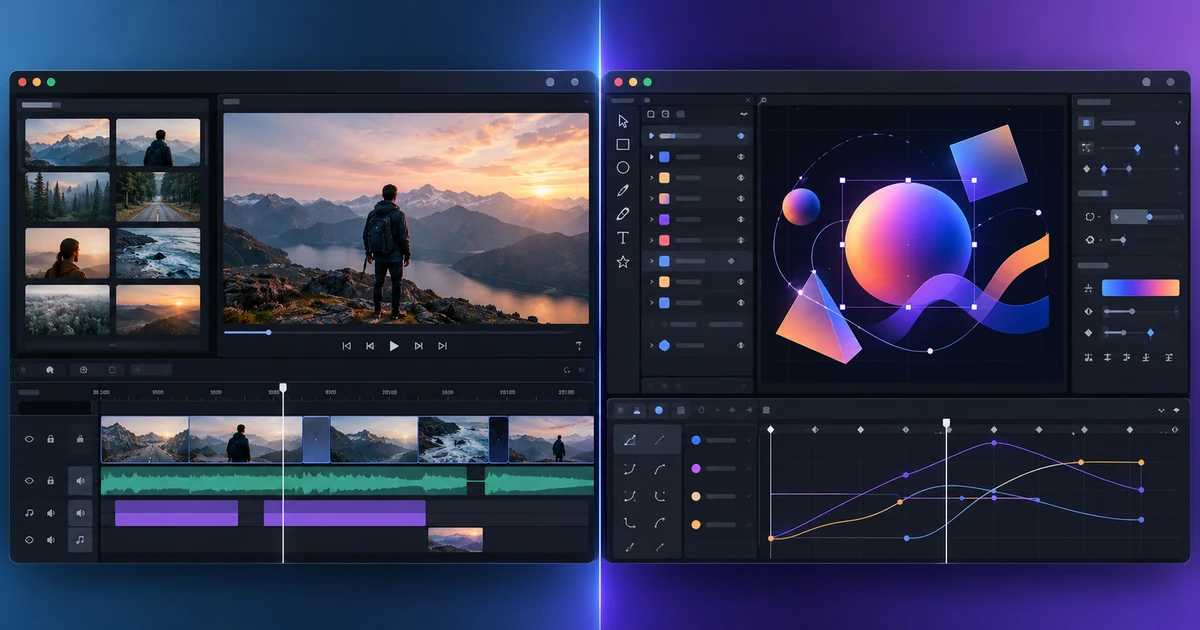
Video Editing vs Motion Graphics: Which Editor Do You Need?
Compare video editing vs motion graphics by task: tracks, trims, audio and captions versus layers, keyframes, masks, expressions and 3D composition.
Creative workflows Video editing Motion graphics Tool selection 4 min read
Published By Julia M. Gil
Keep exploring
FreeAIGeneration is more than this article. The editors and calculators below are real, free and run in your browser.