How to Create and Export Lottie Animations Online
Create Lottie animations online with shapes, text, keyframes, easing, masks and precomps, then simplify the motion for reliable web and app export.
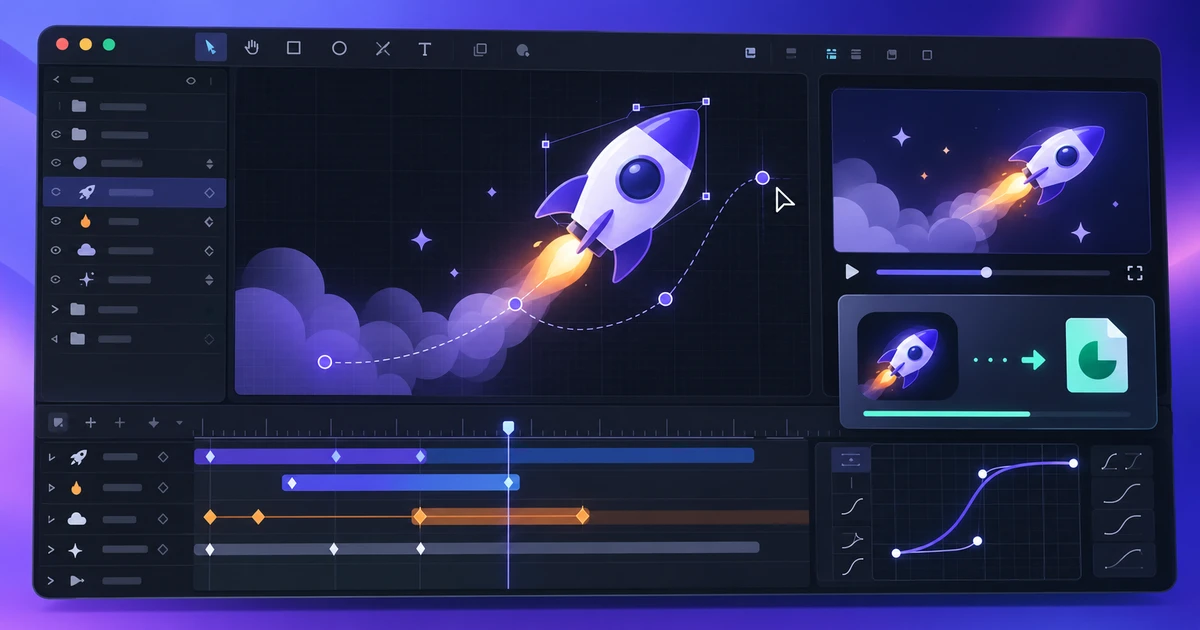
Lottie is useful because it lets interfaces display crisp, scalable animation without shipping a traditional video. But a good Lottie file is not simply “any animation exported to JSON.” The format has boundaries, and the easiest way to get a reliable result is to design for those boundaries from the beginning.
This workflow uses EffectCraft as the motion environment and treats Lottie as a delivery target, not an afterthought.
Start with a small composition and a clear motion idea
Define the dimensions, duration and frame rate before building. Interface animation usually benefits from short, purposeful movement: a loading state, icon transition, onboarding cue or compact illustration.
Keep the composition focused. A five-second interaction animation should not contain a twenty-second pre-roll simply because the timeline can hold it.
Build the artwork from simple shapes
Shape layers translate more predictably than raster-heavy constructions. Use vector paths, fills and strokes for the core artwork. If you already have vector assets, prepare them in VectorCraft so unnecessary points and hidden objects do not follow the file into motion.
Simple geometry is not only smaller; it is easier to animate cleanly. A path with 30 meaningful points is usually better than the same outline with 300 points created by an over-detailed trace.
Animate with deliberate keyframes and easing
Set keyframes only where the motion changes. Two well-placed keyframes with a considered easing curve are often stronger than a dense timeline full of tiny adjustments.
Think in terms of velocity. Objects rarely look natural when they move at exactly the same speed from start to finish. Ease into and out of position, and use the graph editor when the movement needs more character.
For repeated timing, establish a rhythm. If three cards enter one after another, use a consistent offset rather than nudging each one by eye.
Use masks and precomps with restraint
Masks can reveal shapes, create wipes and keep animation inside a controlled area. Precompositions help organize a complex scene. Both are useful, but both add structure that should remain understandable when exported.
Before committing to a complicated masked stack, test an early Lottie export. A technique that works visually inside a motion editor may not be represented the same way by the target renderer.
Know what Lottie may not express
Lottie support varies by exporter and player, but several categories deserve caution:
- complex 3D scenes and cameras;
- plugin-generated effects;
- advanced blurs and distortions;
- raster effects that depend on pixel processing;
- expressions whose logic is not supported by the exporter;
- unusual blend or matte combinations.
The safest mindset is progressive simplification. Build the essential motion first, test it, then add complexity only when the exported result continues to behave correctly.
If your project depends on cinematic compositing, particle effects or a full 3D treatment, Lottie may simply be the wrong delivery format. That does not make the animation wrong; it means the target should probably be video or another runtime animation system.
Test the export before polishing every detail
Export a working Lottie early. Open it in the intended player and compare it with the composition.
Check:
- timing and easing;
- fill and stroke colors;
- masks and clipping;
- text rendering;
- transparency;
- loop behavior;
- file size.
An early test turns compatibility into a design constraint you can manage instead of a surprise at the end.
Simplify for production
Once the animation works, remove anything the user will never see. Delete disabled experiments, hidden layers, unused assets and redundant keyframes. Simplify paths where the visual difference is negligible.
If text does not need to remain dynamic, consider whether outlining it improves consistency across environments. If it does need to stay editable or localized at runtime, test the actual font behavior instead.
Match the tool to the job
A motion composition is not the same thing as a video edit. If your primary task is cutting footage, syncing dialogue, mixing audio and arranging shots on tracks, start in a video editor. The guide on video editing vs motion graphics explains the choice.
For an ecosystem view that connects motion, vector, photo and publishing work, see the browser creative workflow.
The best Lottie workflow is intentionally constrained. Build with vectors, animate with clean keyframes, test early and simplify until the exported motion is as reliable as the composition that created it.
Frequently asked questions
Can every motion graphic be exported as Lottie?
No. Lottie supports a useful subset of vector animation features, but some effects, 3D techniques, plugins, raster-heavy operations and advanced compositing do not translate cleanly.
How can I make a Lottie animation smaller?
Reduce unnecessary keyframes, simplify paths, remove hidden layers, avoid oversized embedded assets and reuse shapes where possible. Fewer moving points usually means a lighter file.
Should I design the animation in vectors from the start?
Yes when Lottie is the target. Vector-first artwork is easier to scale, recolor and encode efficiently than a workflow built around raster effects that later need to be approximated.
Try these FreeAIGeneration tools
Related articles
-
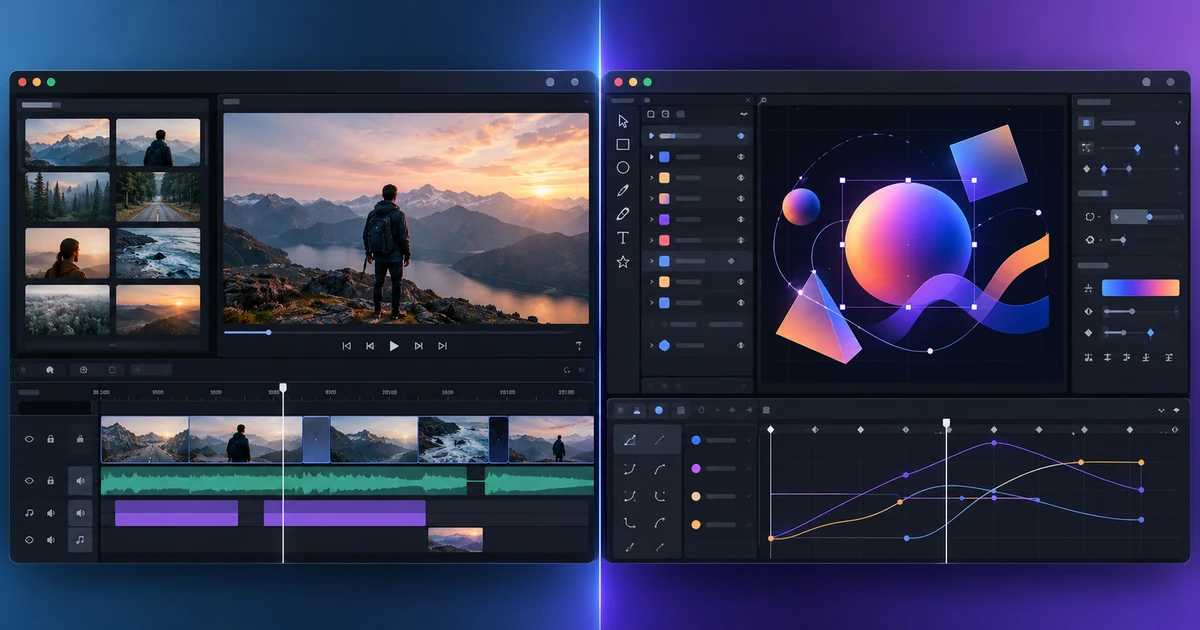
Video Editing vs Motion Graphics: Which Editor Do You Need?
Compare video editing vs motion graphics by task: tracks, trims, audio and captions versus layers, keyframes, masks, expressions and 3D composition.
Creative workflows Video editing Motion graphics Tool selection 4 min read
Published By Julia M. Gil
-
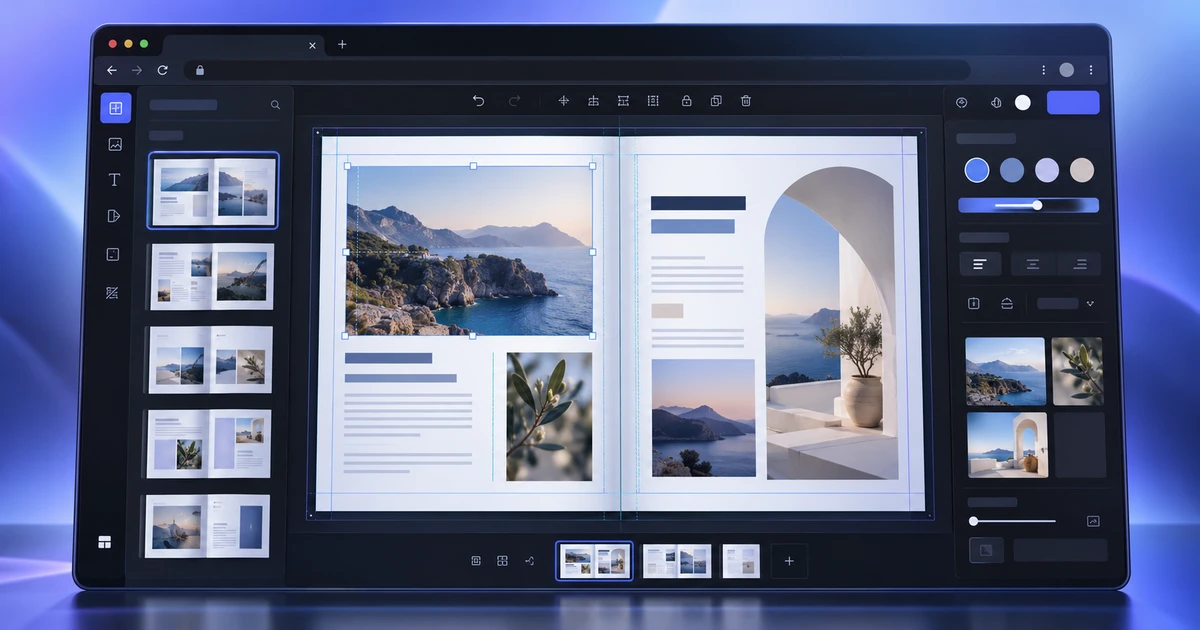
How to Design a Brochure Online in Your Browser
Create a brochure online with a real page-layout workflow: document setup, master pages, threaded text, styles, placed images and print-ready PDF export.
Creative workflows Page layout Brochure design Publishing 5 min read
Published By Julia M. Gil
-
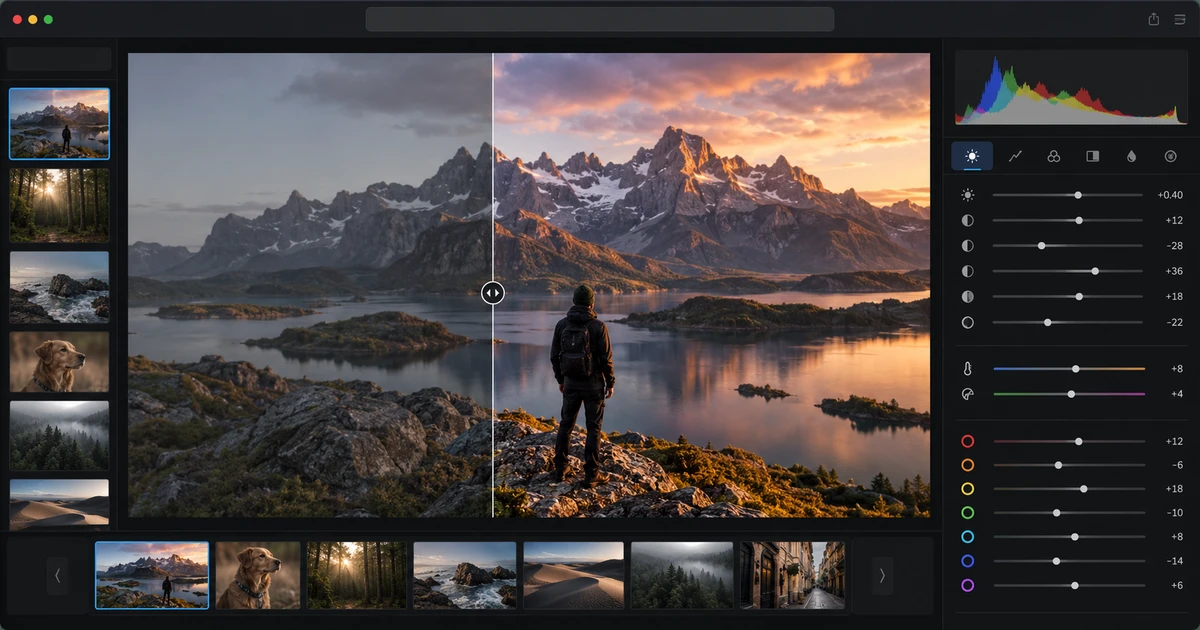
How to Edit RAW Images Online for Free: A Non-Destructive Workflow
Edit RAW images online with a non-destructive workflow for exposure, white balance, curves, color, masks, geometry and export before pixel retouching.
Creative workflows RAW editing Photo workflow Non-destructive editing 5 min read
Published By Julia M. Gil
Keep exploring
FreeAIGeneration is more than this article. The editors and calculators below are real, free and run in your browser.