How to Edit RAW Images Online for Free: A Non-Destructive Workflow
Edit RAW images online with a non-destructive workflow for exposure, white balance, curves, color, masks, geometry and export before pixel retouching.
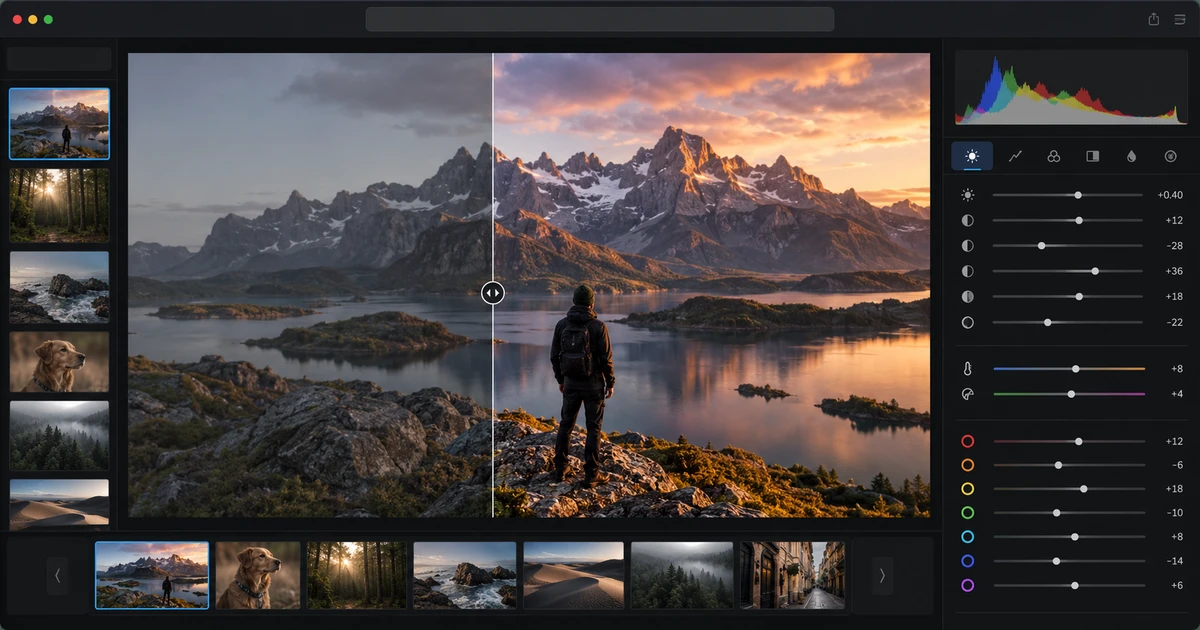
A RAW file is closer to a digital negative than a finished photograph. It contains sensor data that still needs decisions about exposure, white balance, tone and color. That is why a raw image editor free workflow should begin with development, not with layers or destructive retouching.
Using LightCraft, you can make those decisions in the browser while keeping the source file untouched. The goal is not to make every slider move. It is to turn the capture into the strongest possible base image before any pixel-level work begins.
Start with exposure, but protect the important highlights
Set the overall brightness first. Watch the subject, not just the histogram. If a face is too dark but a bright sky is already near clipping, simply raising exposure can solve one problem by creating another.
Use exposure for the global level, then work with highlight and shadow controls to rebalance the dynamic range. Recover only what the image needs. Flattening every highlight and opening every shadow can produce a technically broad but visually lifeless file.
A good first pass should make the photograph believable, not finished.
Set white balance before judging color
Color decisions become unreliable if the white balance is wrong. Correct an obvious warm or cool cast before adjusting saturation or grading.
If the image contains a known neutral surface, use it as a reference. Otherwise judge skin, whites and familiar materials. The goal is not mathematical neutrality in every image; sunset and stage lighting can be intentionally warm or colored. The goal is to establish a deliberate baseline.
Use curves for shape, not rescue
Once exposure and white balance are stable, curves are excellent for shaping contrast. A gentle S-curve can add separation between shadows and highlights, while a lifted black point can create a softer look.
Avoid using a dramatic curve to compensate for an exposure problem that should have been fixed earlier. Each stage should do the job it is best at: exposure establishes the level; curves refine the tone.
Grade color after the neutral correction
Creative color works better after technical correction. Adjust hue, saturation and luminance with a reason: soften distracting greens, protect skin tones, deepen a blue sky or create a restrained warm-cool relationship.
Global saturation is blunt. Selective color controls are usually more useful because they let you strengthen one family without making every color loud.
Ask whether the color supports the subject. If viewers notice the grade before they notice the image, the edit may be doing too much.
Use masks for local corrections
A global edit should not be forced to solve a local problem. If the subject needs more light but the background is already correct, use a mask. If the sky is too bright, isolate it rather than darkening the whole frame.
Common local corrections include:
- brightening a face;
- reducing a bright edge that pulls attention away;
- adding contrast to a product;
- cooling a background while keeping skin neutral;
- controlling a sky or window separately from the foreground.
Keep masks soft enough to disappear into the photograph. An adjustment is successful when the viewer sees the subject more clearly, not when the edge of the mask becomes visible.
Correct geometry before detailed retouching
Straighten the horizon, correct perspective when necessary and settle the crop before sending the image into a layer editor. Geometry changes can remove pixels at the edges or alter composition, so doing them late may invalidate detailed retouching work.
For architecture or product photography, small perspective corrections can matter more than dramatic color work. A technically clean image with leaning verticals can still feel unfinished.
Know what belongs in the next tool
RAW development is not the right place for every task. Complex object removal, compositing, typography, multi-image layouts and layered effects belong in a pixel editor such as PhotoCraft.
The guide to RAW editor vs photo editor explains that boundary in detail. If the job will continue into a layered PSD workflow, see how to edit PSD files online.
The handoff is simple: develop the RAW until the image is technically and tonally strong, then export a high-quality rendered file for the layer stage. Do not move downstream just because the RAW editor feels less familiar.
Export for the next step, not for every possible step
If the photo will be retouched further, export at full useful resolution with minimal compression. If it is already final for the web, use a delivery format and dimensions appropriate to the page. Keep the original RAW regardless.
It is useful to maintain three distinct assets:
- the untouched RAW source;
- the developed master or high-quality handoff;
- the final delivery export.
Those roles should not be collapsed into one file.
Review the edit after a short visual reset
Before export, zoom out and look at the whole frame. Then check important areas at 100 percent. Finally compare before and after.
The comparison should reveal a clearer photograph, not merely a stronger effect. Look for clipped highlights, crushed shadows, strange skin, halos around masks and geometry that feels over-corrected.
For an end-to-end example that takes a developed RAW into retouching, vector preparation, brochure layout and final PDF assembly, follow the browser creative workflow.
A strong RAW workflow is restrained and reversible. Fix the capture first, make creative decisions second, use local masks where the problem is local and move to a photo editor only when the task genuinely becomes pixel- or layer-based.
Frequently asked questions
Why should I edit a RAW file before retouching pixels?
RAW development works with the sensor data before it is rendered into ordinary pixels, so exposure, white balance and highlight recovery can usually be handled with more latitude than after conversion.
What does non-destructive RAW editing mean?
It means the adjustments are stored as instructions rather than permanently rewriting the source capture. You can revisit exposure, color and local corrections without degrading the original RAW file.
When should I move from a RAW editor to a photo editor?
Move to a pixel or layer editor when the job requires compositing, detailed object removal, typography, complex masking or layer-based retouching that goes beyond developing the capture.
Try these FreeAIGeneration tools
Related articles
-
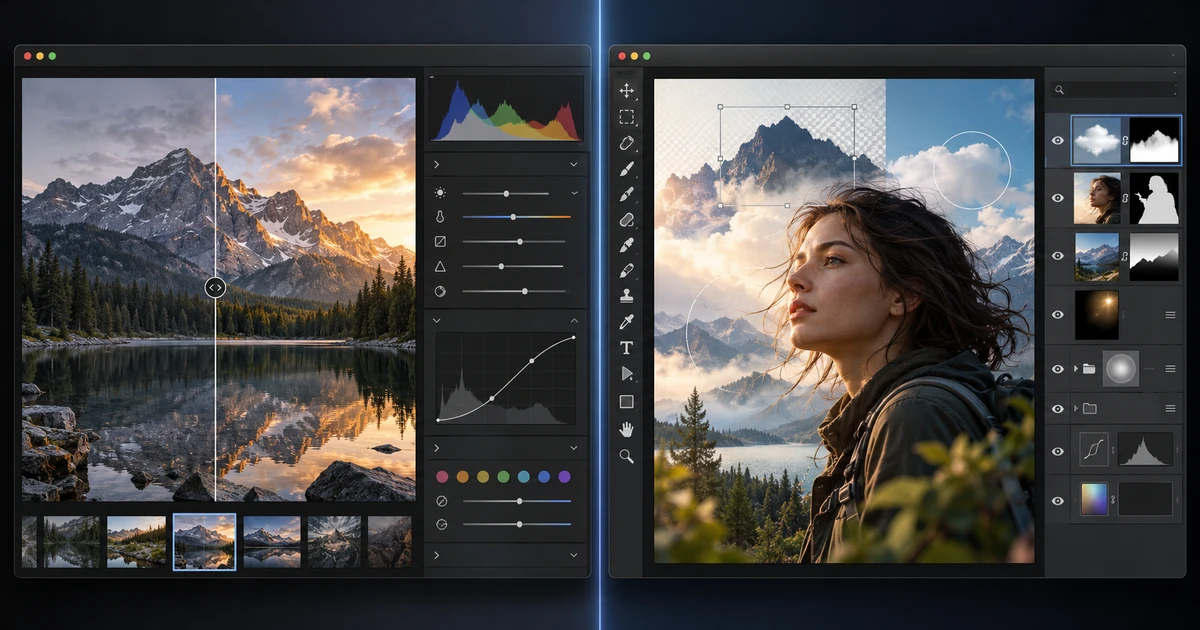
RAW Editor vs Photo Editor: Which Workflow Do You Need?
Understand RAW editor vs photo editor workflows, where development ends, where layer-based retouching begins and how to hand an image from one stage to the next.
Creative workflows RAW editing Photo editing Tool selection 4 min read
Published By Julia M. Gil
-

How to Create and Export Lottie Animations Online
Create Lottie animations online with shapes, text, keyframes, easing, masks and precomps, then simplify the motion for reliable web and app export.
Creative workflows Lottie Motion graphics Web animation 4 min read
Published By Julia M. Gil
-
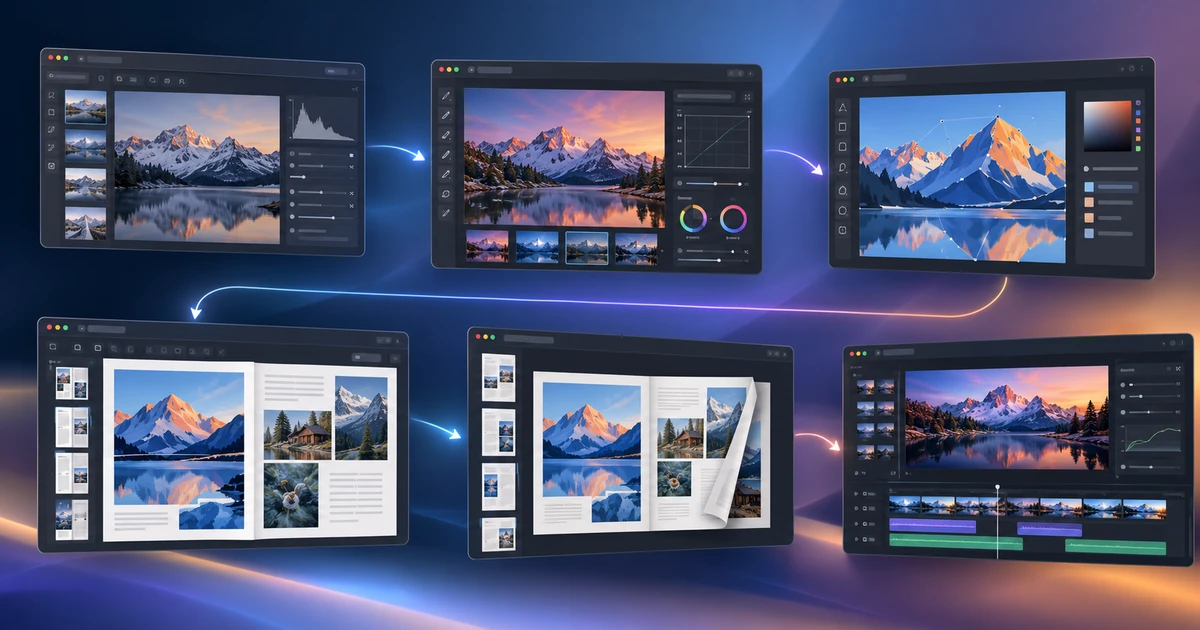
From RAW Photo to Finished Brochure: A Browser-Based Creative Workflow
Follow a complete browser-based design workflow from RAW development and retouching to vector assets, brochure layout and final PDF page checks.
Creative workflows Creative workflow Browser tools Publishing 4 min read
Published By Julia M. Gil
Keep exploring
FreeAIGeneration is more than this article. The editors and calculators below are real, free and run in your browser.