How to Design a Brochure Online in Your Browser
Create a brochure online with a real page-layout workflow: document setup, master pages, threaded text, styles, placed images and print-ready PDF export.
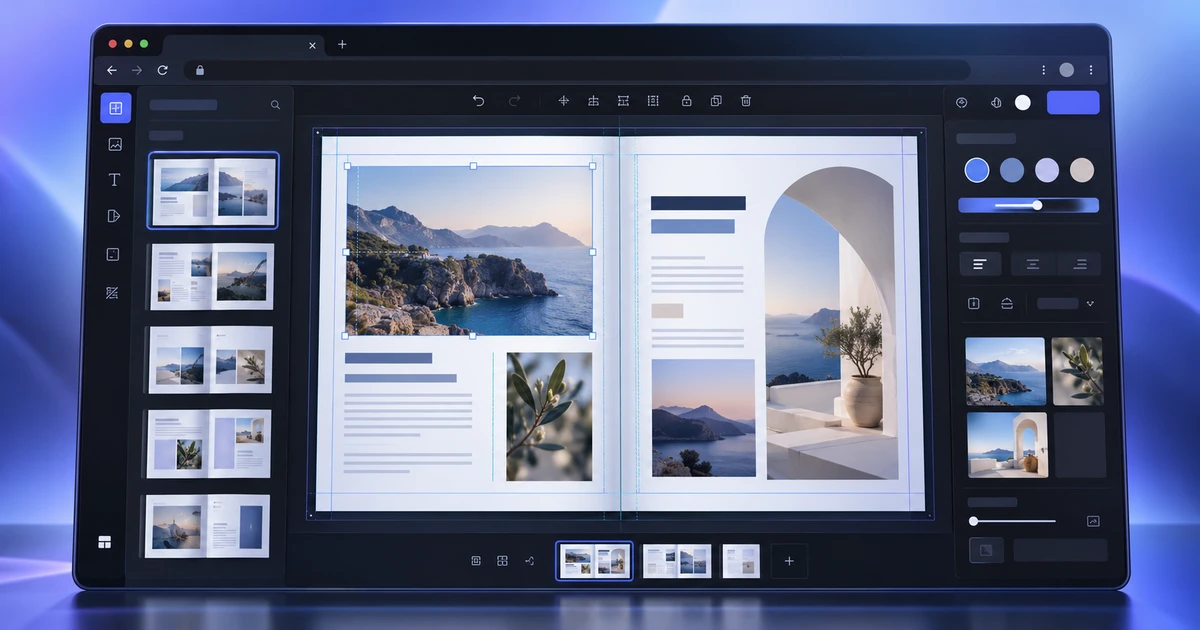
A brochure is not just a collection of attractive pages. It is a publishing system: page size, margins, repeated elements, text flow, image placement, typographic hierarchy and a final PDF all have to agree. If you want to create a brochure online, the best workflow is therefore closer to page-layout software than to a one-page template maker.
This guide uses DesignCraft to build a brochure from an empty document so the structure stays editable as the content changes.
Define the physical document before the visual style
Start with the destination. Is the brochure for screen, home printing, a commercial printer or all three? That choice affects page size, bleed, image resolution and export settings.
Set the page size and orientation first. Then define margins and, for print, bleed. If the brochure uses facing pages, enable spreads so you can design across left and right pages while still treating each page as an independent output surface.
Changing these fundamentals after the layout is full of content is possible, but it creates avoidable reflow work.
Build repeated furniture on parent pages
Page numbers, running headers, footer rules and repeated brand marks should not be copied manually onto every page. Put them on a parent page so one change updates the entire document.
Create at least two parents if the design needs them: one for normal editorial pages and one for opening or section pages. That gives you consistency without forcing every page into the same composition.
The point is not to make pages identical. It is to centralize the elements that should be identical.
Thread text instead of pasting page by page
Long brochure copy changes. A paragraph gets shorter, a quote gets added, a legal line appears. If every page contains isolated text boxes, each change creates manual repair work.
Threaded text frames let the story flow from one frame to the next. Add the body copy once, connect the frames and adjust the layout around the flow. When text grows, you can see where it overflows instead of silently losing content.
Use separate frames for captions, pull quotes and sidebars when they need independent positioning, but keep the main story threaded.
Create paragraph and character styles early
Manual formatting is one of the fastest ways to make a multipage brochure inconsistent. Define styles for body text, headings, subheads, captions, bullets and any recurring emphasis.
A paragraph style should contain the full decision: font family, size, line spacing, spacing before and after, alignment and other repeated paragraph attributes. Character styles should handle local exceptions such as emphasis, product names or inline labels.
When a stakeholder asks for all section headings to be slightly smaller, one style edit should solve the request.
Use swatches for brand color
Create named swatches for repeated colors instead of entering values each time. This is especially important when a logo, heading, rule and icon all need to use the same brand color.
If the project changes from one campaign color to another, a swatch-based document is easy to update. A document built from dozens of manually entered values is not.
Place images rather than treating them as decoration
Prepare the images before layout. RAW photos should be developed first, and layered retouching should happen before final placement when possible. The RAW editing guide and PSD editing guide cover those stages.
Once placed, pay attention to crop, effective resolution and text wrap. A portrait that looked strong on its own may fail once cropped into a shallow landscape frame.
Use text wrap only when it improves reading. Decorative wrapping around complex cutouts can create narrow, uneven lines that look clever and read badly.
Bring vector assets in cleanly
Logos, diagrams and icons should ideally remain vector whenever the destination supports it. If your source is an AI vector file, review the compatibility guidance in opening and editing AI files online before placing the asset.
Keep vector marks at their natural proportions and avoid scaling a tiny raster logo up because it happens to look acceptable on screen.
Review the brochure in three different ways
A useful review has three passes.
Structure pass: Are all pages present, in the correct order, with no overset text or missing images?
Reading pass: Does the hierarchy make sense when someone reads from cover to back page? Are headings informative? Are captions attached to the right image?
Production pass: Are bleed, image quality, page size, links and export settings correct for the destination?
These passes catch different errors. A beautiful spread can still have a production problem, and a technically perfect PDF can still be hard to read.
Export the final PDF and inspect it outside the editor
For print, use the PDF settings requested by the printer. Include bleed when required and avoid guessing about color or marks if the vendor has supplied a specification. For digital delivery, prioritize readable text, reasonable file size and working links.
After export, open the PDF in a separate viewer. Check page order, crop, text, images and the first and last page. If the sequence needs last-minute assembly work, use the guide to rearrange PDF pages without uploading.
For a broader example that starts with a RAW photo and ends with the brochure PDF, see the browser-based creative workflow.
The difference between a brochure maker and a publishing workflow is not visual polish. It is whether the document remains controllable when the copy, images and production requirements change.
Frequently asked questions
Can I create a multipage brochure entirely in a browser?
Yes, if the layout editor supports page sizes, margins, spreads, reusable parent-page elements, text threading, styles, placed images and PDF export. Those publishing controls matter more than template quantity.
Should brochure text be placed in one large text box?
Usually no. Threaded text frames give much better control over columns, page breaks, captions and layout changes while keeping the story flow connected.
What PDF should I export for a brochure?
Use settings appropriate to the destination. Print work may require bleed, crop marks, high-resolution images and a printer-specified PDF profile, while a digital brochure usually benefits from smaller file size and active links.
Try these FreeAIGeneration tools
Related articles
-
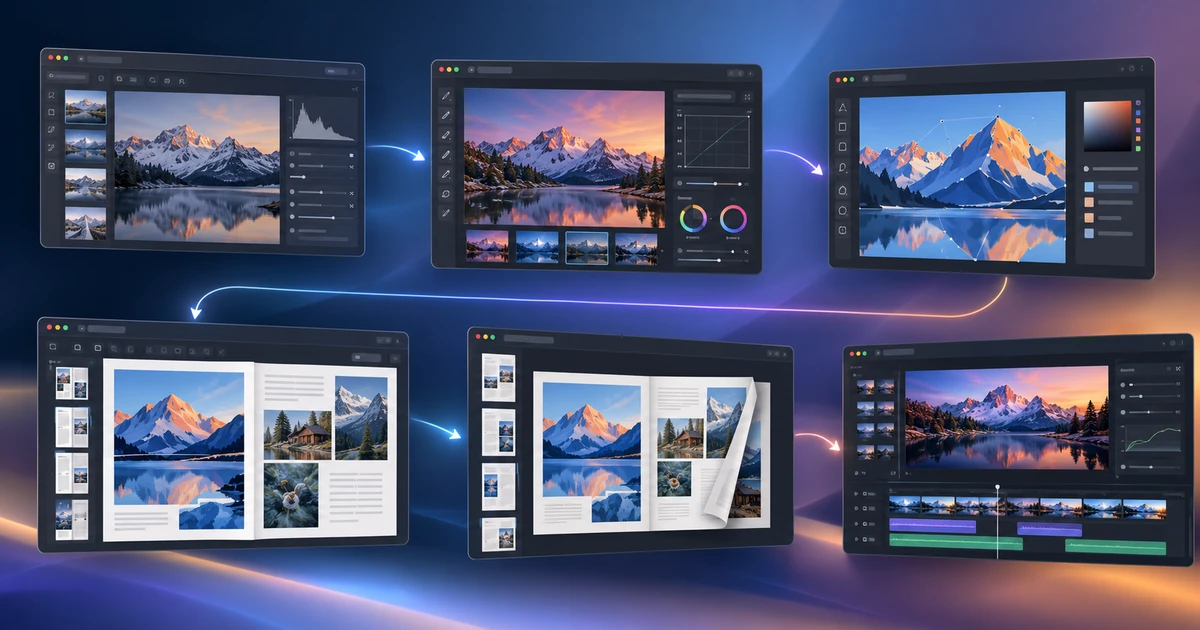
From RAW Photo to Finished Brochure: A Browser-Based Creative Workflow
Follow a complete browser-based design workflow from RAW development and retouching to vector assets, brochure layout and final PDF page checks.
Creative workflows Creative workflow Browser tools Publishing 4 min read
Published By Julia M. Gil
-

How to Create and Export Lottie Animations Online
Create Lottie animations online with shapes, text, keyframes, easing, masks and precomps, then simplify the motion for reliable web and app export.
Creative workflows Lottie Motion graphics Web animation 4 min read
Published By Julia M. Gil
-
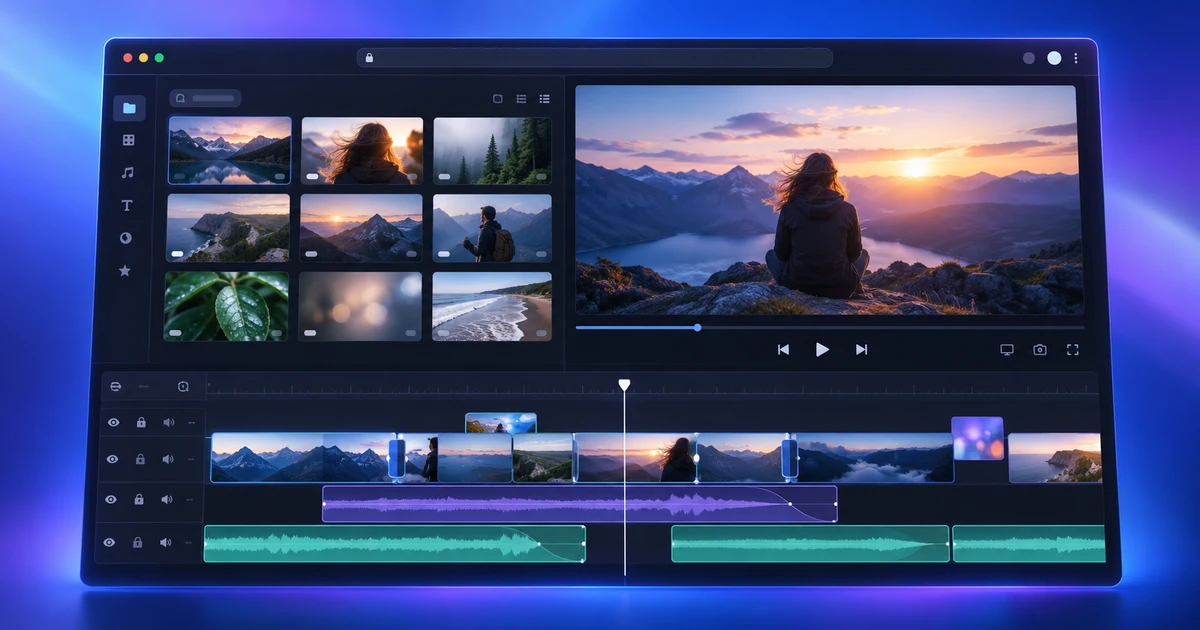
How to Edit Video Online with a Multi-Track Timeline
Learn how to edit video online with a real multi-track workflow: three-point edits, precision trims, audio, color, captions and export in FilmCraft.
Creative workflows Video editing Browser tools Multi-track timeline 5 min read
Published By Julia M. Gil
Keep exploring
FreeAIGeneration is more than this article. The editors and calculators below are real, free and run in your browser.