From RAW Photo to Finished Brochure: A Browser-Based Creative Workflow
Follow a complete browser-based design workflow from RAW development and retouching to vector assets, brochure layout and final PDF page checks.
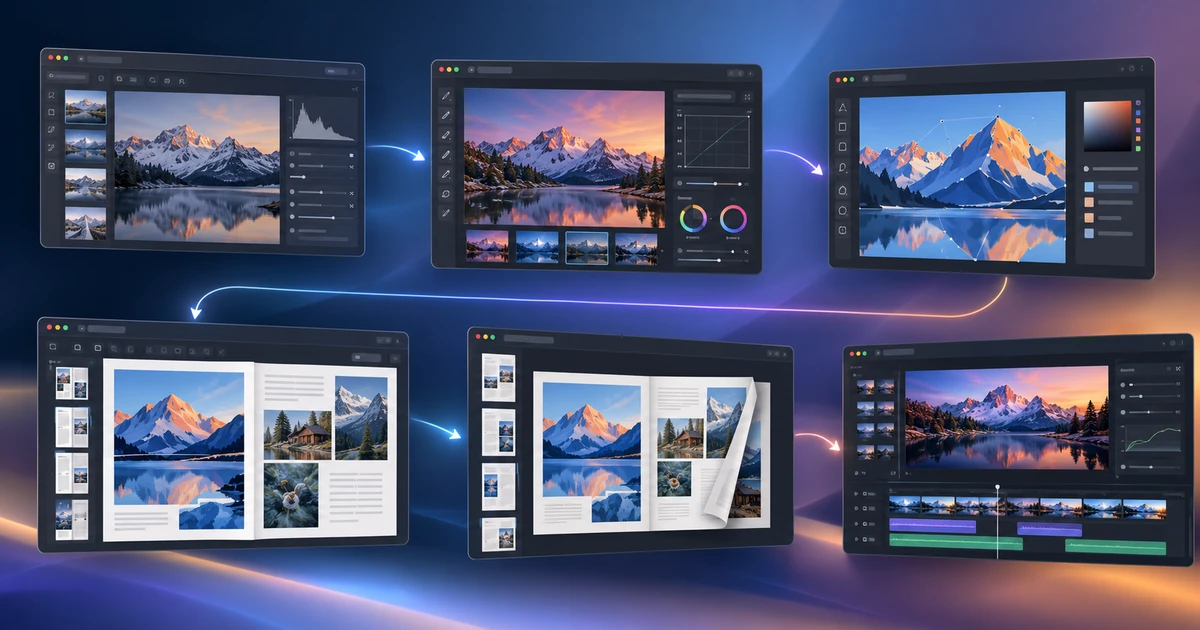
A creative project rarely begins and ends in the same file. A brochure might start with a camera RAW image, move into retouching, pick up a vector logo, become a multipage layout and finish as a PDF that still needs one page moved before delivery.
A useful design workflow online therefore depends less on finding one giant browser application and more on making clean handoffs between specialized tools.
This walkthrough follows one realistic project from source capture to final PDF and shows why each transition exists.
Stage 1: Develop the RAW photo in LightCraft
Start with the camera file in LightCraft. At this stage, do not think about brochure typography or final page dimensions yet. Your job is to produce the strongest photographic base.
Set white balance and exposure, recover highlights where the source allows it, shape contrast, correct lens or perspective issues and make broad local adjustments. Keep the work reversible.
The detailed RAW editing workflow explains these decisions. The key handoff rule is to export a high-quality rendered image only when the development is stable.
Keep the original RAW. The export is a master for the next stage, not a replacement for the source.
Stage 2: Retouch and composite in PhotoCraft
Open the developed image in PhotoCraft. Now the representation has changed: you are working on pixels and layers rather than sensor data.
This is the right stage for detailed cleanup, object removal, layer masks, local compositing or any graphic treatment that needs pixel precision. If a layered PSD enters the project, inspect what remains editable rather than assuming every desktop-editor feature survived. The guide to editing PSD files online covers that compatibility check.
Save a layered master before producing the flattened placement image for the brochure. That preserves future editability without making the layout document carry unnecessary retouching complexity.
Stage 3: Prepare logos and vector elements in VectorCraft
Logos, icons and simple diagrams belong in VectorCraft. Keep them as paths when possible so they can scale cleanly in the page layout.
If the client supplies an .ai vector file, open and inspect it before using it. PDF-compatible AI files can often provide useful editable vector content, but editor-specific effects may be simplified. The AI file guide explains the difference between visual fidelity and structural compatibility.
Export the vector format that the layout stage supports well—typically SVG or PDF depending on the asset and destination.
Stage 4: Build the brochure in DesignCraft
Now move into DesignCraft. This is where photographs and vector assets become a publication.
Set the page size, margins, bleed and spreads before placing content. Create parent pages for repeated elements, paragraph and character styles for typography, and named swatches for recurring colors. Thread long copy through text frames rather than manually breaking it page by page.
Place the retouched image and vector assets instead of recreating them inside the layout file. Each asset should arrive with its own job already solved.
The brochure design guide goes deeper into the publishing workflow.
Stage 5: Export the PDF for the actual destination
A print brochure and an email brochure are different deliverables even if the pages look the same.
For print, follow the printer’s requirements for bleed, color handling, image quality and PDF profile. For digital delivery, prioritize readable text, reasonable file size and working links.
Export a proof and inspect it outside DesignCraft before calling the job finished. The PDF is now the deliverable, so the review must happen at the PDF level.
Stage 6: Fix document structure in PDFCraft
Suppose the client asks for the case study page to appear before the pricing spread. You should not reopen the entire layout project if the requested change is purely page order.
Open the exported file in PDFCraft, move the page, verify the sequence and save a revised PDF. The page-reordering guide explains how to do that while keeping the document local in the browser.
This is a good example of a clean late-stage handoff: the PDF editor changes document structure without pretending to be a page-layout editor.
Where motion and video fit
The same ecosystem logic applies when the campaign also needs moving content.
Use FilmCraft when the job is shot-based editing with tracks, dialogue, music and captions. Use a motion environment when the job is layer-based animation and compositing. The comparison in video editing vs motion graphics helps choose the right starting point.
For interface or app animation, creating and exporting Lottie adds another specialized delivery path.
The asset chain that keeps the project recoverable
A disciplined project ends up with a small chain of meaningful files rather than one repeatedly overwritten “final-final” document:
- Untouched camera RAW.
- Developed high-quality photo master.
- Layered retouching master.
- Clean vector source assets.
- Editable brochure layout.
- Exported delivery PDF.
- Revised PDF only when document-level changes are required.
Each file corresponds to a different kind of decision. If the client later requests a warmer photo, you return to the RAW or photo stage. If the copy changes, you return to the layout. If only page order changes, you stay in the PDF.
That is what makes a browser-based creative suite useful: not pretending every tool does everything, but making the boundaries between tools explicit enough that the project remains editable, understandable and recoverable from start to finish.
Frequently asked questions
Can a complete design workflow run in the browser?
Yes, when each stage has a clear job and the handoff formats are chosen deliberately. RAW development, pixel retouching, vector editing, page layout and PDF assembly do not have to happen in one application.
What is the safest way to move assets between browser creative tools?
Keep the untouched source, create a high-quality master at each major stage, and export the format the next tool actually needs. Avoid repeatedly flattening and recompressing the same asset.
Why use several specialized tools instead of one general editor?
Specialized tools model the work differently. RAW editors understand sensor development, photo editors manage pixels and layers, vector editors manage paths, layout editors manage pages and PDF tools manage document structure.
Try these FreeAIGeneration tools
Related articles
-
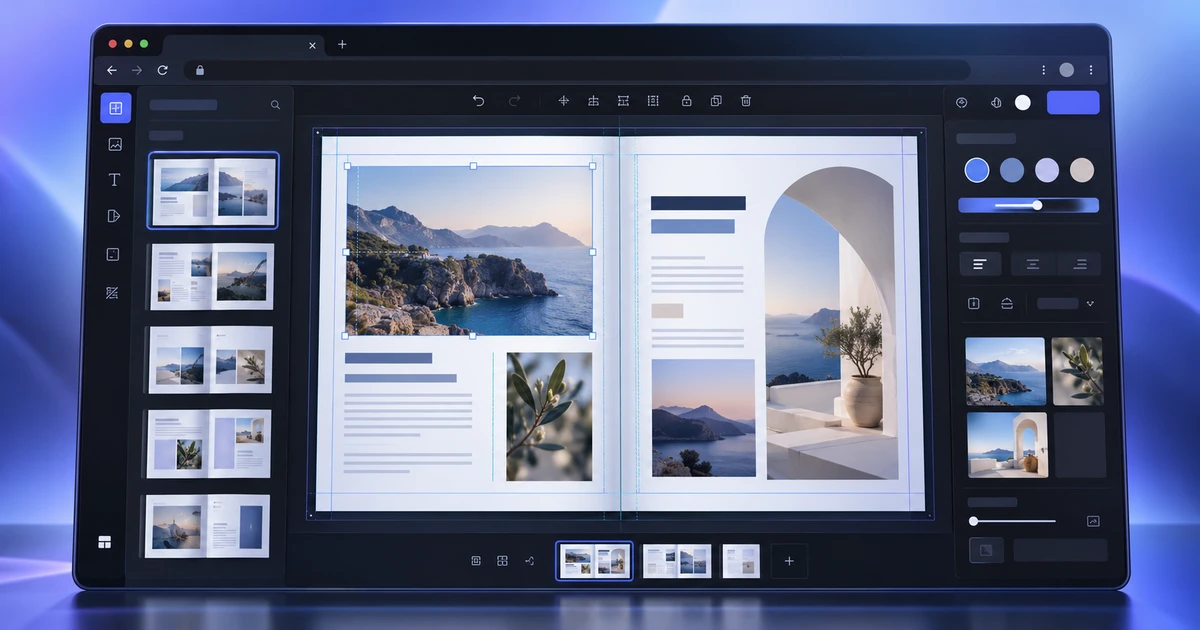
How to Design a Brochure Online in Your Browser
Create a brochure online with a real page-layout workflow: document setup, master pages, threaded text, styles, placed images and print-ready PDF export.
Creative workflows Page layout Brochure design Publishing 5 min read
Published By Julia M. Gil
-
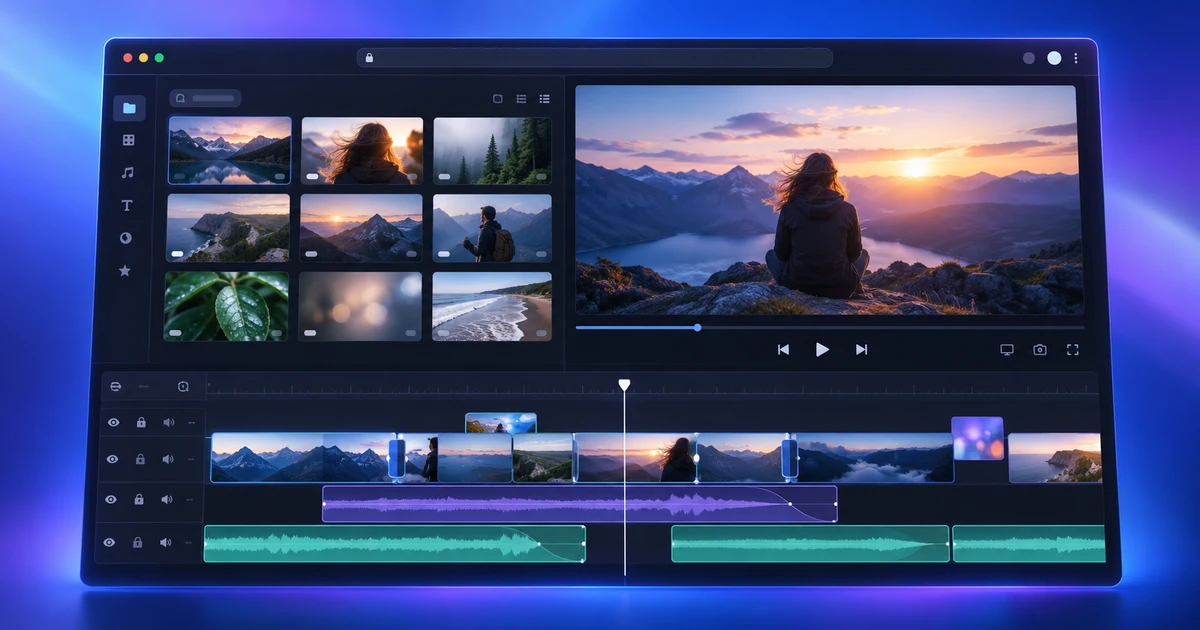
How to Edit Video Online with a Multi-Track Timeline
Learn how to edit video online with a real multi-track workflow: three-point edits, precision trims, audio, color, captions and export in FilmCraft.
Creative workflows Video editing Browser tools Multi-track timeline 5 min read
Published By Julia M. Gil
-
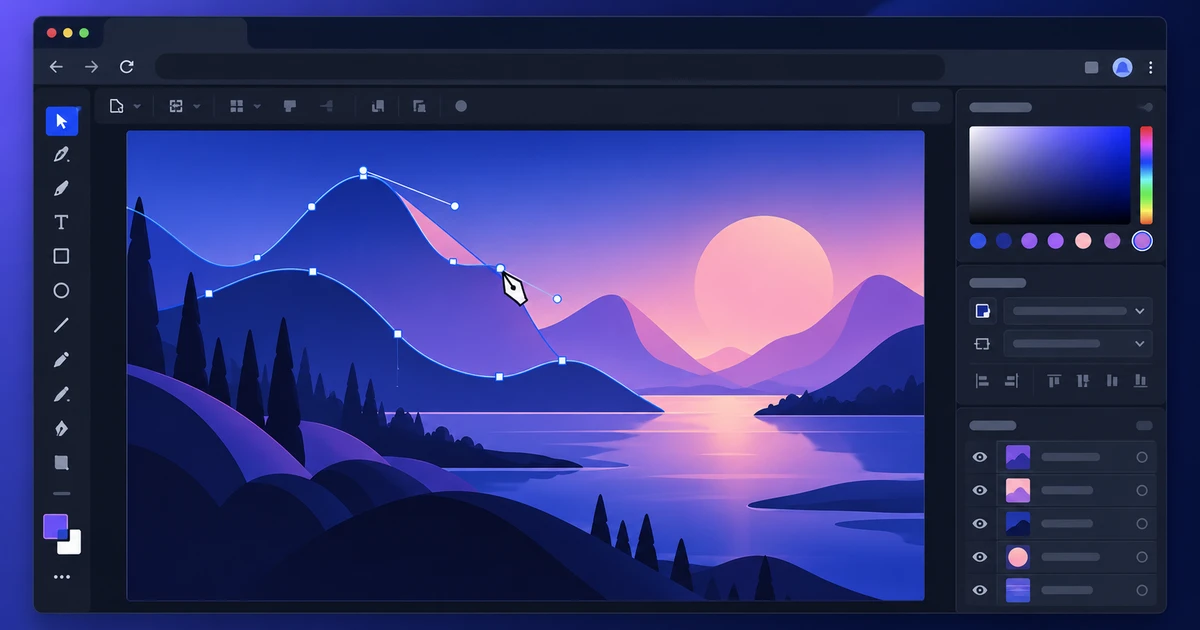
How to Open and Edit AI Files Online
Open AI files online, inspect what remains editable, change vector paths and text, and export safely while understanding vector-file compatibility limits.
Creative workflows Vector editing AI files Browser tools 5 min read
Published By Julia M. Gil
Keep exploring
FreeAIGeneration is more than this article. The editors and calculators below are real, free and run in your browser.