How to Create Motion Graphics Online with Keyframes
Set a property at two moments, then decide how the software travels between them. Timing before values, the graph editor, holds, and two exits: render or Lottie.
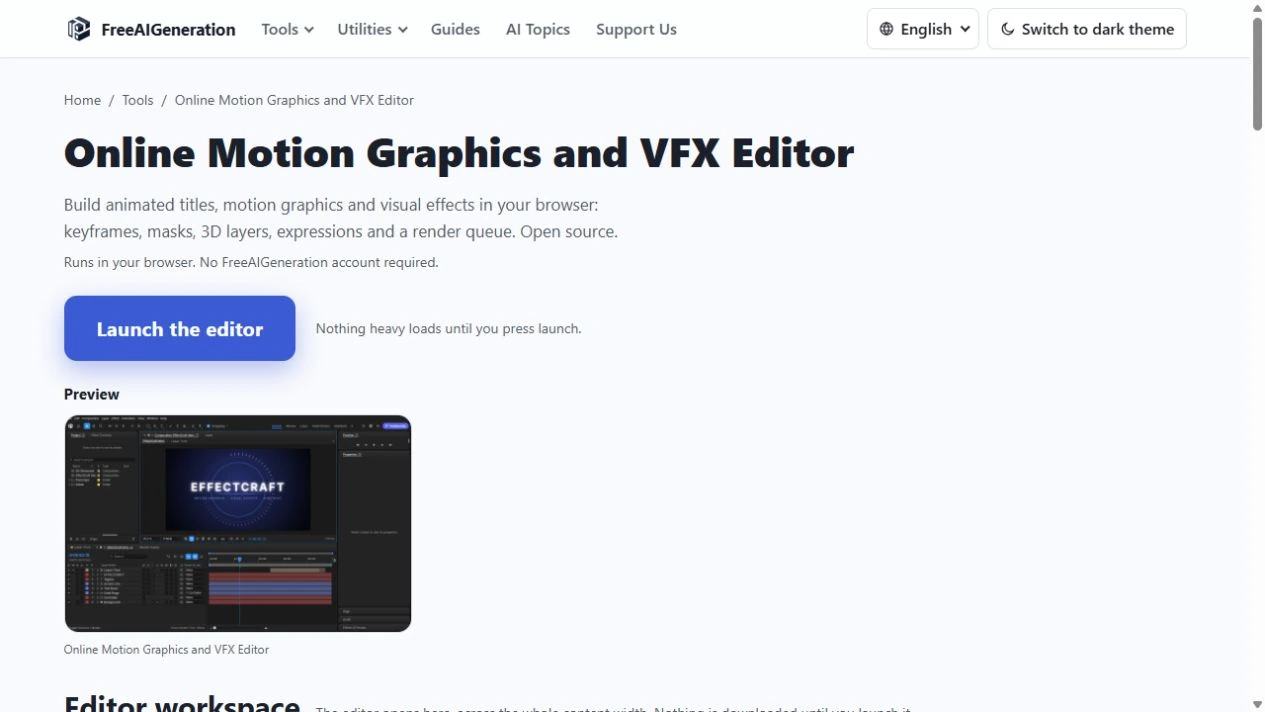
A logo that slides in and settles, a lower third that wipes up, a row of bars that grows together: three results built from the same small loop. You choose a property, record its value at two moments, then decide how the software should travel between them. That loop is most of the craft of keyframe animation, and it is what makes it practical to create motion graphics online with keyframes without learning a desktop suite first.
The editor used here is the Motion Graphics & VFX Editor, which runs in a browser tab and exposes the panels this loop needs: Project, Composition, Timeline, Preview, Properties, Effects & Presets and a Render Queue. No account is involved.
The loop, in four moves
Set the playhead at the moment a change begins. Enable animation on one property — position, scale, rotation or opacity — and set the starting value. Move the playhead to the moment the change should end, then enter the new value. A second keyframe is recorded, and the software interpolates everything between the two.
A keyframe stores one value at one time; values between two keyframes are interpolated. Two keyframes are the minimum for movement, and one is enough for a value that only changes later.
The fourth move is the one people skip: opening the graph editor and shaping how the value arrives. Without it, the first three moves produce a technically correct animation that looks like a machine made it.
Fix the timing before you touch the values
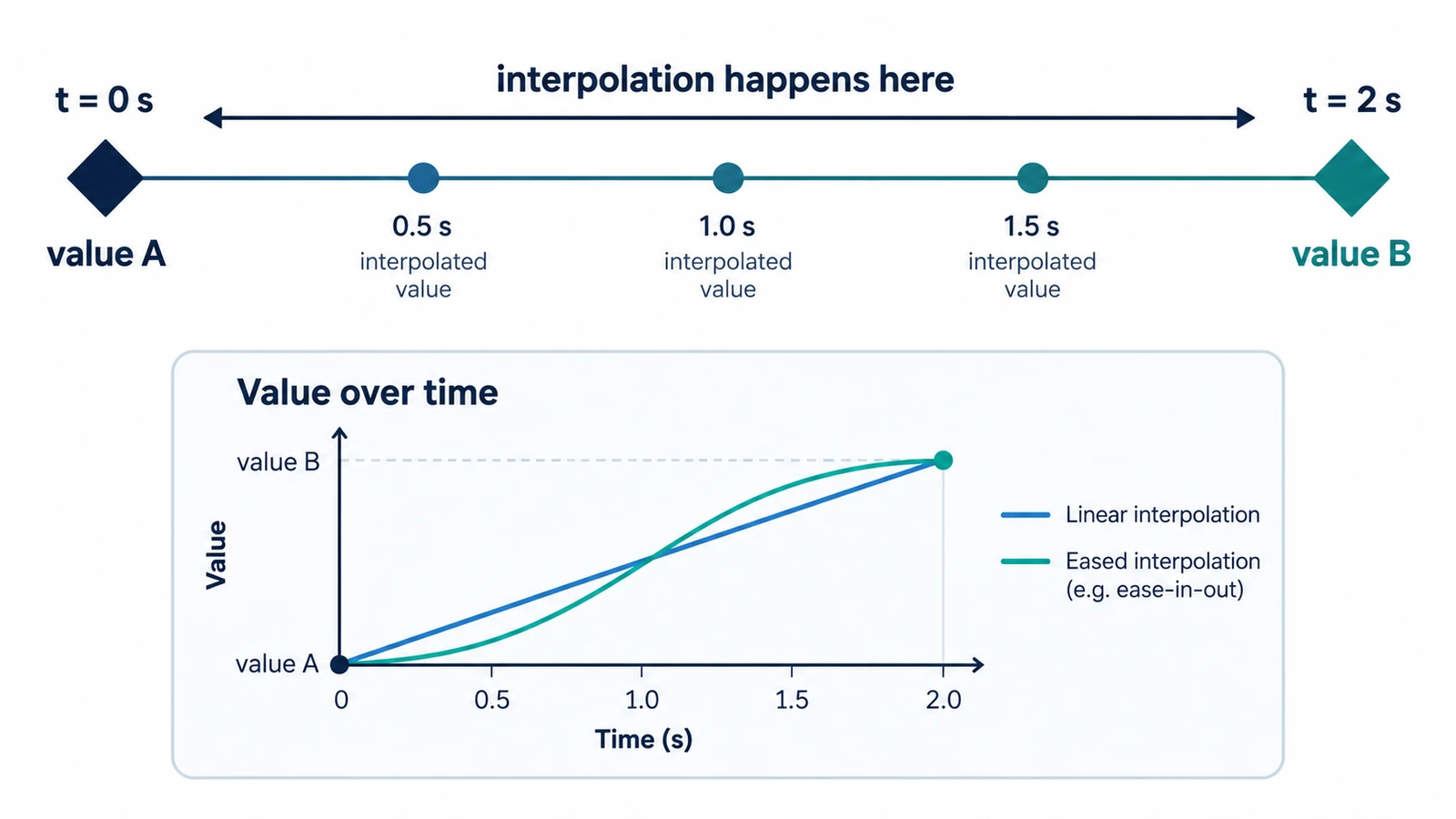
Take a layer moving from x = 0 at 0 s to x = 800 at 2 s with linear interpolation. At the halfway point in time, 1 s, the position is 0 + (800 − 0) × (1 ÷ 2) = 400. At 0.5 s it is 200. The numbers are evenly spaced, and that evenness is the problem: constant speed reads as mechanical, because almost nothing in the physical world starts at full velocity and then stops dead.
Frame rate changes the arithmetic. At 30 fps, a 2-second move spans 60 frames, so a keyframe every 15 frames gives you four per second. That produces stepped motion, worth choosing deliberately for a countdown, a typewriter rhythm or a stop-motion feel.
Where the graph editor earns its place
Easing is a timing function, usually a cubic Bézier, applied to the interpolation between keyframes. The graph editor draws that function as a curve with handles, so you shape acceleration instead of choosing between linear and smooth.
Two habits cover most cases. Ease out of the start so the move picks up speed, and ease into the end so it settles instead of slamming into place. For a 2-second entrance, spending the first 0.4 s accelerating and the last 0.5 s decelerating already reads better than an even ramp. Avoid giving every property the same curve: position that eases while opacity snaps looks like a mistake, and usually is one.
Spacing, holds and the temptation to over-keyframe
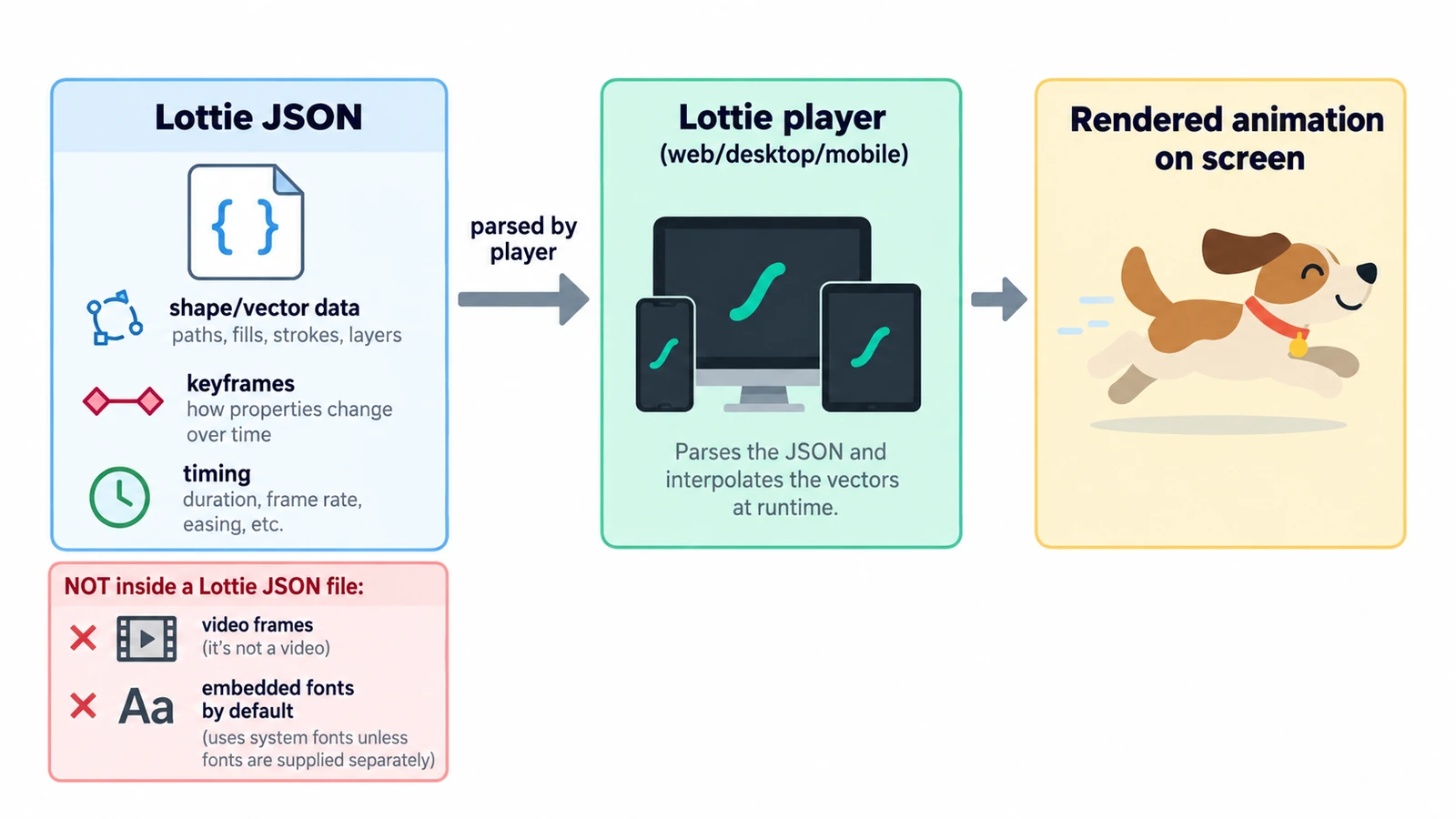
Interpolation is not the only choice. A hold keyframe keeps a value until the next one, producing a jump instead of a ramp. In Lottie files this state is explicit — the format carries in and out Bézier handles plus a hold flag, h — which is a useful reminder that a hold is a real state, not an absence of animation.
The common error here is density. Beginners keyframe every few frames chasing smoothness, then discover the move cannot be retimed, because every adjustment means dragging a dozen keyframes that were only ever noise. Two well-placed keyframes with a shaped curve beat ten that approximate the same motion, and they leave the timeline editable for later revisions.
The second error is misplacing the keyframe. Keyframes animate properties, not layers. A position pair and a separate opacity pair are two decisions, and each one deserves its own curve.
Two exits, render or Lottie
A composition is a source; the deliverable is a file. The editor has a Render Queue for raster output and Lottie export for animation that has to stay vector and run inside an interface. Projects themselves save as .ecproj, which is the file to keep if the work will be revised.
Choose the exit before you polish, because the two paths limit what the composition can hold; the trade-offs are set out in the comparison of Lottie, GIF and MP4. Keep in mind what this editor is not. It cannot open .aep or .aepx projects, and that software’s plug-ins do not run in it. Roto Brush and Face Tracking are optional model downloads that need a connection, so a machine working offline will not have them.
If the vocabulary is still new — interpolation, hold, easing handles — the explainer on what keyframes are in animation covers the concept and the frame arithmetic in more depth, while this page stays on the order of work.
A short checklist before you render
Read the timeline top to bottom and ask whether each keyframe marks a decision you could explain out loud. Check that the first move starts when the scene starts, not two frames late. Look at the composition at 100% zoom rather than a thumbnail where flaws disappear. Then render, open the result and watch it once at normal speed.
Frequently asked questions
Do I need two keyframes to make a layer move?
Yes. One keyframe holds a constant value, and movement appears once the software interpolates between two of them.
Why does linear motion look mechanical?
Linear interpolation moves at a constant speed, so the layer starts and stops instantly with no acceleration. Shaping the curve in the graph editor gives the move a different tempo.
Can the editor open a native motion-graphics project?
No. It cannot open .aep or .aepx projects, and that software's plug-ins do not run inside it.
Try these FreeAIGeneration tools
Related articles
-
Motion Graphics vs Animation: What's the Difference?
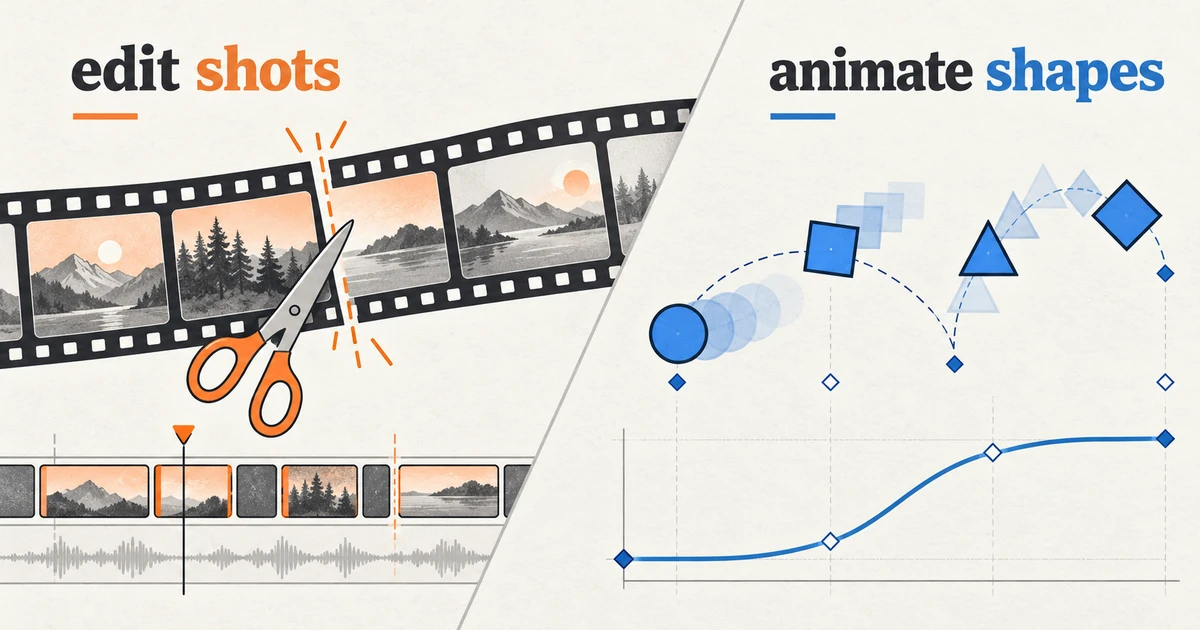
The line is intent, not software: motion graphics explains, labels or brands, while animation performs. Where the boundary blurs and what each asks of a tool.
Creative workflows Motion graphics Browser tools No signup 5 min read
Published By Julia M. Gil
-
What Are Keyframes in Animation?
A keyframe holds a value at a moment; interpolation draws the path between two. How the arithmetic works, why easing is a curve, and four beliefs worth correcting.
Creative workflows Motion graphics Browser tools No signup 5 min read
Published By Julia M. Gil
-
What Is a Lottie File and How Does It Work?
A Lottie file is readable JSON: a canvas, a frame rate and an array of layers. What the fields define, why text changes delivery, and what the format cannot carry.
Creative workflows Motion graphics Browser tools No signup Lottie 4 min read
Published By Julia M. Gil
Keep exploring
FreeAIGeneration is more than this article. The editors and calculators below are real, free and run in your browser.