How to Edit Photos Online with Layers and Masks
The layered master you can still revise and the flat copy you send are two different files. Build the stack in a durable order, and know the browser's honest limits.
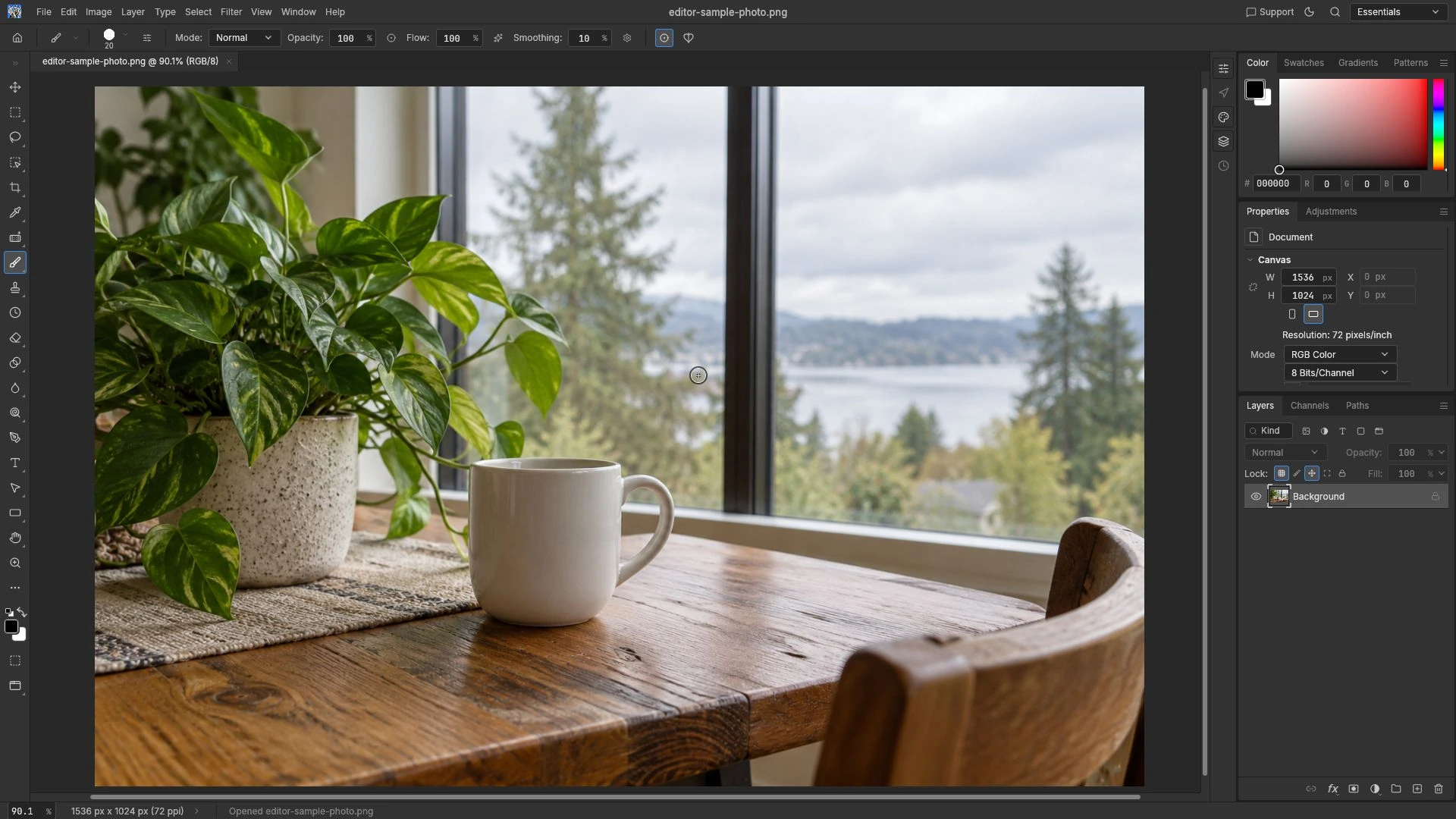
The file you keep and the file you send are two different files, and most of the confusion in layered editing comes from mixing them up. Editing photos online with layers and masks is a discipline about which one you are producing at any moment: the layered master that can still be changed, or the flat copy that goes out.
The Photo Editor runs in a browser tab with a layer stack — masks, adjustment layers, layer styles, selections, type and vector shapes — so the question of which file is which becomes practical from the first minute.
Open with the end in mind
Before the first adjustment, decide the output. A 1,200 px web image and a 6,000 px master have very different costs: a 6,000 × 4,000 RGB image is 72 million bytes of raw pixel data at eight bits per channel, before a single layer is added, and every layer takes more.
Working nearer the final size is not a compromise for screen work; it is the normal choice. Keeping a full-resolution original on disk and a work-in-progress copy in the tab is the pattern that survives a long session.
Build the stack in an order that still makes sense later
The stack reads bottom-up, and its order is a record of your reasoning. A dependable default looks like this.
The base layer holds the opened photo, untouched.
Retouching sits directly above it, because it repairs the image rather than styling it.
Local corrections come next, each on its own masked layer, so a change stays inside the area it was made for.
A global grade goes near the top, where it applies to everything below.
Type, shapes and logos go on top, where the grade cannot touch them.
None of that order is compulsory. The reason to keep it is the same reason to write a comment: when somebody asks what changed, the stack answers.
Keep one layered master
The editor’s save delivers the layered document to you as a browser download, and export produces a flat copy. Two files, and the difference between them is the entire point of working in layers.
A PNG or JPEG export contains the composite: the mask is applied, the adjustment is rendered, the layers are merged into one image. That is what a flat format is, and it is the correct thing to send.
The layered file is where the change is still reversible. If the brief moves next week, the master is the file that can answer, so name it clearly and keep it somewhere you will look.
The browser’s honest limits
There is no autosave and no cloud library. Closing the tab without saving loses the session, and the download is the save.
Color and depth are worth checking early. CMYK and 16-bit output are not supported, and a browser canvas is 8-bit RGBA, so a document that needs a CMYK press workflow belongs in a different application. PSD and PSB appear in the file picker, but that is a filter list rather than a promise that every file of that kind decodes, and the round trip is described upstream but not verified for this build.
The editor runs in the browser tab and needs no FreeAIGeneration account. No project library is kept for you on the site’s side either, so saving is a download rather than a stored project — a different habit from a tool with a project list, and worth building early.
A closing checklist
Save the layered file before you export. Export the flat copy at the pixel size the destination actually wants. Keep the two names distinct, master and delivery. Look at the export at full size before you close the tab.
The mechanism behind those local corrections is worth a separate read: how layer masks work explains the coverage model, and adjustment layers versus direct edits settles which of the two a given change should be.
Frequently asked questions
Does an exported PNG keep the layers?
No. PNG and JPEG are flat formats, so the export holds the composite; the layer stack exists only in the saved layered document.
Can I reopen a saved PSD and continue later?
PSD and PSB are listed in the editor's file picker, and opening and re-saving them is documented by the upstream project, but that round trip has not been verified here, so keep the exported copy as well.
Why is a large photo slow to work on in the tab?
A 6,000 × 4,000 image is 72 million bytes of raw pixels at eight bits per channel before any layer is added, and each layer adds its own memory on top.
Try these FreeAIGeneration tools
Related articles
-
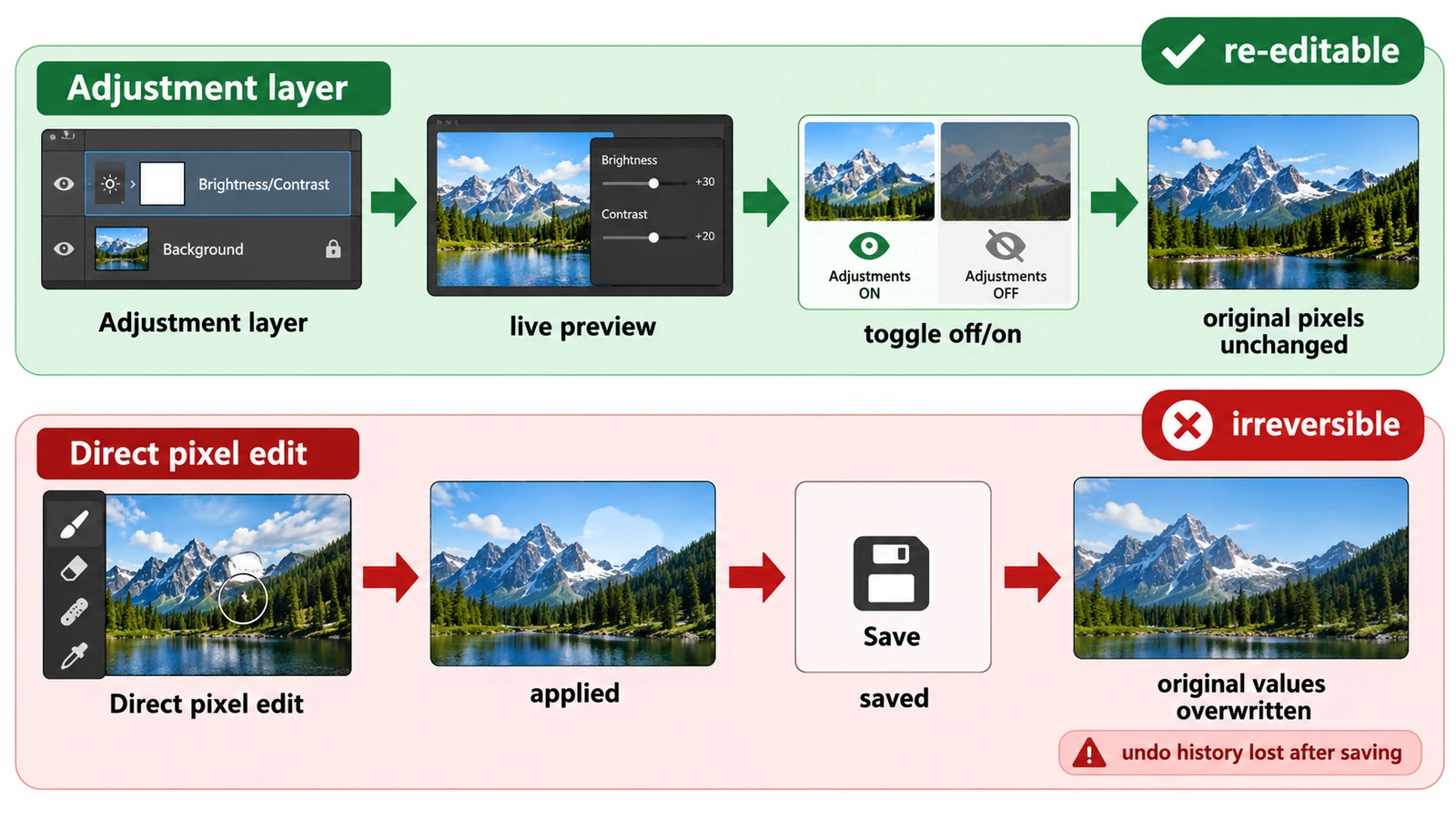
Adjustment Layers vs Direct Edits: Which Should You Use?
Both methods can produce identical pixels; the difference is what the file can still change later. What each costs, and how to choose when the brief is hazy.
Creative workflows Photo editing Layers Non-destructive editing Workflow comparison 3 min read
Published By Julia M. Gil
-
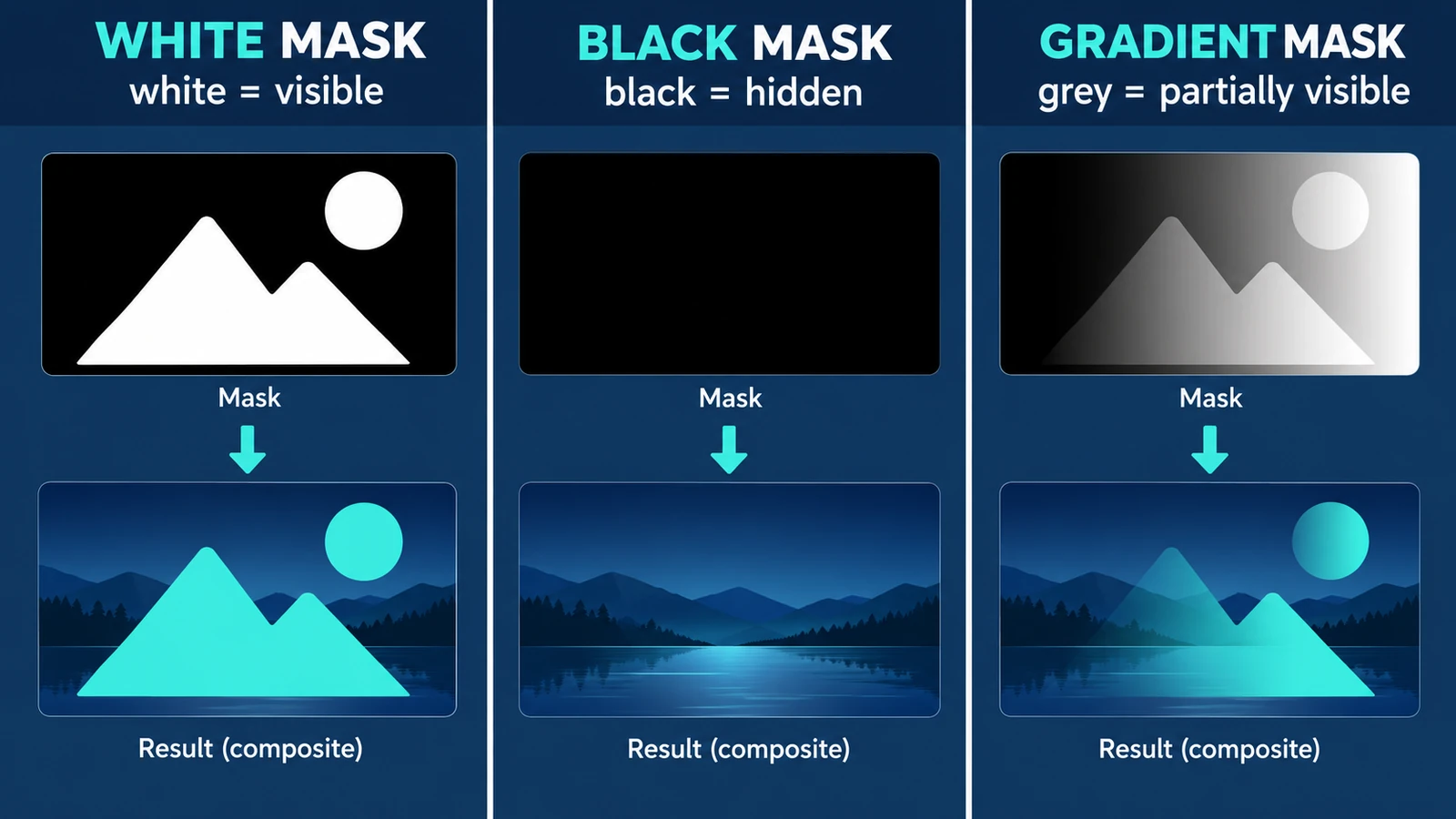
How Layer Masks Work: A Beginner's Guide
A mask is a coverage map beside the pixels: white reveals, black hides, grey blends. What the values mean, why the direction feels backwards, and what a mask cannot do.
Creative workflows Photo editing Browser tools No signup Layers 4 min read
Published By Julia M. Gil
-
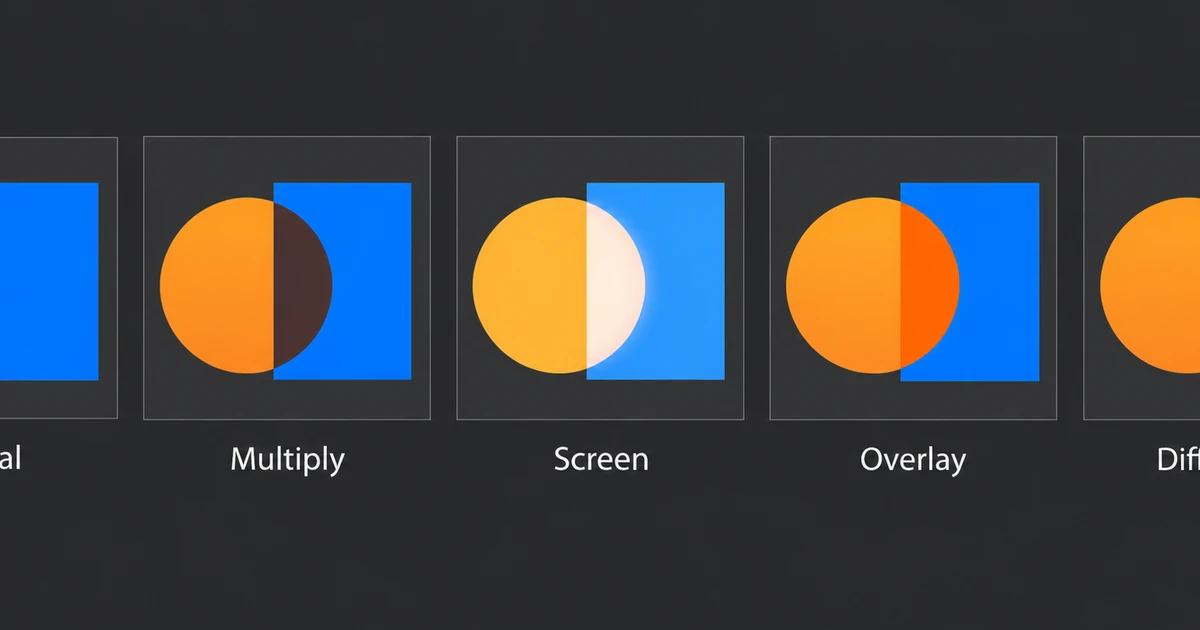
Photo Editing Blend Modes Explained
Multiply is arithmetic, not a mood. How base and blend values combine, the four modes worth knowing, why layer order changes the result, and why opacity is separate.
Creative workflows Photo editing Browser tools No signup Layers 4 min read
Published By Julia M. Gil
Keep exploring
FreeAIGeneration is more than this article. The editors and calculators below are real, free and run in your browser.