How Layer Masks Work: A Beginner's Guide
A mask is a coverage map beside the pixels: white reveals, black hides, grey blends. What the values mean, why the direction feels backwards, and what a mask cannot do.
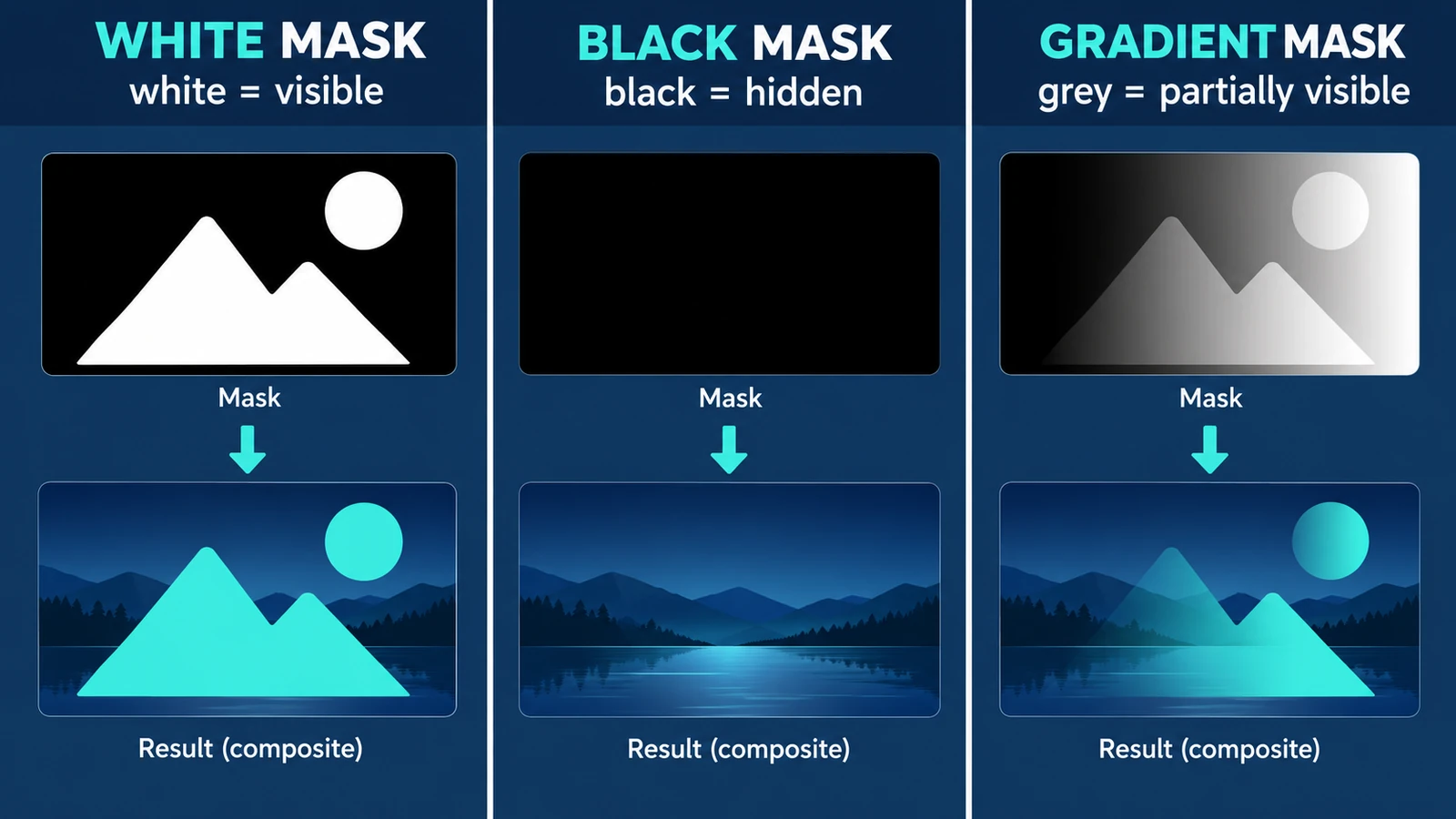
A layer mask is a coverage map. It does not hold the picture; it holds one value per point saying how much of the layer should show at that point. White reveals, black hides, and every value in between blends the layer with whatever sits beneath it.
That is how layer masks work in a single sentence, and once it is clear, most of the confusion around them goes away — including the parts that look like faults: the behavior that feels inverted, the effect that vanishes on export, and the way a mask can be reworked months later without repainting a single pixel.
The mask lives beside the pixels, not inside them
Here is the structural point. A destructive edit replaces pixel values. A mask leaves those values alone and adds a second array — the coverage values — which the editor consults when it composites the layer into the image.
That is why a masked layer can be revised later: the pixels were never changed, so the mask can be repainted, a hidden area restored, or the whole mask discarded to bring the layer back to full strength.
The same idea can be stored as a shape rather than a grid: a path describes the boundary, so its edge stays crisp at any magnification instead of being limited to the mask’s pixel resolution.
Reading the values
An 8-bit mask has 256 levels per point. 255 is fully visible, 0 is fully hidden, and the useful work happens in between.
A gradient from 0 to 255 gives a smooth transition in 256 steps, which is enough for most photographic blends. It is also why an aggressive mask on a subject against a busy background can show faint stepping: the transition lands on too few levels across too few pixels. Wider transitions and softer edges hide it better than a hard edge ever will.
The composite itself is a weighted average. A 50% mask over a red layer (255, 0, 0) with a blue layer (0, 0, 255) beneath composites to about (128, 0, 128) — half of each channel, a muted purple. At full coverage the result would be pure red; at zero, pure blue.
Why the black-and-white direction feels backwards
A selection and a mask look like the same tool and work in opposite directions. In a selection, the selected area is the part you can affect: paint inside the marching ants and the paint lands there. In a mask, white is the part that shows: paint black into it and the layer disappears at that spot.
The inversion is the single most common source of the sinking feeling that a mask did nothing at all — the painter was working on the wrong side of the value scale. When a masked adjustment seems to have no effect, check whether the area you covered is black.
What a mask does not do
It does not delete anything. Hidden pixels are still in the file, which is the point and also a surprise if the intent was to remove an object.
It does not crop. The canvas is unchanged; the covered area is simply not composited.
It does not survive flattening. Export to PNG or JPEG and the composite is what remains, so the mask is applied once and stored as blended values. A viewer that ignores mask data shows the layer in full, which is a good reason not to use masking as a way of hiding something inside a layered file.
Where masks earn their keep
Two exposures of one scene, one masked to bring back the sky and the other the foreground. A subject lit differently from its background. A grade applied to the shadow side of a portrait and withheld from the highlights. Type that should look as if it passes behind an object in the photograph.
Every one of those is the same idea: keep the correction local, keep the original intact, keep the ability to change your mind.
Masks are part of the layer stack in the Photo Editor, which runs in a browser tab with no account and no autosave. The rest of the layered workflow — opening, stacking, saving a master, exporting a flat copy — is covered in editing photos with layers and masks. When two layers are meant to interact rather than sit side by side, blend modes decide how their values combine.
Frequently asked questions
Does a mask delete the pixels it hides?
No. The mask is stored separately from the pixels and only sets how much of the layer shows, so hidden content can be brought back by changing the mask.
Why does my mask seem to work in reverse?
A mask reveals with white and hides with black, which is the opposite of a selection, where the selected area is the part that will be affected.
Will a mask survive a PNG export?
No. A flat export contains the composited result, so the mask is applied once and stored as blended pixel values.
Try these FreeAIGeneration tools
Related articles
-
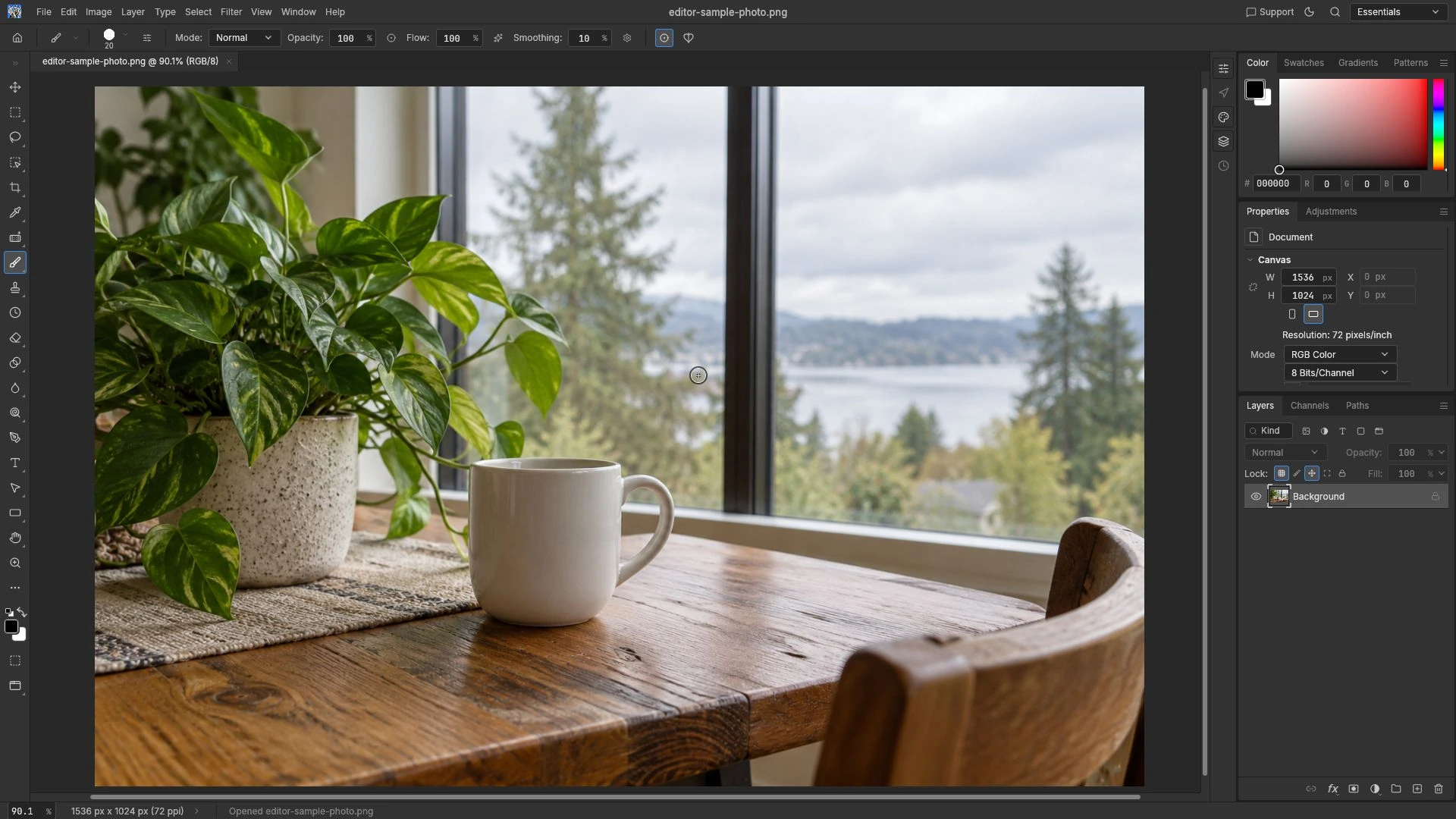
How to Edit Photos Online with Layers and Masks
The layered master you can still revise and the flat copy you send are two different files. Build the stack in a durable order, and know the browser's honest limits.
Creative workflows Photo editing Layers Masks Non-destructive editing 3 min read
Published By Julia M. Gil
-
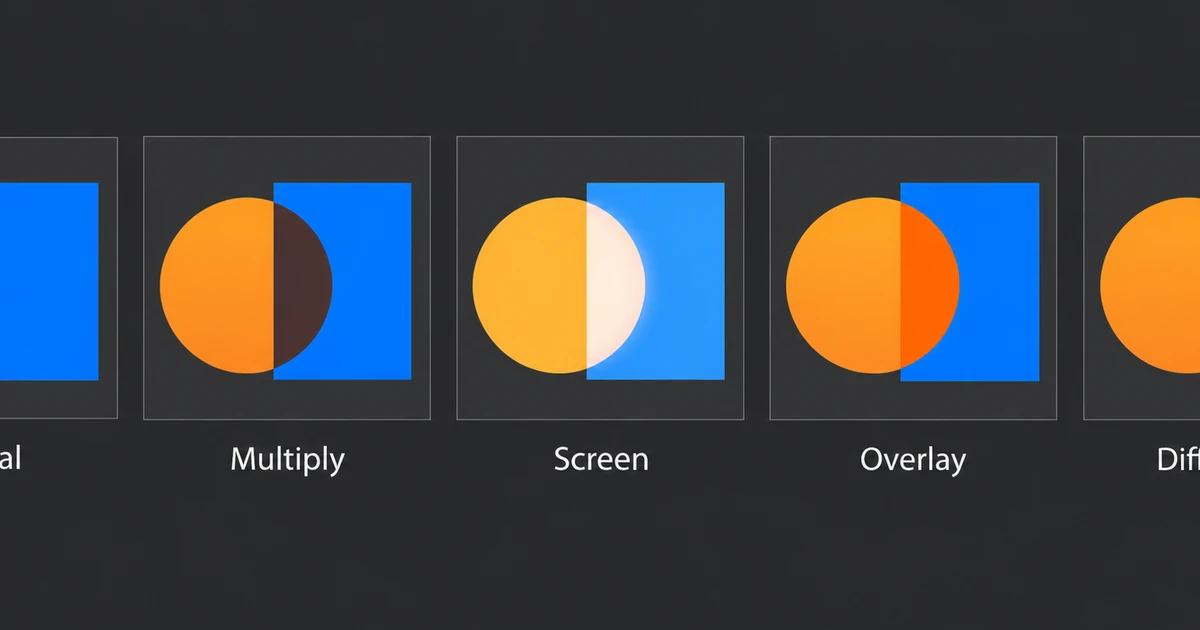
Photo Editing Blend Modes Explained
Multiply is arithmetic, not a mood. How base and blend values combine, the four modes worth knowing, why layer order changes the result, and why opacity is separate.
Creative workflows Photo editing Browser tools No signup Layers 4 min read
Published By Julia M. Gil
-
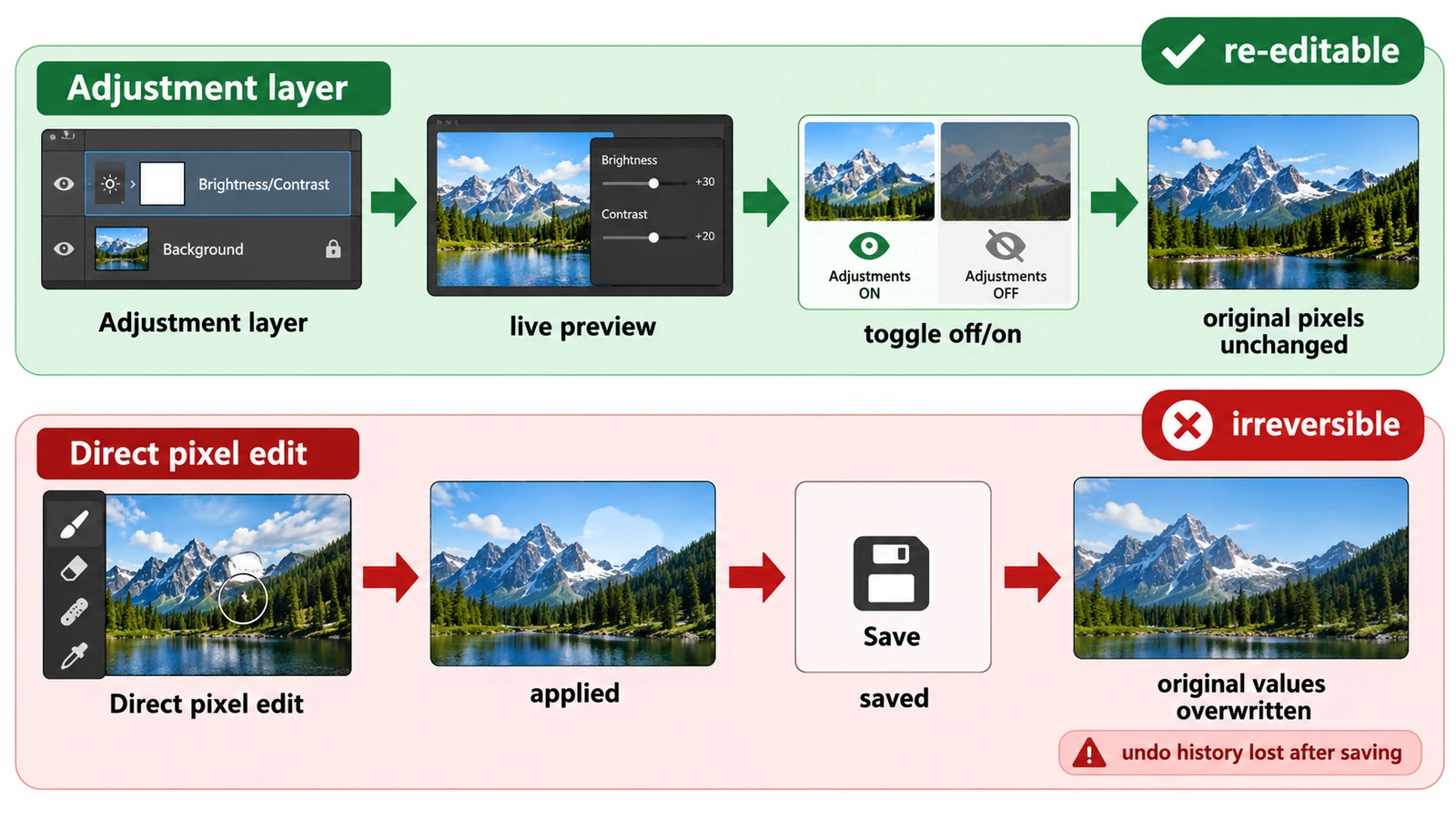
Adjustment Layers vs Direct Edits: Which Should You Use?
Both methods can produce identical pixels; the difference is what the file can still change later. What each costs, and how to choose when the brief is hazy.
Creative workflows Photo editing Layers Non-destructive editing Workflow comparison 3 min read
Published By Julia M. Gil
Keep exploring
FreeAIGeneration is more than this article. The editors and calculators below are real, free and run in your browser.