What Is Non-Destructive RAW Editing?
Non-destructive is an editing model, not a promise: the original stays and adjustments are stored as values. What survives a closed tab, and why a crop is not a deletion.
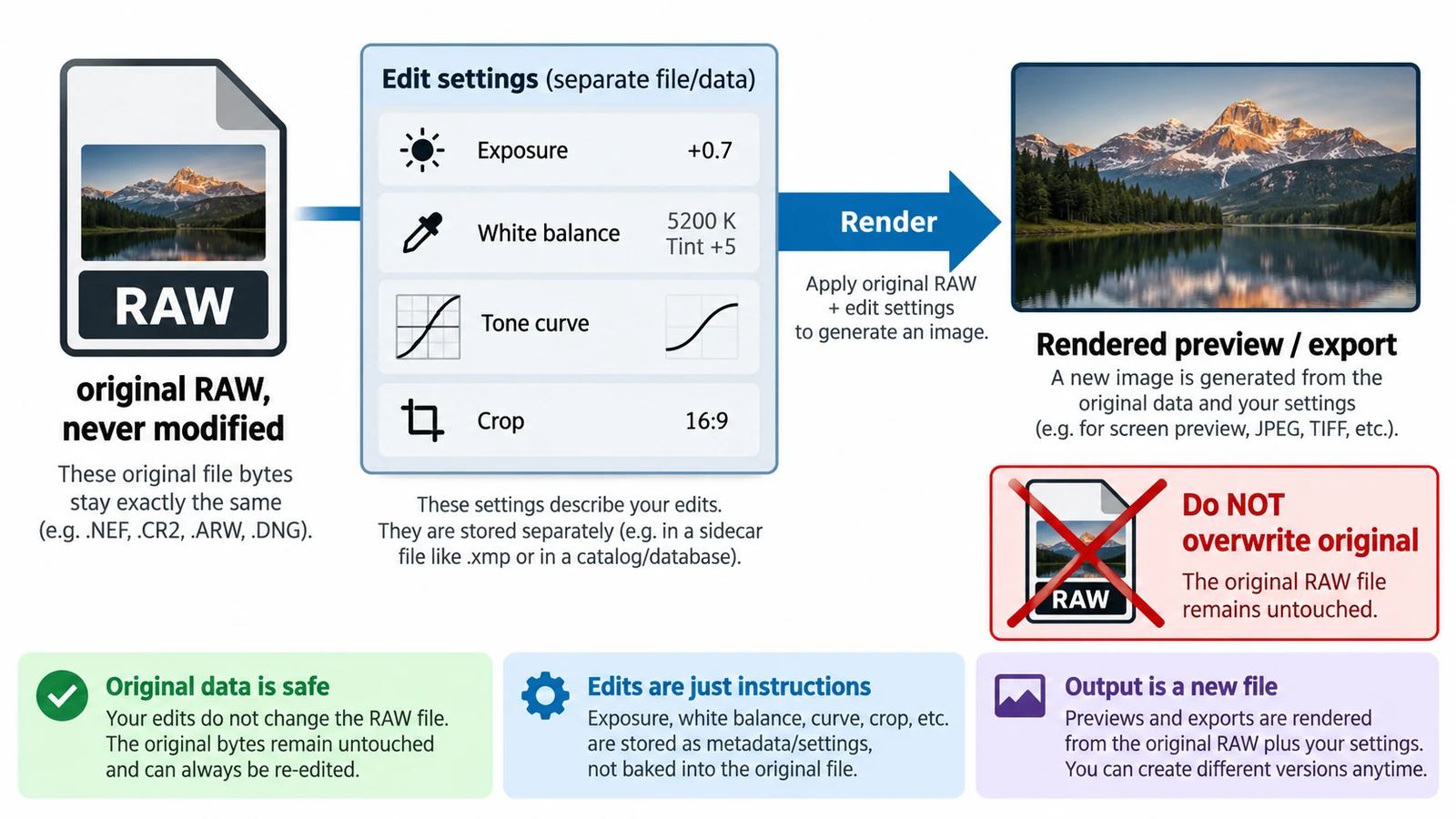
Non-destructive is one of those phrases that sounds like a promise about your files. It is not. It describes an editing model: the file you imported is kept, and the adjustments you make are stored beside it as values that get re-rendered whenever an image is shown or exported. Nothing you do to the picture overwrites the original.
That distinction matters because it tells you exactly what is protected and what is not. A non-destructive editor protects your ability to change your mind. It does not protect the file from a cleared browser, a full disk or a closed tab.
What is actually stored
The RAW library keeps originals under a content hash rather than under the filename you imported, so the entry in the grid is a reference to stored data, not a path to a folder on your desktop. Alongside that original sits the adjustment state: exposure, tone curve, colour mixer, masks, crop. Those are parameters, and a parameter is a small thing compared with a frame.
The visible consequence is speed of revision. Re-cropping a frame costs a new pair of coordinates, not a re-render of the whole file, and reverting an experiment costs a reset rather than a re-import. This is the same model used by desktop raw converters, and it is worth understanding because it explains what a JPEG cannot do: once a camera has written 8 bits per channel through a tone curve, the adjustments no longer have a wider original to read.
What happens at export
Export is where the parameters become pixels. The editor re-renders the frame at full size, applies the adjustments in order, and hands the result to the browser as a download. That file is the only thing that leaves the browser; the library itself stays where it is.
Two practical consequences follow. First, an exported file is a flattened rendering — the adjustment values are not travelling with it, so a JPEG you exported last month cannot be re-edited the way the library entry can. Second, a render is a recomputation, so the result depends on the state of the library at the moment you export rather than on the state when you started editing.
A crop is a coordinate, not a deletion
Cropping makes the model concrete. A 24-megapixel frame is 24,000,000 pixels; cropping it to 1,500 × 1,000 leaves 1,500,000 pixels, one sixteenth of the original area. In a destructive editor, that would be 93.75 percent of the image discarded. Here the full frame is still stored, which is why you can return to it next week and choose a different crop without degradation.
Storage is where the model stops being free. Five hundred 14-bit frames at roughly 42 MB each come to about 21 GB, or 19.6 GiB, and that is roughly five times the 4 GB ceiling on a single zip backup. The parameters are cheap; the originals are not. Any plan that involves keeping a large library in a browser has to answer the backup question before the library gets large.
What survives closing the tab
The library lives in this browser profile for this exact address, which has three consequences worth stating plainly. Only one tab at a time can use it. Site data clearing removes it, originals included. And browser storage is the kind of storage a browser may reclaim under pressure, so it is not an archive.
Closing a tab and reopening it is the benign case: the library is still there when you come back, because it was written to storage rather than held in the page. Losing the profile, switching devices or clearing cookies is the case that costs work.
The documented way out is File ▸ Back Up Library…, which writes a zip and checks each file on restore. Files above the 4 GB limit are not supported, so large libraries have to be split.
Mistakes worth avoiding
Treating non-destructive as a synonym for backed up is the first and most expensive one. The model protects the original from your editing, not from your housekeeping.
Assuming a deleted library entry is erased is the second. Deleting an entry removes it from the grid; the stored copy is reclaimed when site data is cleared, not when the thumbnail disappears.
Editing without exporting until the end is the third. If the profile goes, the parameters go with it, and the only durable artefact is a file you already rendered.
Importing a whole card instead of a selection is the fourth. Every unneeded frame is another 42 MB of the same storage budget the backups have to cover.
None of this argues against the model. It argues for treating the library as a workbench with a documented exit, which is exactly what the backup command is. If you are still deciding which frames deserve the space, RAW vs JPEG covers what each format preserves, and why raw files look flat explains the starting point you will be adjusting from.
The model is what the free RAW Photo Editor implements: import raw or JPEG, adjust, export. Reading its backup command before you need it is the difference between a workbench and a loss.
Frequently asked questions
Does non-destructive editing mean my originals cannot be lost?
No. It means your edits do not overwrite the original pixels. The library lives in this browser profile and clearing site data removes it, originals included.
Where do my edits actually live if they are not in the image?
They are stored as parameters beside the original and re-rendered when the image is displayed or exported, so an exported file is a flattened rendering rather than a container for the edit list.
Can I get back to the full frame after cropping?
Yes. A crop stores coordinates, so the whole frame is still there; a crop to 1,500 × 1,000 from a 24 MP frame uses one sixteenth of the pixels.
Try these FreeAIGeneration tools
Related articles
-
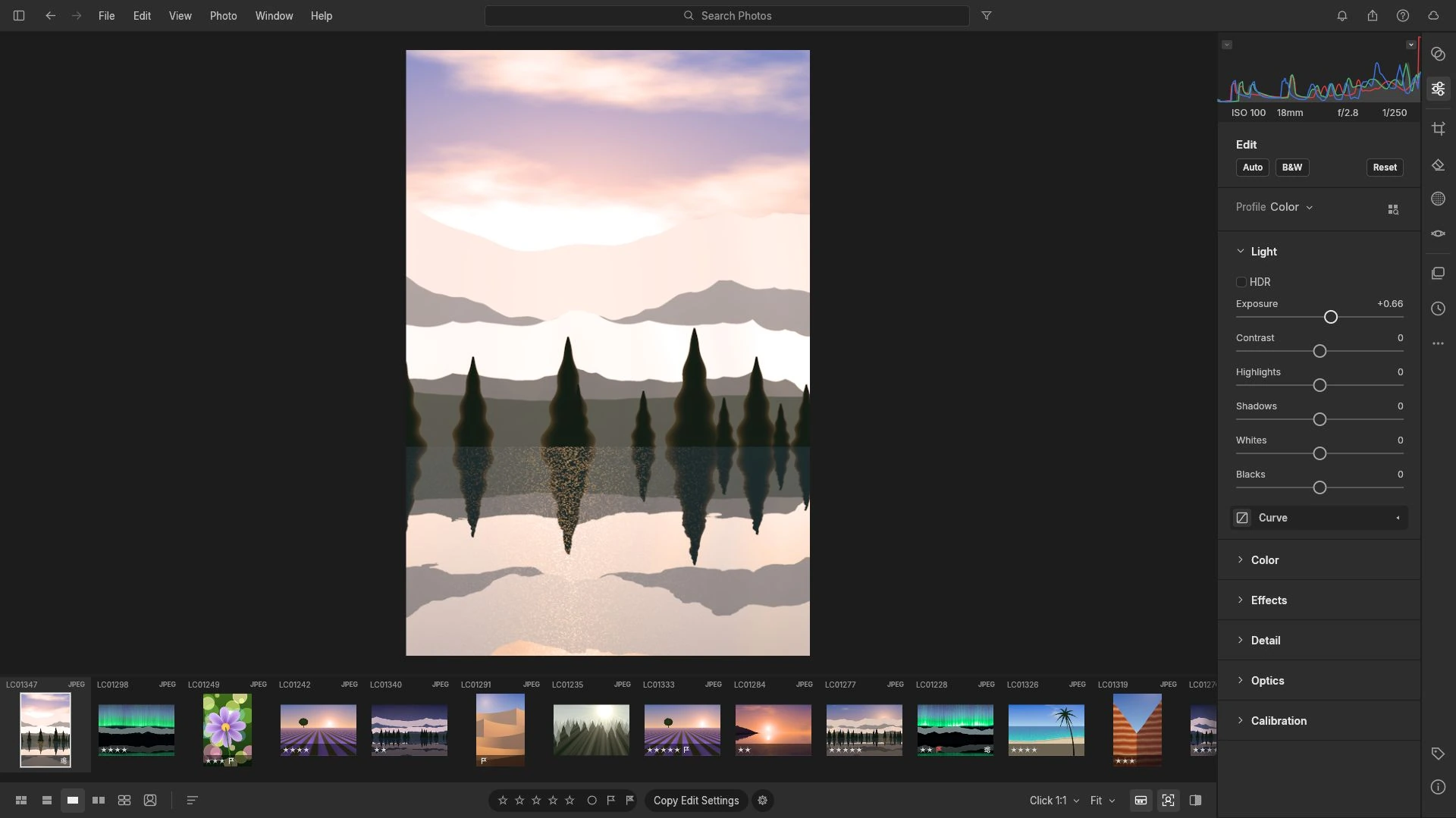
How to Correct Exposure in RAW Photos
Exposure is multiplicative in a raw file: one stop doubles the signal. Read the histogram first, work in an order that protects highlights, and avoid a dark export.
Creative workflows RAW editing Browser tools No signup Non-destructive editing 4 min read
Published By Julia M. Gil
-
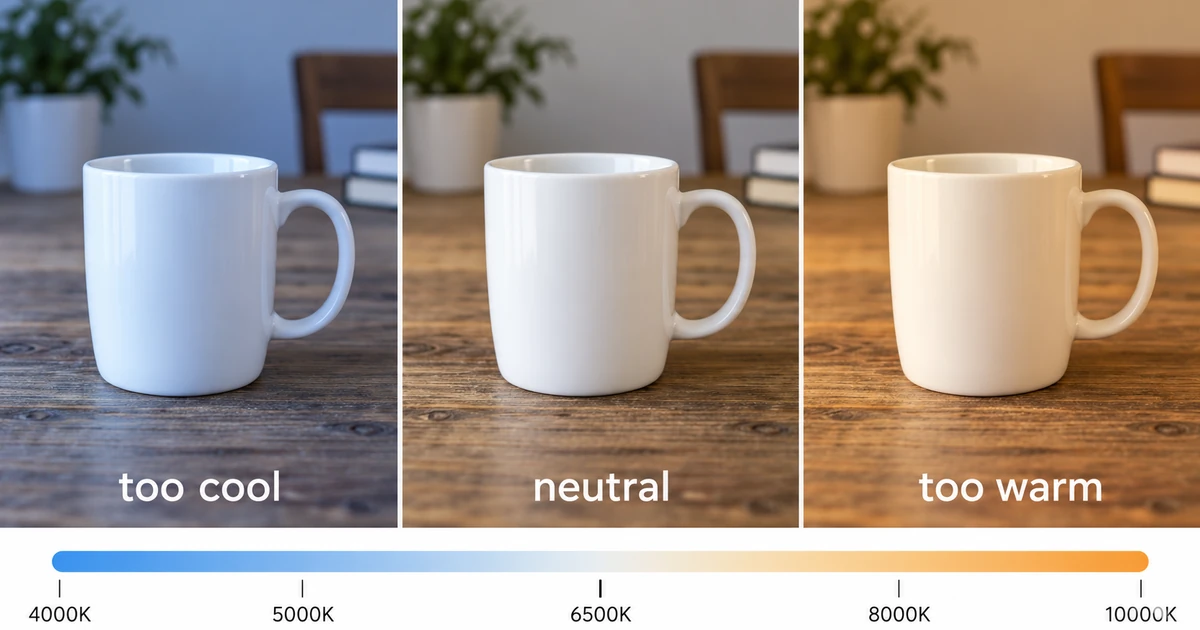
How to Fix White Balance in RAW Photos
Find the neutral a frame should have had, follow the channel ratios behind the cast, and use curves or the colour mixer where this browser build stops short.
Creative workflows RAW editing Browser tools No signup Non-destructive editing 4 min read
Published By Julia M. Gil
-
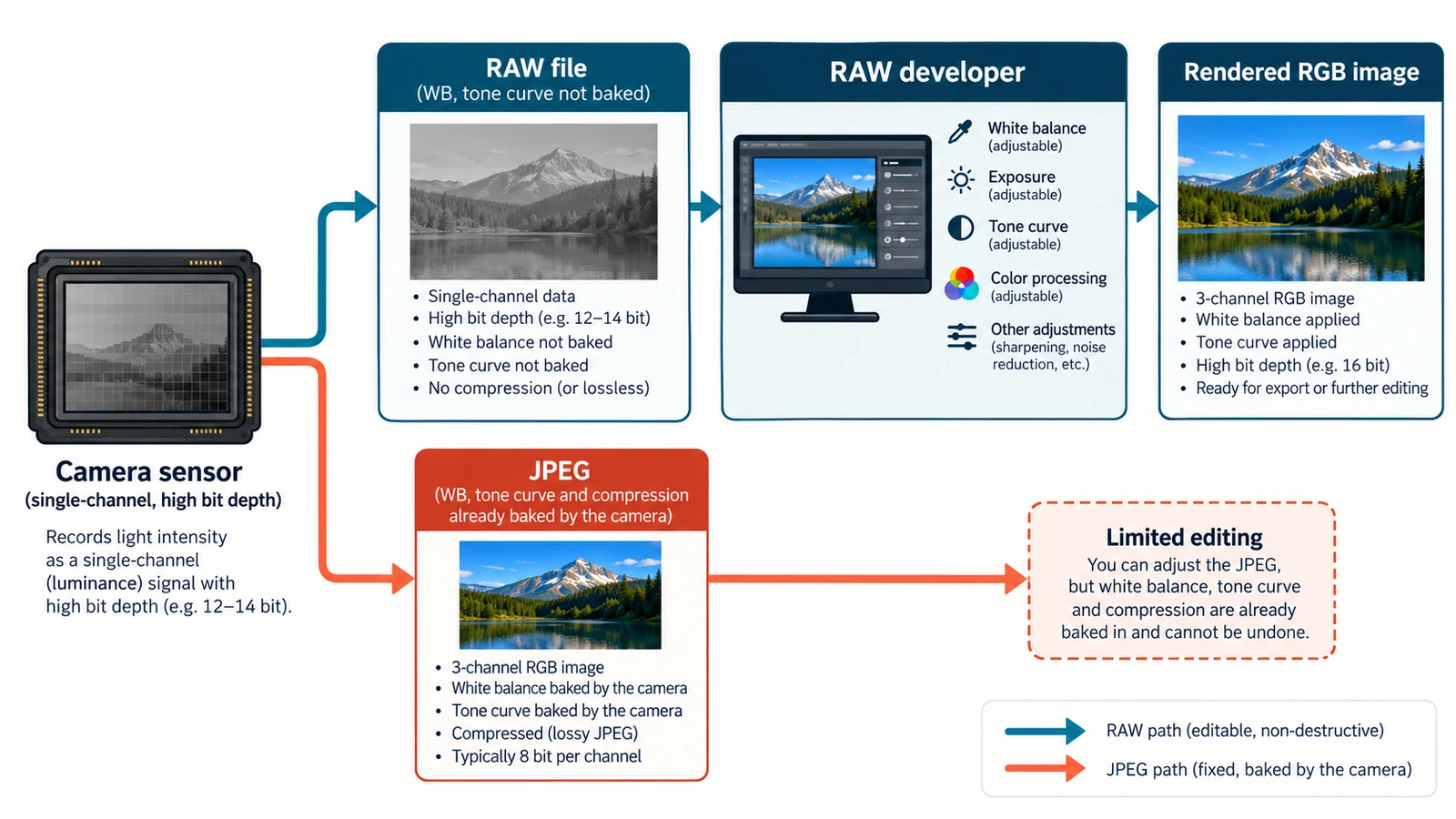
RAW vs JPEG: Which Format Should You Edit?
One exposure, two records: sensor readings and a finished rendering. The gain is bit depth rather than resolution, and the trade-offs decide what stays fixable later.
Creative workflows RAW editing File formats Non-destructive editing Workflow comparison 4 min read
Published By Julia M. Gil
Keep exploring
FreeAIGeneration is more than this article. The editors and calculators below are real, free and run in your browser.