How to Correct Exposure in RAW Photos
Exposure is multiplicative in a raw file: one stop doubles the signal. Read the histogram first, work in an order that protects highlights, and avoid a dark export.
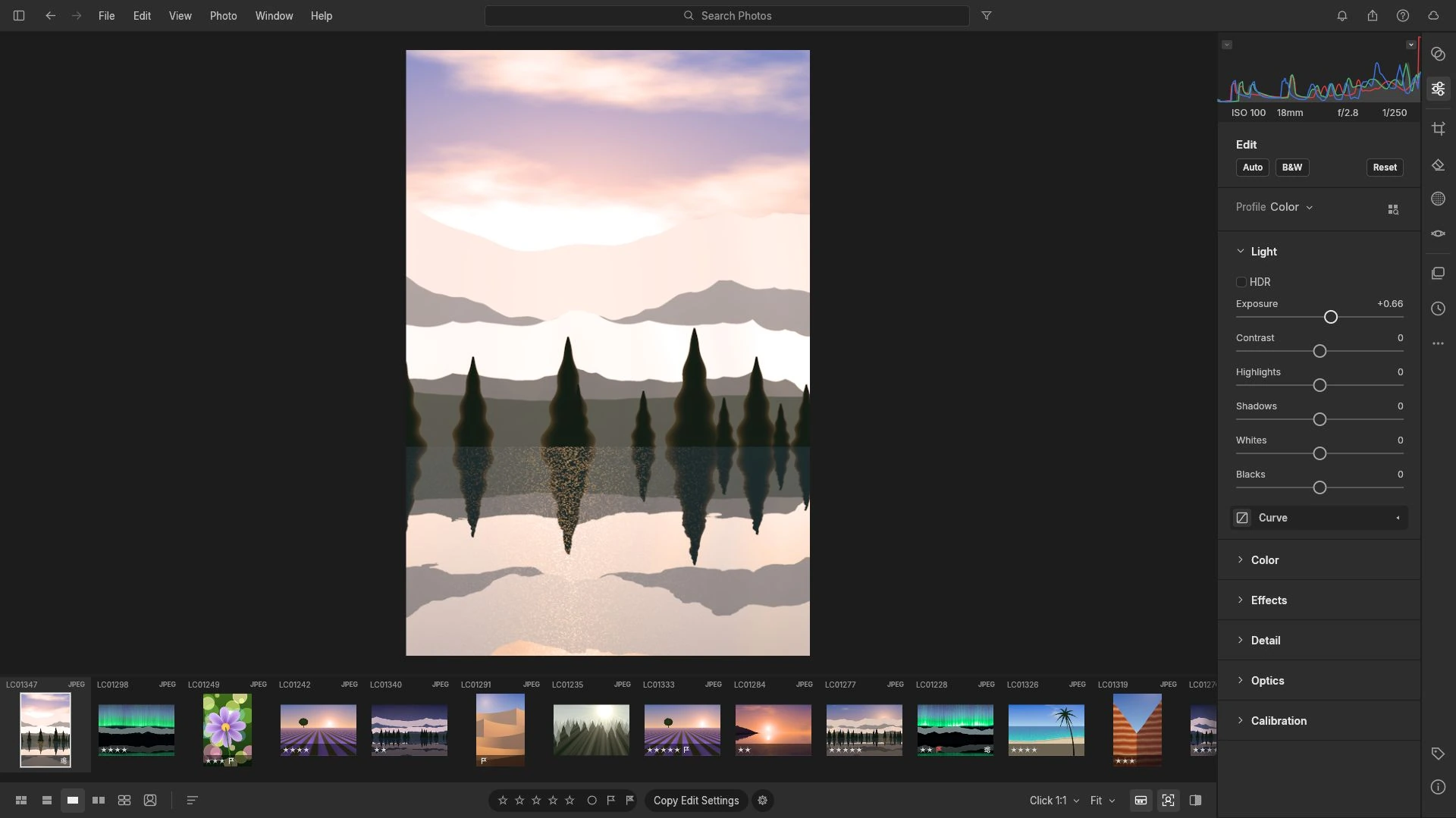
One exposure step is a factor of two. That single sentence explains most of what goes wrong when people correct brightness in a raw file: the adjustment is multiplicative in linear light, so +1 EV doubles the signal, +2 EV quadruples it, and −1 EV halves it. A linear midtone of 0.18 becomes 0.36 at one stop up and 0.09 at one stop down.
Correcting exposure in RAW photos is less a matter of taste than of deciding which part of the tonal range you are willing to sacrifice, and then moving the image in one direction on purpose.
Read the histogram first, then the picture
The develop panel sits under an RGB histogram, which is the only honest feedback a raw converter can offer. A frame whose right edge is jammed against the wall has photosites at saturation, and a photosite at saturation holds no detail at all. Nothing in the panel can restore it, so the first decision is whether the highlights you care about are still recoverable.
The left side matters for a different reason. Lifting a dark frame multiplies very small numbers, and the spacing between those numbers is what determines whether shadow recovery looks like texture or like coloured mottling. Raw holds 12, 14 or 16 bits per photosite against 8 per channel after a camera’s JPEG processing, and that spacing is the headroom being spent.
What the panel gives you to work with
Under Edit, the editor offers Auto, B&W and Reset. Under Light, it carries HDR, Exposure and Contrast, and the wider develop set includes tone curves, a colour mixer, masks and crop. Treat every move as a relative amount: the amount that works depends on the frame, so judge by the histogram rather than by a remembered value from another program.
Auto is a starting point, not a verdict. It applies an automatic set of decisions to whatever the frame contains, and those decisions are exactly the ones this article is telling you to make deliberately. Reset is the useful half of that pair, because it lets you abandon a bad direction without abandoning the file.
A work order that avoids damage
Start with the histogram and decide which end of the range is at risk. If highlights are clipped where detail matters, pull exposure down before anything else. If shadows are the problem and nothing on the right edge is critical, lift instead.
Set exposure next, in visible steps, stopping when the tones you care about sit where you want them. Then adjust contrast and HDR, because both redistribute the range you have just placed. A contrast increase after a bad exposure decision simply amplifies the mistake.
Save local work for last. Masks let you treat one region differently, which is the correct tool when a face is two stops from the background; dragging global exposure to fix one subject is how skies turn white.
Check the result on the histogram again before you export, and check it at a small size as well as full screen. A frame that looks right at 100 percent on a bright display often reads as dull when it is scaled down.
Mistakes that produce a dark export
Judging brightness on an uncalibrated or very bright screen is the common one: the display flatters the file, so you pull exposure down and the exported image arrives too dark everywhere else.
Chasing contrast with the exposure slider is the second. Exposure moves the whole range; contrast spreads it around a midpoint. Using one for the other produces either a flat file with blown highlights or a punchy file with crushed shadows.
Assuming recovery is unlimited is the third. A 14-bit highlight sitting at 15,000 of a possible 16,383 has log2(16,383 ÷ 15,000) ≈ 0.13 EV of headroom above it. That is about an eighth of a stop, not a rescue window.
Editing a JPEG with the same habits is the fourth, and it is the one that costs most. In a JPEG the camera has already applied its tone curve and quantised to 8 bits, so the same moves produce banding rather than smooth gradients.
Where exposure ends
Brightness and contrast are one problem in the develop chain. A frame can be perfectly exposed and still be the wrong colour, which is a separate correction with its own logic; fixing white balance in RAW photos covers that side. Understanding what the adjustments actually store is the other half: non-destructive RAW editing explains why changing your mind later costs nothing.
The panel described here is available in the free RAW Photo Editor, which imports raw and JPEG files and exports the developed result from the browser tab. Open one frame, watch the histogram rather than the preview, and move the exposure in single steps until the tones you care about survive.
Frequently asked questions
How much highlight detail can I recover from an overexposed raw file?
It depends on how far past saturation the channel went. A 14-bit highlight at 15,000 of 16,383 has only about 0.13 EV left above it, which is a fraction of a stop; a clipped photosite has none.
Should I fix exposure before or after contrast?
Before. Exposure places the tonal range and contrast redistributes it, so a contrast change made on top of a bad exposure decision amplifies the error.
Why does my exported image look darker than the preview?
A bright display flatters a file during editing. Judging at a small size and checking the histogram before export catches most of the difference.
Try these FreeAIGeneration tools
Related articles
-
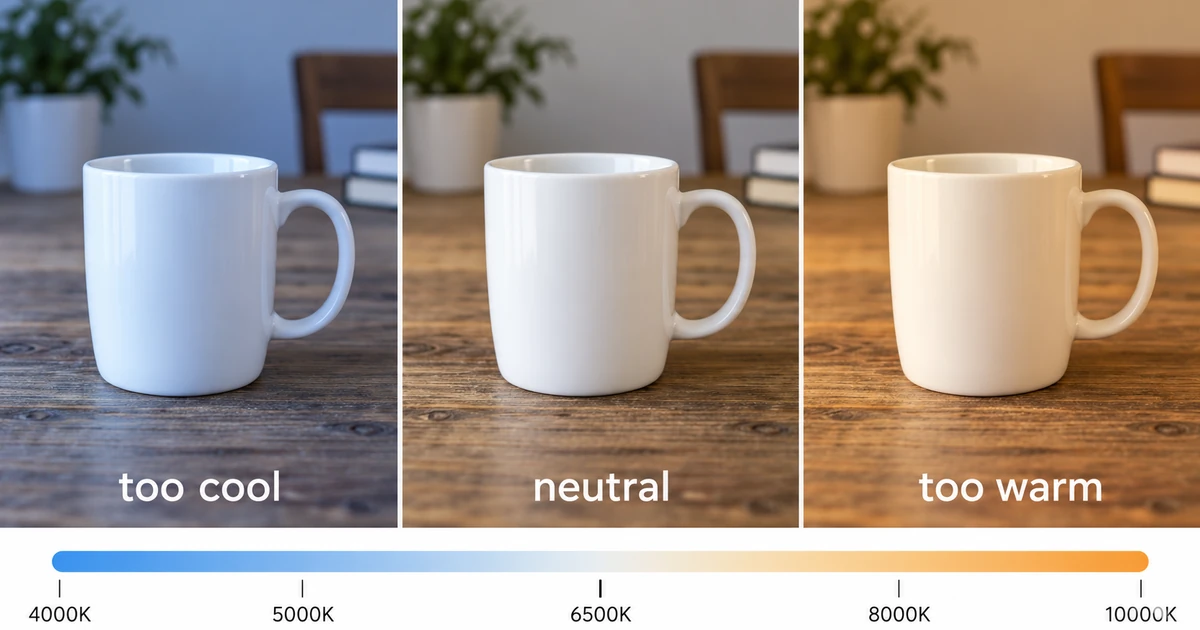
How to Fix White Balance in RAW Photos
Find the neutral a frame should have had, follow the channel ratios behind the cast, and use curves or the colour mixer where this browser build stops short.
Creative workflows RAW editing Browser tools No signup Non-destructive editing 4 min read
Published By Julia M. Gil
-
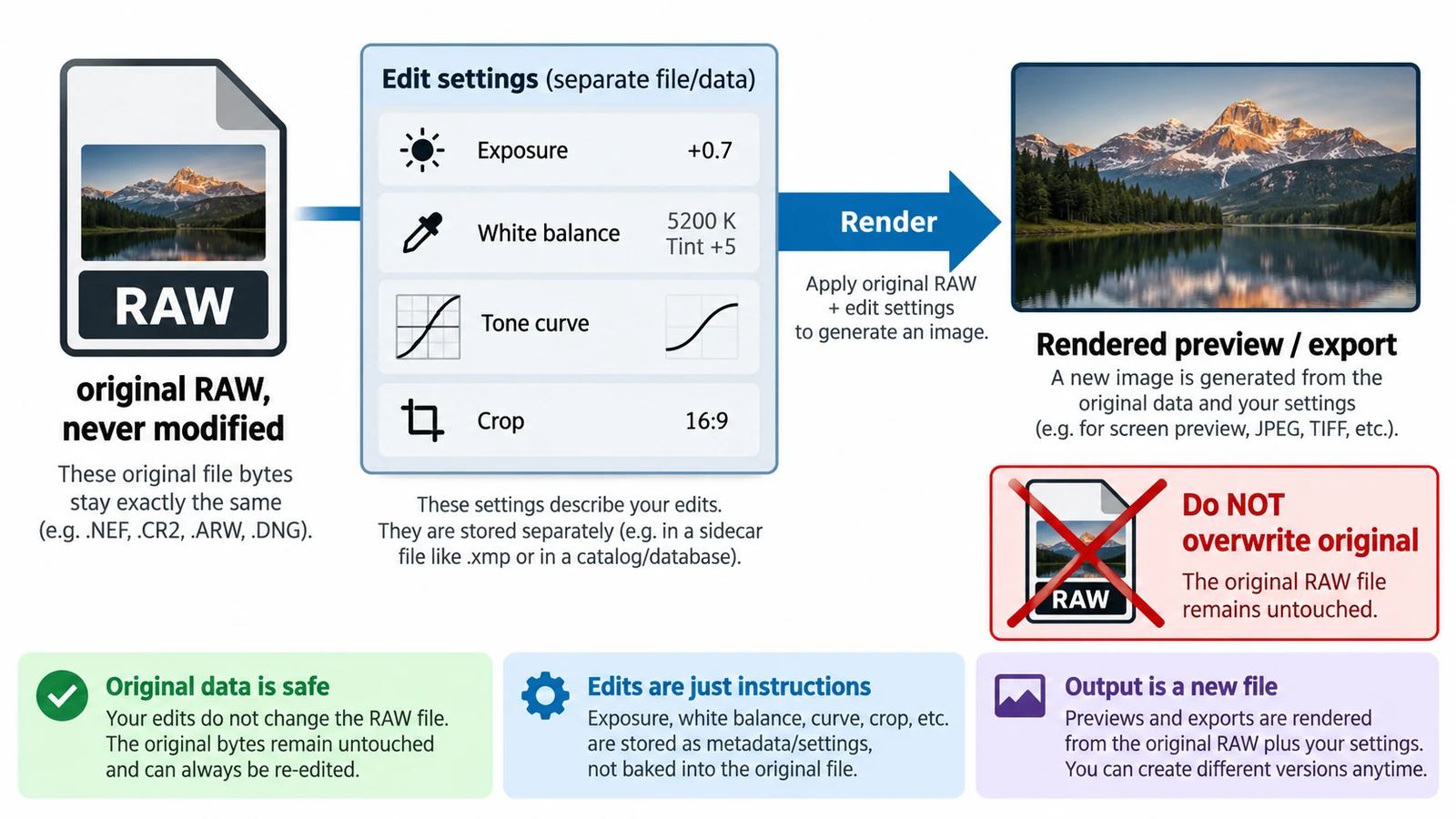
What Is Non-Destructive RAW Editing?
Non-destructive is an editing model, not a promise: the original stays and adjustments are stored as values. What survives a closed tab, and why a crop is not a deletion.
Creative workflows RAW editing Browser tools No signup File formats 4 min read
Published By Julia M. Gil
-
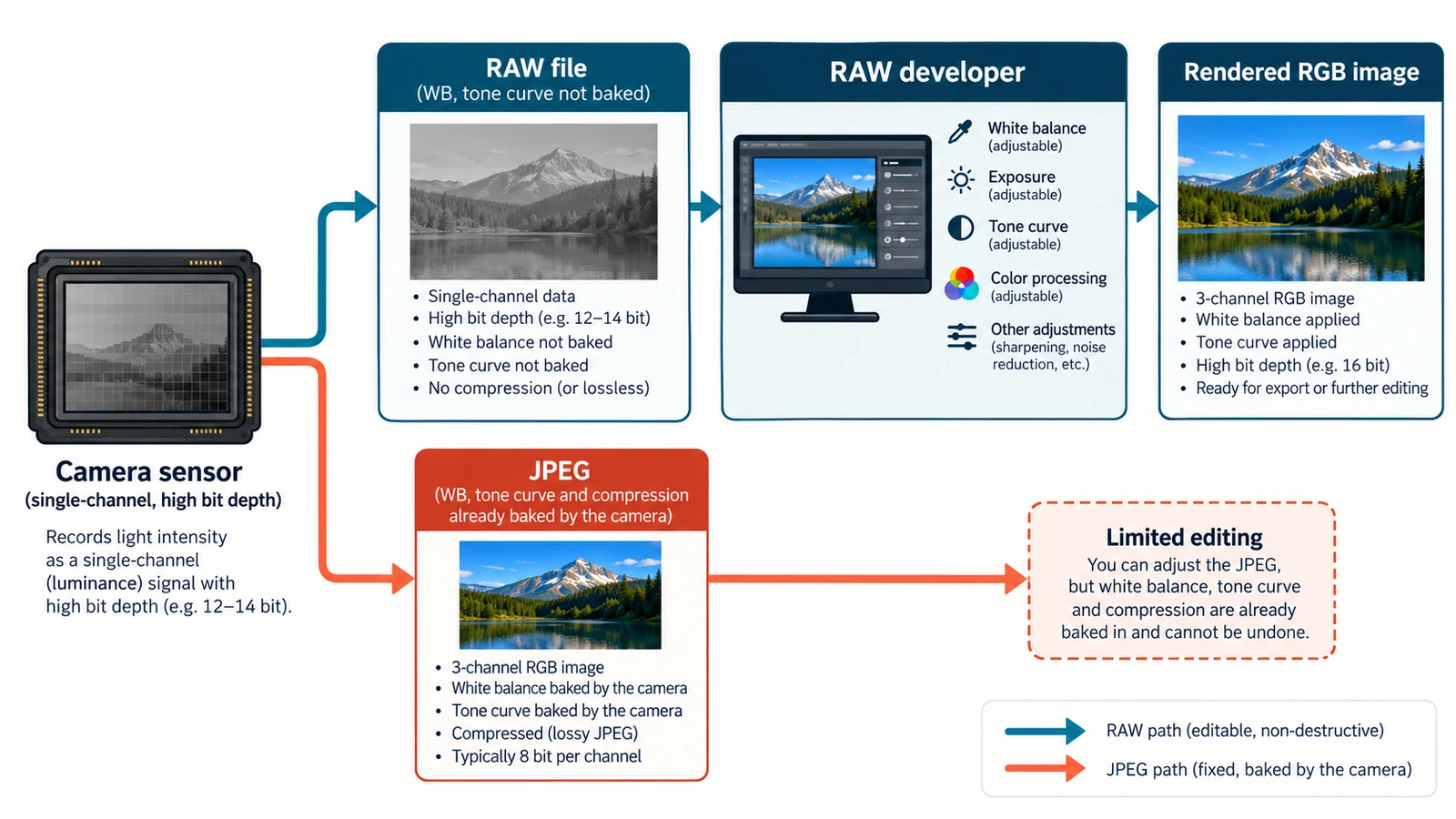
RAW vs JPEG: Which Format Should You Edit?
One exposure, two records: sensor readings and a finished rendering. The gain is bit depth rather than resolution, and the trade-offs decide what stays fixable later.
Creative workflows RAW editing File formats Non-destructive editing Workflow comparison 4 min read
Published By Julia M. Gil
Keep exploring
FreeAIGeneration is more than this article. The editors and calculators below are real, free and run in your browser.