Bleed, Margins and Crop Marks Explained
Trim, bleed and margins are three rectangles pushing opposite ways. Where each value belongs, why crop marks sit outside the trim, and what the browser tool cannot do.
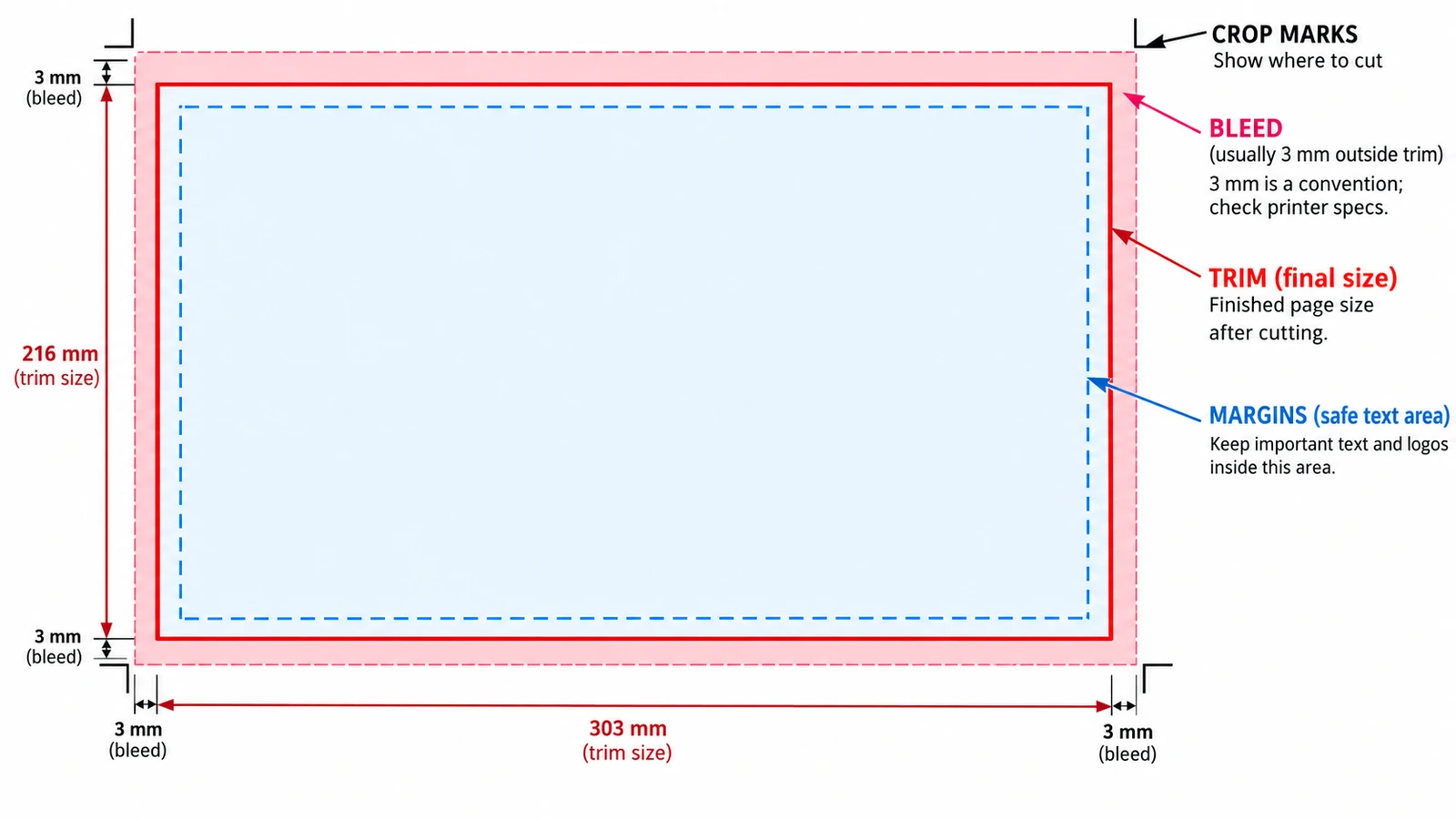
A print page is three rectangles stacked on the same sheet, and bleed, margins and crop marks explained one at a time — each with its own number — is the quickest way to stop guessing at page setup. Get the order wrong and the symptom is always the same: a white line at the edge of a photograph, or body text sitting closer to the cut than the design intended.
The three are not interchangeable, and they do not occupy the same place. Bleed is outside the finished page. The margin is inside it. Crop marks live outside both, in the area that gets cut away. Once that picture is fixed, the rest is arithmetic.
Three rectangles on one sheet
Trim is the finished size, the line the blade follows. A4 is 210 × 297 mm, and every other measurement on the sheet is taken from this one.
Bleed is artwork that runs beyond the trim. On A4, 3 mm on each side extends the sheet to 216 × 303 mm, and the extra area is 65,448 − 62,370 = 3,078 mm². That is a thin border on every side, and it is the whole difference between a clean edge and a reprint when the blade drifts.
The live area is the trim minus the margins. A4 with 5 mm margins gives a live area of 200 × 287 mm, which is where text and anything that must not be cut belongs.
One number to hold on to: bleed is measured outward from trim, margins inward. They push in opposite directions.
Where the marks sit
Crop marks show the trim. Bleed marks show the bleed edge, the outer limit of the artwork. Both sit outside the trim, because the cutter and the press operator need a reference that is still on the sheet when the trimming happens. A crop mark drawn inside the trim prints on the finished page, which is a mistake you notice only after the run.
Marks are output furniture rather than artwork. You switch them on for the printer, and they are cut away with the waste. That is also why their exact geometry is the printer’s business more than yours: ask for the template, name the bleed value, and let the imposition step place the marks.
Setting the geometry where it belongs
Margins belong in page setup, not drawn as lines on the page. The reason is mechanical: a margin entered as a value can be reused, checked and changed for every page at once, while a rectangle you dragged is decoration that will not survive the next revision.
In the Page Layout Editor this appears as page geometry in picas — width, height and margins — with Facing Pages and Adjust Layout alongside. A pica is 12 points, which is 4.233 mm, about a sixth of an inch. Facing Pages is not a cosmetic toggle. On a spread the inner margins are shared between the two pages, so the gutter has to be wide enough to survive binding, while the outer margins face the reader. Adjust Layout then moves frames when the geometry changes, which is what keeps a margin honest after you change the page size.
The mistakes that cost a reprint
Confusing margin and bleed is the first. They are opposites, and a designer who adds 3 mm of margin believing it is bleed has moved the text inward and left the background short of the edge.
Treating 3 mm as law is the second. It is a convention, common in Europe; the US convention is 0.125 in, which is 3.175 mm. The two differ by 0.175 mm per edge, which is small until a printer’s template says something else entirely. The printer’s specification outranks any habit.
The third is designing to the bleed edge. Artwork placed at 216 mm on an A4 sheet looks generous on screen and loses the outer 3 mm of every side once trimmed, taking logo text and thin rules with it.
The fourth is forgetting the live area. Body text set 2 mm from the trim is one drifting cut away from being clipped, and it looks wrong even when it survives.
What the browser editor does with this
The Page Layout Editor handles the part of this geometry that lives inside the page. Margins are part of the page setup, geometry is entered in picas, and Facing Pages plus Adjust Layout govern how a document behaves when it grows or changes size. Multi-page documents, spreads and parent pages are all there.
The part that lives outside the page is not. Bleed, crop marks, a slug and preflight have no evidence in this build, so there is no place to enter a bleed value or position a mark outside the trim. Save writes a .designcraft file and exporting a page produces a PNG. If the job is going to press, the page size and margins can be settled in the tab and the mechanical furniture has to be added by whatever produces the final file.
That division of labour is worth having in mind before the design starts, because preparing a print-ready PDF is mostly the checklist for the half this editor does not cover. When an image looks soft at print size, the fault is usually resolution rather than geometry, and DPI versus PPI covers that calculation. The other guides sit in the guides hub.
Frequently asked questions
Is bleed the same as a margin?
No, they push in opposite directions. Bleed is artwork extending beyond the trim to survive trimming drift, while the margin is a safety zone inside the trim where text and other important content belong.
Do crop marks go inside or outside the trim?
Outside. Crop marks show where the trim falls and must remain on the waste area, because a mark drawn inside the trim would print on the finished page.
Is 3 mm the standard bleed value?
It is a widespread European convention rather than a standard, and the US convention is 0.125 in, which is 3.175 mm. The printer's own template decides in every case.
Try these FreeAIGeneration tools
Related articles
-
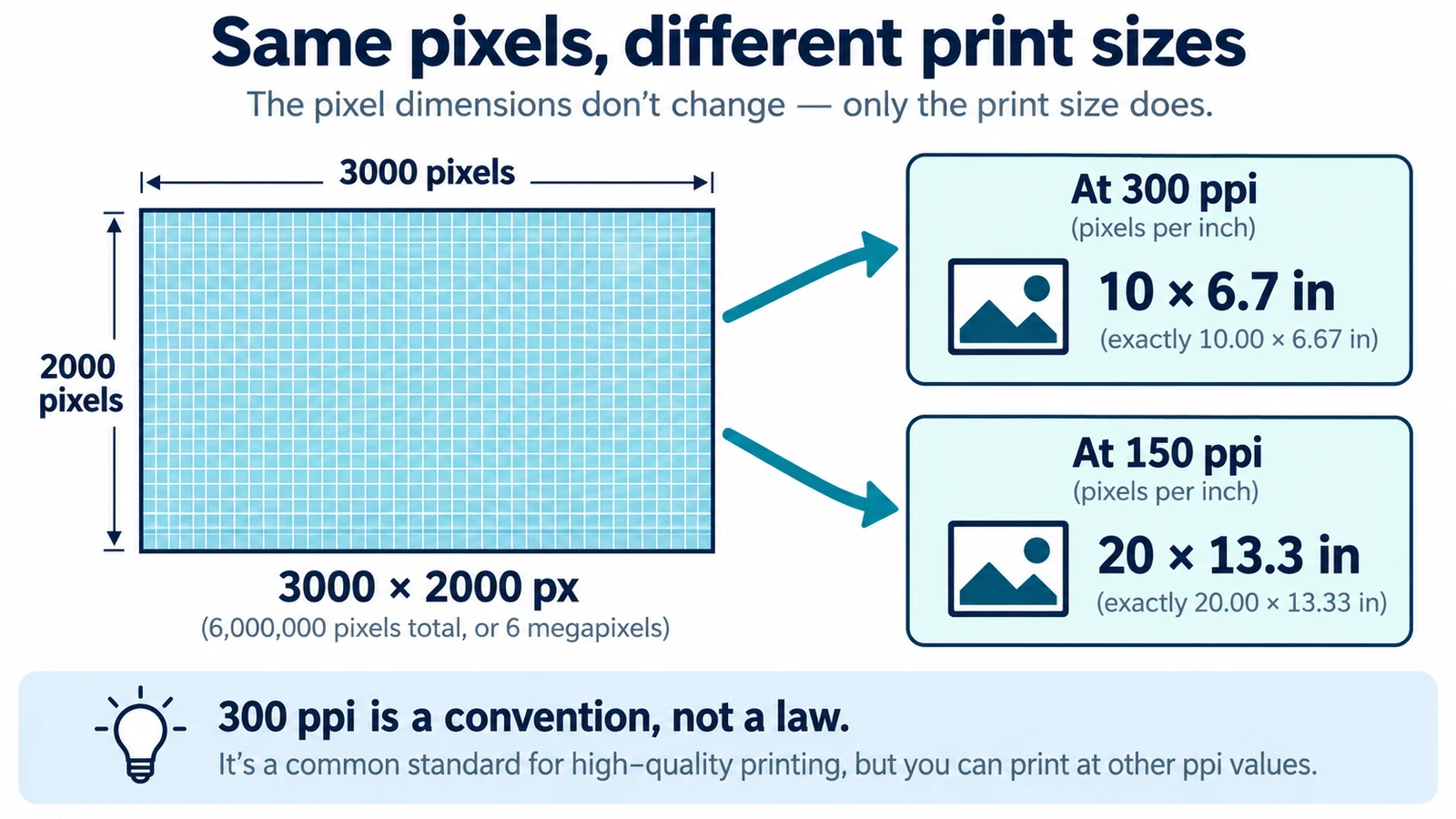
DPI vs PPI: What's the Difference?
DPI and PPI describe different machines, and neither means much without a physical print size. The formula, why 300 is a habit, and what to note before placing an image.
Documents & PDF Page layout Browser tools No signup Image optimization 5 min read
Published By Julia M. Gil
-
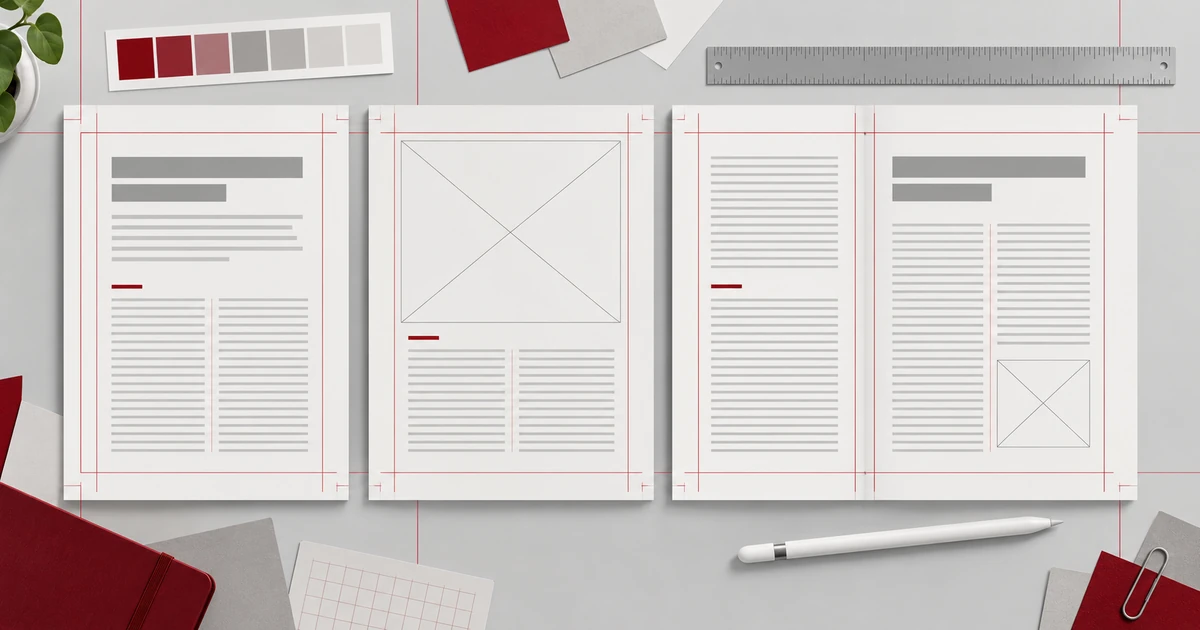
What Is Desktop Publishing and When Should You Use It?
Desktop publishing is production, not design: styles, parent pages and threaded frames that make decisions repeatable, and a PDF that is only the export.
Documents & PDF Page layout Browser tools No signup 5 min read
Published By Julia M. Gil
-
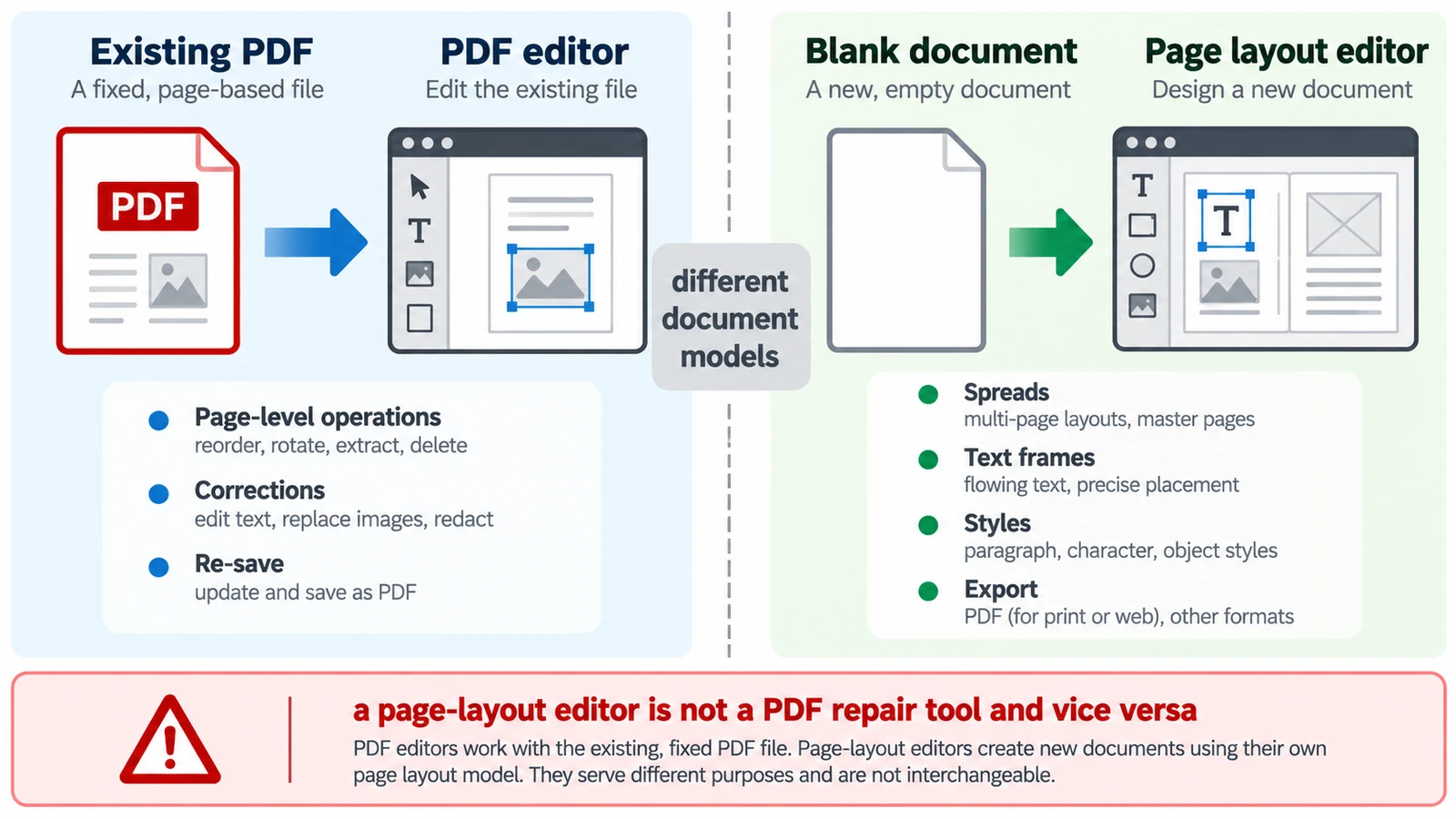
PDF Editor vs Page Layout Editor: Which Do You Need?
A PDF has no paragraphs to reflow, so a paragraph added mid-page does not behave as expected. Which tool belongs to which stage, and how the handoff between them works.
Documents & PDF PDF editing Page layout Workflow comparison Browser tools 5 min read
Published By Julia M. Gil
Keep exploring
FreeAIGeneration is more than this article. The editors and calculators below are real, free and run in your browser.