PDF Editor vs Page Layout Editor: Which Do You Need?
A PDF has no paragraphs to reflow, so a paragraph added mid-page does not behave as expected. Which tool belongs to which stage, and how the handoff between them works.
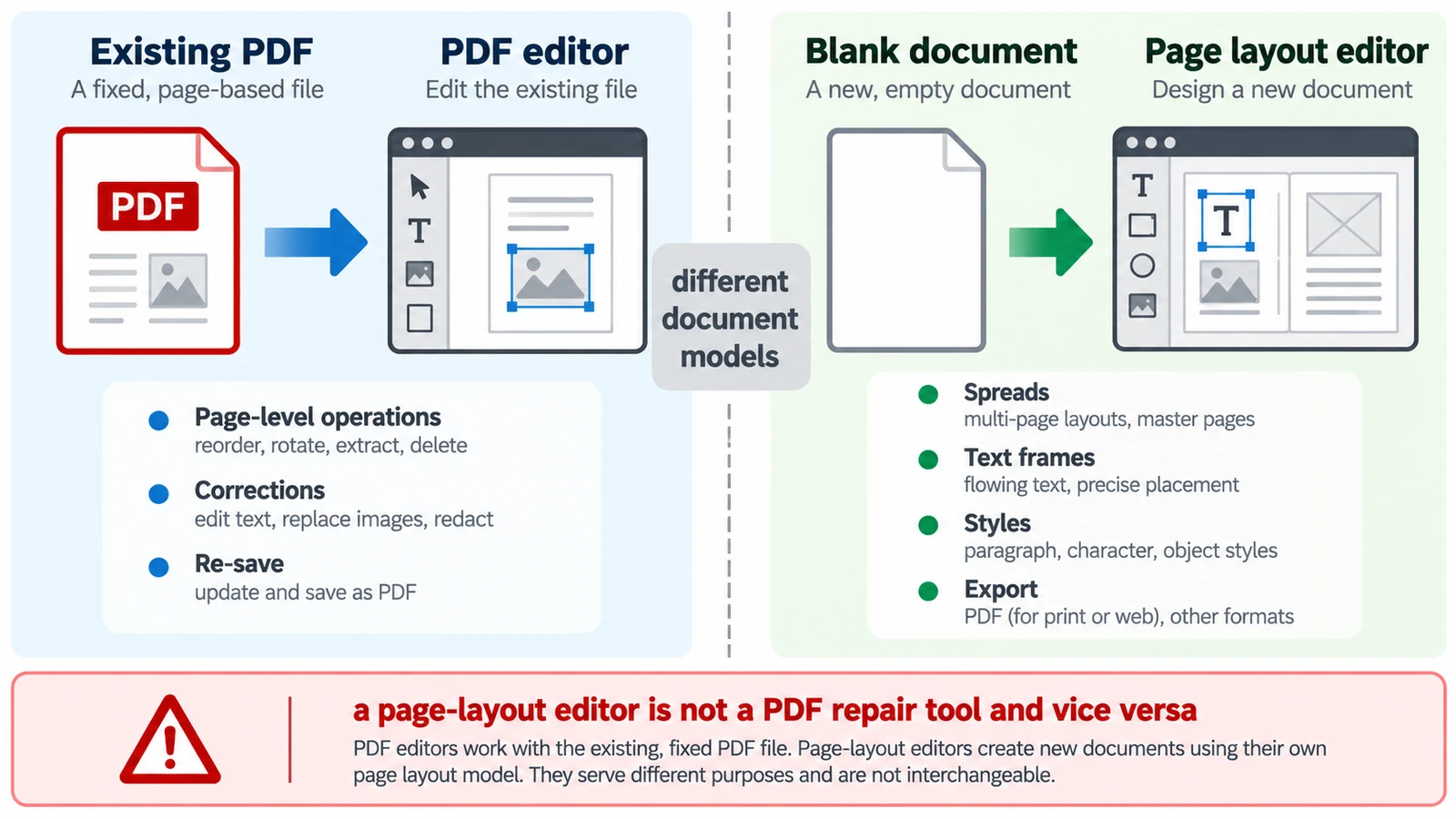
A finished PDF is the wrong tool for a job that still needs editing. Try to add a paragraph in the middle of a page and the problem appears immediately: nothing reflows, because a PDF has no paragraphs to reflow. That single fact separates the two tools in this comparison more cleanly than any feature list.
A PDF editor works on the page description that already exists. A page layout editor builds the document that produces it. The PDF editor vs page layout editor question is which of the two you are holding, and confusing them shows up late, on a deadline, when someone has promised a client a “small change”.
Two different objects
The PDF attached to an email is a page tree of content streams and resources, standardised as ISO 32000. Each page describes where marks fall on a fixed canvas. There are no styles, no linked text frames and no master pages to consult, because those live in the document that made the PDF.
The layout file is the other half. It carries paragraph and character styles, threaded frames that pour text from one page to the next, parent pages that supply repeated elements and colour swatches that named elements refer to. Change a style there and the document updates. Change anything in the PDF and you have moved marks on one page.
What the PDF editor gives you
The PDF Editor does a small number of things reliably: it opens a PDF, shows its pages and hands the file back to you as a download, with no account needed. A round trip checked on this build returned a 1,150-byte file byte-identical, so saving does not silently recompress what you opened.
The menus list more — page organisation, comments, forms, protection, redaction and export — but those are advertised upstream and have not been exercised here. Printing is not available in the web editor; for paper, save the file and print from your reader.
That makes it a tool for inspection and light repair: confirm which revision you have, check the page count, save a copy that survives the round trip.
What the page layout editor gives you
The Page Layout Editor is built for documents that will be revised: page spreads, parent pages, threaded text frames, paragraph and character styles, colour swatches and text wrap. Geometry is set in picas — width, height and margins — with Facing Pages and Adjust Layout controlling how a document behaves as it grows.
Its outputs are specific. Save writes a .designcraft file through the browser’s download, and exporting a page produces a PNG. PDF/X-4, PDF/A-2b, EPUB and IDML are documented upstream but were not verified in this build, so they are not something to promise to a printer. There is no CMYK or spot-colour workflow to claim, no preflight and no bleed or crop-mark handling described here. The editor is also built for a desktop screen rather than a phone.
The geometry that makes the difference obvious
A 16-page A4 booklet is 8 spreads, because 16 ÷ 2 = 8. That is the layout editor’s unit: it thinks in facing pages, which is why Facing Pages is a setting rather than a preference. The PDF editor has no concept of a spread; it has 16 pages in a tree.
Page size is the other divider. A4 is 210 × 297 mm and US Letter is 215.9 × 279.4 mm, so A4 is 5.9 mm narrower and 17.6 mm taller; in picas, A4 is about 49.6 × 70.2. Mixing the two inside one document is possible, but it is a decision, and it is easier to set in the layout file than to patch afterwards.
| Question | PDF editor | Page layout editor |
|---|---|---|
| The text needs to reflow | No, marks are fixed on the page | Yes, styles and threaded frames reflow |
| One page needs a comment or a form | Menu-advertised, not verified | Not the job |
| A 16-page booklet must be built | Not the job | Yes, spreads with parent pages |
Which one to open first
If the file already exists and the request is to inspect, confirm or save it, open the PDF editor.
If the request is “change this sentence and keep the layout”, the honest answer is that the source document needs to change. Patch a PDF and you will be nudging text boxes while the line spacing quietly breaks.
If the request is print production, neither tool is a preflight solution. That work is a conversation with a printer about colour, bleed and standards, and preparing a print-ready PDF covers what it involves.
The handoff in practice
The usual sequence is layout first, PDF second, with the PDF treated as output rather than a working file. Build the document, pour the text, set the styles, export, then read the result as a reader would.
The reverse direction is where projects lose time. Corrections that come back on a PDF belong in the source file, because every change made to the PDF has to be repeated when the layout is regenerated. If the source is gone, the PDF is all you have, and a tool that opens, pages through and saves it faithfully is exactly what you want.
For what a local save can honestly promise, see how to edit a PDF without uploading it to a server. The short version is that the two tools solve different problems and neither substitutes for the other.
Frequently asked questions
Can a PDF editor change text and reflow the page?
No. A PDF stores positioned marks rather than paragraphs with styles, so a text change in a PDF editor is a manual adjustment rather than a reflow.
Does the Page Layout Editor export PDF/X-4 or PDF/A-2b?
Those formats are documented upstream but were not verified in this build, so do not rely on them for a print or archive handoff.
What does the Page Layout Editor save as?
Save writes a .designcraft project file through the browser download, and exporting a page produces a PNG.
Try these FreeAIGeneration tools
Related articles
-
How to Rearrange PDF Pages Without Uploading Your File
Rearrange, rotate, delete and insert PDF pages in your browser while keeping the file local, then extract, split or combine pages when needed.
Documents & PDF PDF editing Browser tools No signup Workflow comparison 4 min read
Published Updated By Julia M. Gil
-
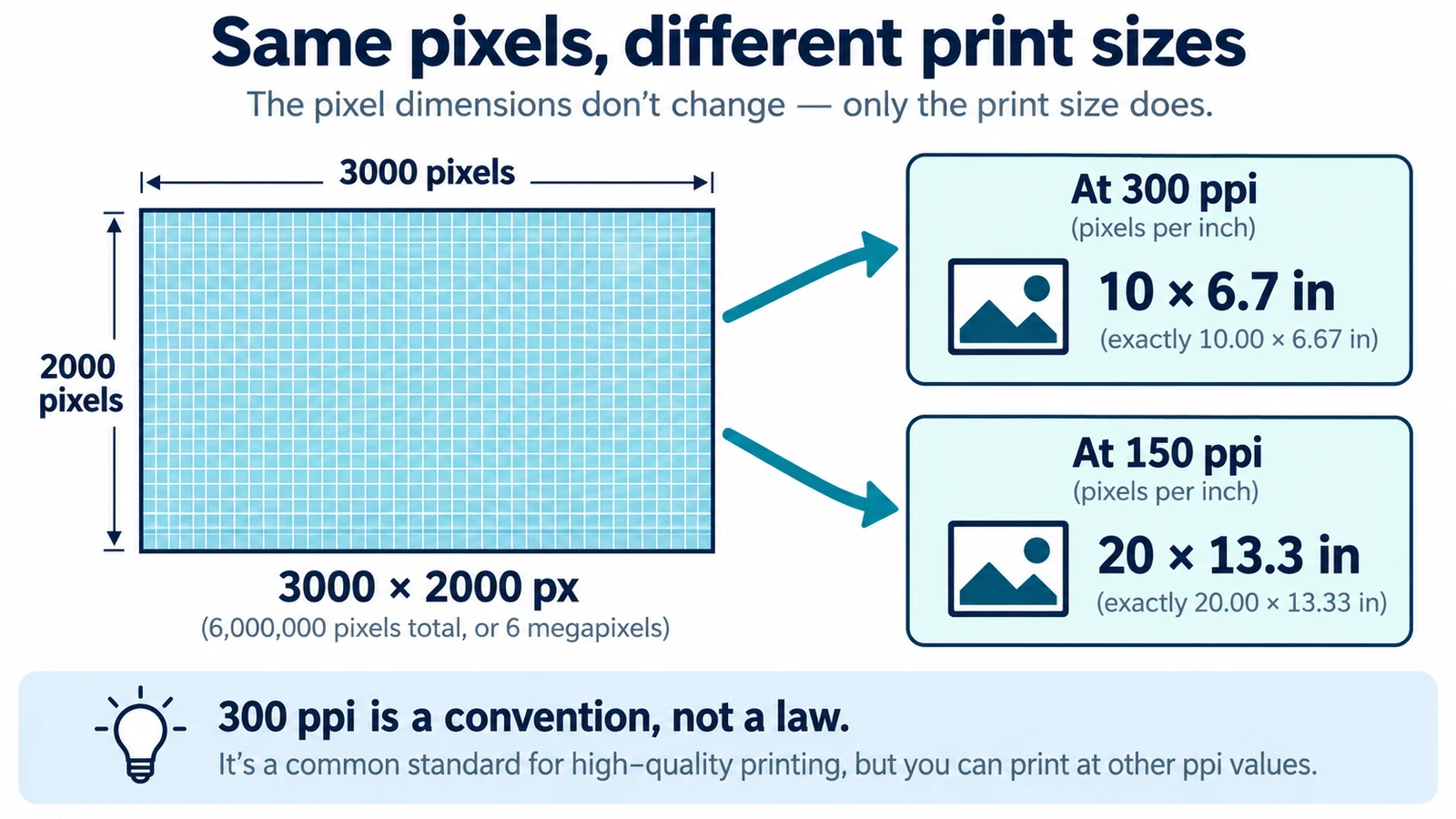
DPI vs PPI: What's the Difference?
DPI and PPI describe different machines, and neither means much without a physical print size. The formula, why 300 is a habit, and what to note before placing an image.
Documents & PDF Page layout Browser tools No signup Image optimization 5 min read
Published By Julia M. Gil
-
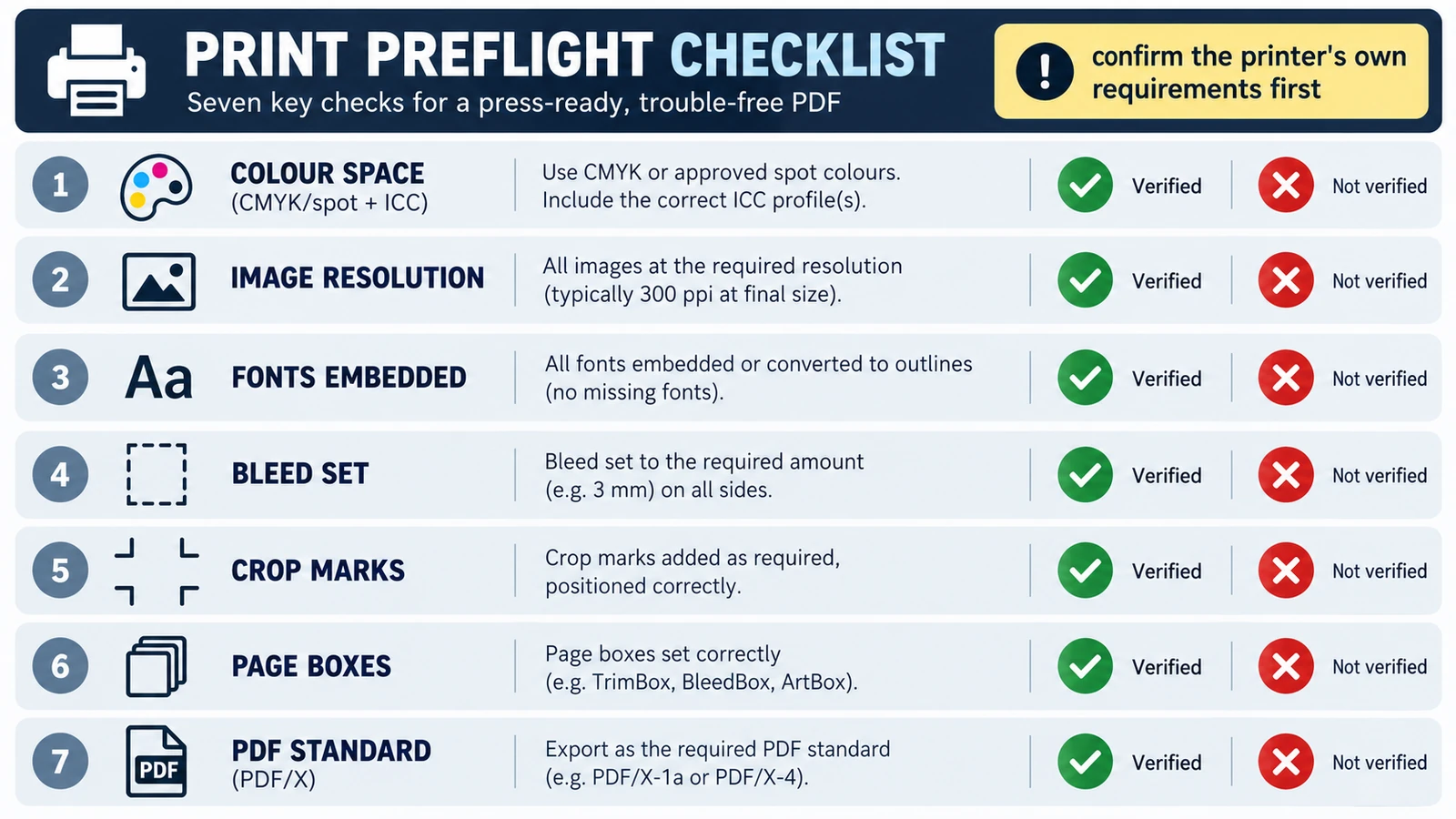
How to Prepare a Print-Ready PDF
Printers reject a file for its trim size, short bleed, colour space or a substituted font, not because it is a PDF. Five checks, and where the browser stops.
Documents & PDF Page layout PDF editing File formats Import & export 5 min read
Published By Julia M. Gil
Keep exploring
FreeAIGeneration is more than this article. The editors and calculators below are real, free and run in your browser.