DPI vs PPI: What's the Difference?
DPI and PPI describe different machines, and neither means much without a physical print size. The formula, why 300 is a habit, and what to note before placing an image.
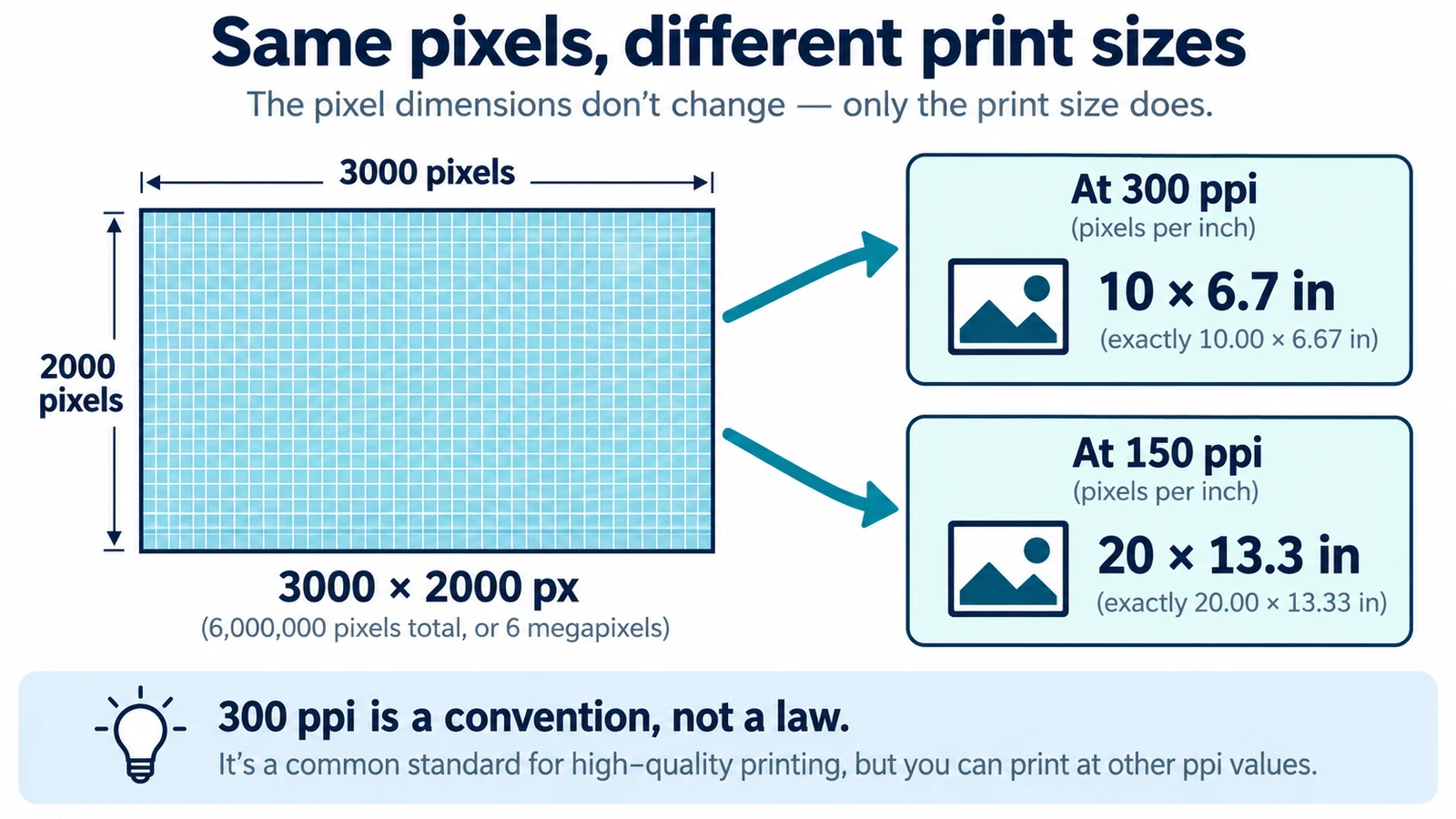
“The image is 300 DPI” is a sentence that means nothing until someone adds a physical size. The file has pixels; the printing device has dots; the number people quote describes a relationship that only exists once you decide how wide the picture will print.
The DPI vs PPI confusion sits in the middle of that, and it causes errors in both directions. Files get rejected for resolution when they were fine, and files get accepted when they were not, because a tag in the metadata was mistaken for detail in the image.
Two units, two machines
PPI counts pixels per inch of the image at its printed size. DPI counts the dots of ink a printer lays down per inch. One belongs to the file and a decision about size; the other belongs to the output device and how it renders.
| DPI | PPI | |
|---|---|---|
| What it counts | ink dots per inch on paper | image pixels per inch of printed width |
| Who sets it | the printing device and its screening | you, when you choose a print size |
| Where it appears | press and printer specifications | image metadata and placement |
A 2,400 dpi printer producing a 300 ppi image lays 8 dots for every pixel, because 2,400 ÷ 300 = 8. The dots are the device’s business. The pixels are what you supplied, and no printer can put back what the file never had.
The only formula you need
Pixels equal inches times pixels per inch. Convert the physical size to inches first, divide by 25.4 if it is in millimetres.
At 300 ppi, a 10 × 15 cm picture needs 10 ÷ 2.54 = 3.937 in × 300 = 1,181 px across, and 15 ÷ 2.54 = 5.906 in × 300 = 1,772 px down.
Run it backwards to find a printed size. A 3,000 × 2,000 px image at 300 ppi prints at 10 × 6.67 in; at 150 ppi it prints at 20 × 13.33 in. Same file, two jobs, one of which is over-stretched. That single calculation answers most resolution questions, and it needs the print size before it can answer anything.
Why 300 is a habit rather than a rule
The number comes from commercial printing convention, not from a standard that forbids anything else. Large-format work is often supplied at 150 ppi because a poster is read from a metre away, and the extra pixels would cost time and storage for an eye that cannot see them. A postcard held in the hand supports a finer value.
So ask what the printer wants for this job. If their specification says 200 ppi at final size, send 200 ppi and do not improve on it. If there is no specification, 300 ppi at final size is a safe default for anything read by hand, and 150 ppi is a sensible one for large display work.
The number that changes nothing
Changing the resolution field of an image, without resampling, rewrites a tag and leaves the pixel dimensions exactly where they were. The file still holds 1,181 px across; the metadata now claims a different density. If you push that file to the size the new number implies, you are stretching the same pixels over more paper, and the result looks soft for a reason.
Resampling is the other operation, and it is not a fix either. Interpolation can add pixels by inventing intermediate values, which smooths an edge but does not restore detail that the camera did not record. A 1,181 px image upscaled to 3,000 px is a 3,000 px file, not a 3,000 px picture.
That is why the useful check is always the same two numbers: pixel dimensions and intended print size. Density is derived from them, not the other way round.
What to write down before placing an image
Final printed width and height in millimetres. The ppi the printer wants. The pixel dimensions each placement therefore needs. Then compare with what the camera or the export actually produced, and deal with any shortfall while there is still time to reshoot, re-export or redesign.
Layout work makes this concrete, because page geometry is often expressed in picas. One pica is 12 points, or 4.233 mm, so a 210 mm page measures about 49.6 picas across, and a frame sized in picas can be converted back to millimetres before the arithmetic above.
Where the browser editor fits
The Page Layout Editor sets page geometry in picas, with width, height and margins, and it exports a page as a PNG or saves a .designcraft file. No DPI or PPI field, effective-resolution readout or resampling control is evidenced in this build, so resolution is a decision you make before the image goes in, not a setting you adjust afterwards.
That is a workable division once you accept it. Compute the pixel requirement outside the editor, place the image at final size, and keep the calculation with the project notes so the next person does not have to guess why a photograph was exported at one size and placed at another.
The rest of the handoff belongs to the page rather than the image. Bleed, margins and crop marks sets out the rectangles around the page, and RGB versus CMYK covers what happens to the colour before a file reaches a press. The guides hub collects the remaining print and layout pieces.
Frequently asked questions
Is 300 DPI the same as 300 PPI?
Not quite. PPI counts image pixels per inch of printed width, while DPI counts ink dots the printing device lays down, so an image quoted as 300 DPI almost always means 300 ppi at its final size.
Does raising the resolution field in an image add detail?
No. Changing the field without resampling only rewrites a tag, and interpolation can add pixels but not the information they would have carried.
Is 300 ppi required for printing?
No, it is a convention rather than a standard. Large-format work is often supplied at 150 ppi, and the printer's own specification for the job always takes precedence.
Try these FreeAIGeneration tools
Related articles
-
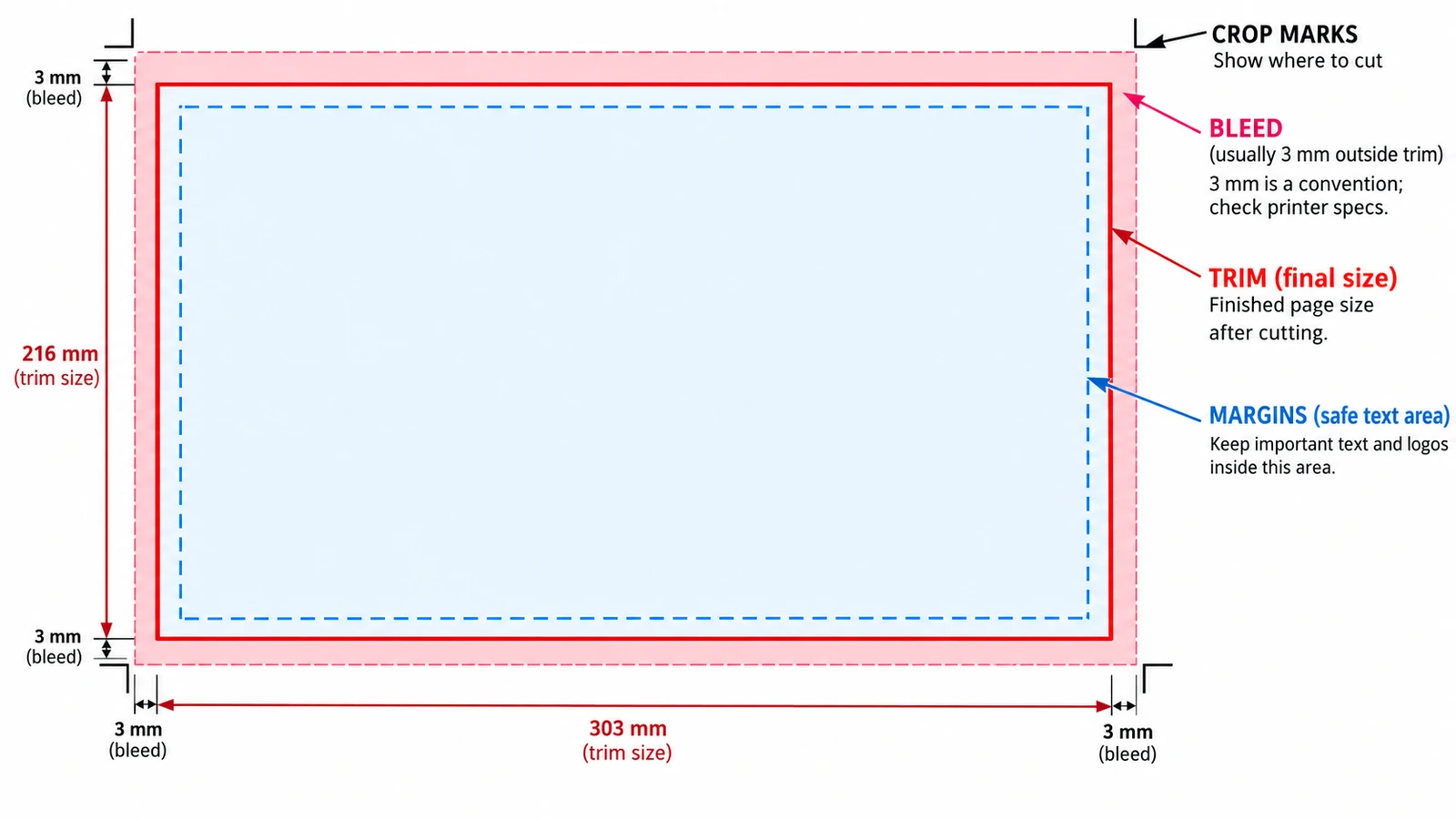
Bleed, Margins and Crop Marks Explained
Trim, bleed and margins are three rectangles pushing opposite ways. Where each value belongs, why crop marks sit outside the trim, and what the browser tool cannot do.
Documents & PDF Page layout Browser tools No signup Image optimization 5 min read
Published By Julia M. Gil
-
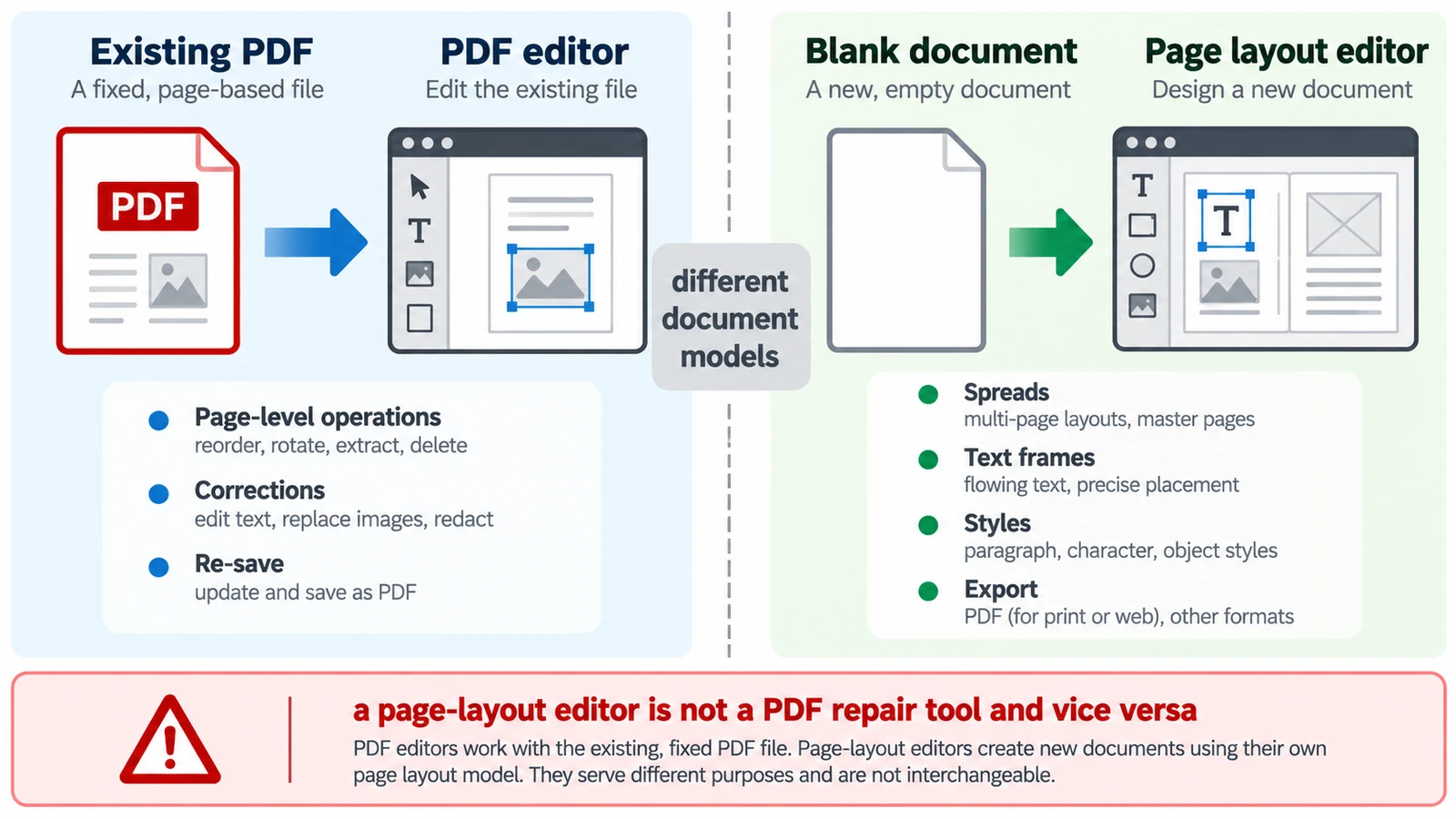
PDF Editor vs Page Layout Editor: Which Do You Need?
A PDF has no paragraphs to reflow, so a paragraph added mid-page does not behave as expected. Which tool belongs to which stage, and how the handoff between them works.
Documents & PDF PDF editing Page layout Workflow comparison Browser tools 5 min read
Published By Julia M. Gil
-
What Is Desktop Publishing and When Should You Use It?
Desktop publishing is production, not design: styles, parent pages and threaded frames that make decisions repeatable, and a PDF that is only the export.
Documents & PDF Page layout Browser tools No signup 5 min read
Published By Julia M. Gil
Keep exploring
FreeAIGeneration is more than this article. The editors and calculators below are real, free and run in your browser.