How to Prepare a Print-Ready PDF
Printers reject a file for its trim size, short bleed, colour space or a substituted font, not because it is a PDF. Five checks, and where the browser stops.
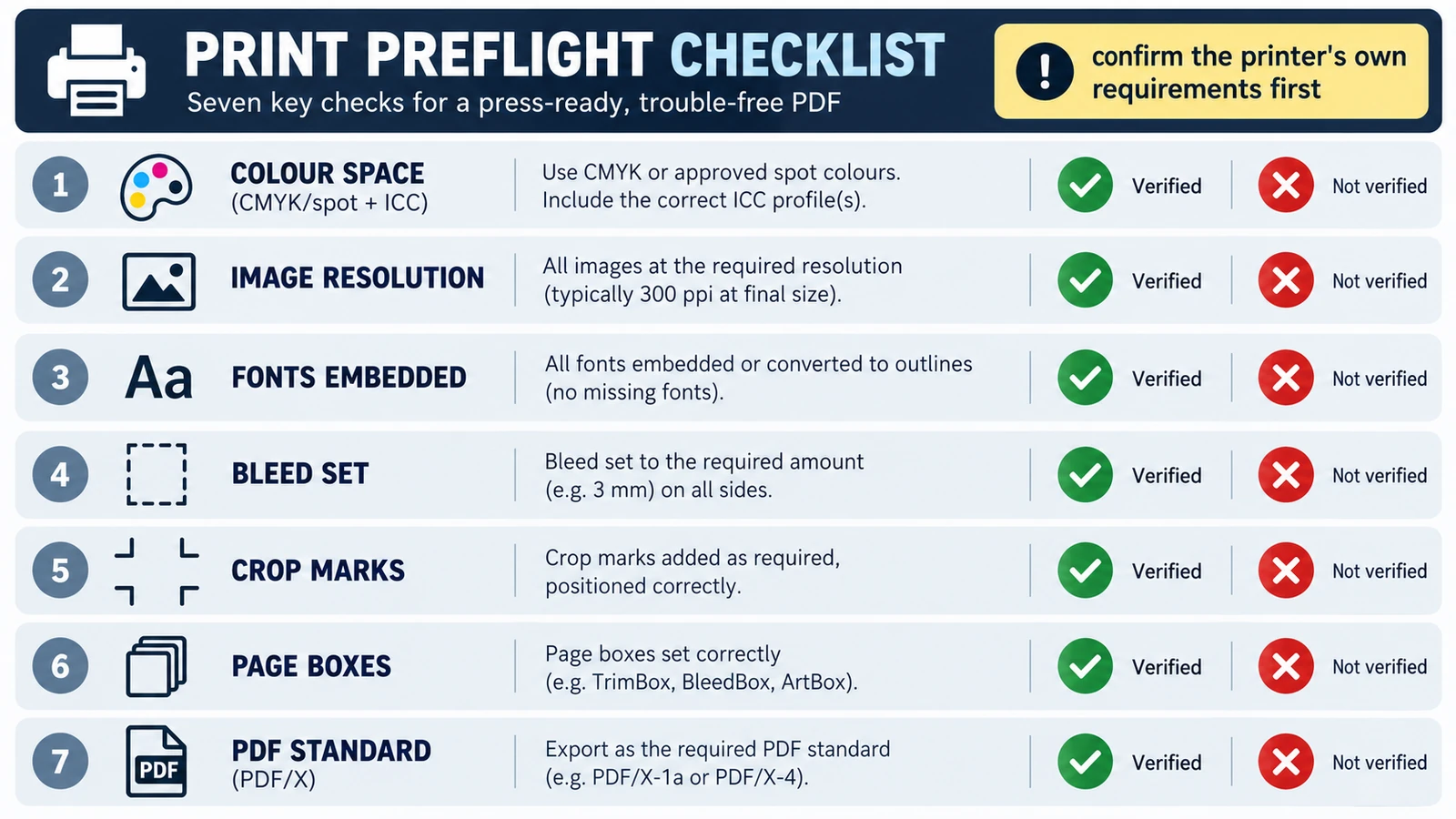
Print shops do not reject a file because it is a PDF. They reject it because the trim size is wrong, the background stops short of the edge, the images are in the wrong colour space, or a font arrived substituted. To prepare a print-ready PDF is to close those gaps while you can still see them, and the export button comes last rather than first.
Order matters as much as the checks. Change the page size after the artwork is placed and every position has to be redone. Convert colour before the images are settled and you judge a narrower palette on a screen that cannot show it. What follows is the sequence a printer reads, then where a browser layout editor stops.
Five things the printer looks at
Trim size comes first. A page has a finished size and the file has to declare it, because a page a few millimetres out gives a cover that will not fold where the spine expects. Trim is the line the blade follows, not the edge of the artwork.
Bleed comes second. Anything reaching the trim edge needs artwork continuing past it, usually 3 mm in Europe and 0.125 in in the United States. On A4, 3 mm each side makes a 216 × 303 mm sheet instead of 210 × 297 mm. Without that tolerance, a cut drifting a fraction of a millimetre leaves a white sliver.
Colour comes third. A press lays down ink, so the printer will ask for a CMYK workflow or a named profile. Screen colour is light, and the most saturated greens and oranges sit outside what process inks reach.
Fonts come fourth. Embedded fonts travel inside the file; unembedded ones get substituted, often with different line breaks. Subsetting is normal and harmless. A missing font is not.
Resolution comes fifth, and it is arithmetic rather than a label.
Build in the order the press reads it
Ask for the printer’s template first. Then work in this order:
- Set trim size and bleed in document setup, not in the export dialog.
- Place images at final size, then check their pixels per inch.
- Convert colour once, deliberately, to the profile the printer named.
- Confirm every font is embedded, or replace the one that cannot be.
- Add marks only if requested, and keep them outside the trim.
- Export to the requested standard, open the result, and look at it.
Step six is where two ideas get confused. Exporting a PDF is not the same as exporting a print-ready PDF, because a default export hands over the document as the screen sees it. The print-exchange family, PDF/X, is standardised as ISO 15930; PDF/X-4 permits live transparency and ICC colour where older variants flattened to CMYK. PDF/A is a separate family, ISO 19005, aimed at archiving. If the printer names PDF/X-4, that is the target; if they say “just send a PDF”, ask them to be specific.
What the browser layout editor contributes
The Page Layout Editor covers the composition half of this work. It builds multi-page documents with spreads, parent pages and threaded text frames, and it carries paragraph and character styles, colour swatches and text wrap. Page geometry is set in picas, with Facing Pages and Adjust Layout controlling how frames move when the page changes.
Its outputs are two. Save writes a .designcraft file, and exporting a page produces a PNG, both handed to you through the browser’s download. That is a working loop for composition.
The boundary needs stating plainly. Bleed, crop marks, a slug, CMYK, spot colour and preflight have no evidence in this build. PDF/X-4, PDF/A-2b, EPUB and IDML are documented upstream but were not verified here. Nothing in that list makes the export a print-ready PDF, and nothing documented upstream turns it into one. For press, layout can start in the tab and has to finish somewhere with real colour management, marks and a preflight report.
The arithmetic worth doing once
Pixels and physical size are connected by one division. A 3,000 px image printed 200 mm wide is 200 ÷ 25.4 = 7.874 in, so 3,000 ÷ 7.874 ≈ 381 ppi. Run it the other way and 300 ppi at 210 mm needs 2,480 px, because 210 ÷ 25.4 × 300 = 2,480.
The number 300 is a convention, not a law. Large-format banners are often supplied at 150 ppi because they are read from a distance, and a printer who asks for something else is not being difficult. What does not move is that enough pixels at final size keep edges clean; a file tagged 300 ppi but holding fewer pixels has a label, not detail.
Where files go wrong in the final hour
The failures are boring. A layout exported with default settings rather than print settings. An RGB file sent to a CMYK press, which shifts every colour at once. Marks that fall inside the trim and therefore print. A logo placed at its screen size and printed four times as wide. A font that looked fine because the exporting machine had it installed.
Two habits catch nearly all of them. Open the exported file in a reader before sending, and look for marks, bleed and trim. Then name it so the next person knows what it is: client-flyer-a4-v3-print.pdf says more than final.pdf does.
If the geometry is still hazy, bleed, margins and crop marks sets out the three rectangles, and RGB versus CMYK explains why a bright screen colour can be unreachable on press. Both sit alongside the rest of the guides hub for anyone working a document through to handoff.
Frequently asked questions
Can the Page Layout Editor export a print-ready PDF?
No. Save writes a .designcraft file and a page export produces a PNG, while bleed, crop marks, CMYK, spot colour and preflight have no evidence in this build. PDF/X-4, PDF/A-2b, EPUB and IDML are documented upstream but were not verified here.
Is a PDF from a layout app automatically ready for a printer?
No. A default export carries the document as the screen shows it, without the trim and bleed setup, colour conversion, font check and marks a press requires.
How much bleed does a document need?
The usual values are 3 mm in Europe and 0.125 in in the United States, but the printer's own template overrides both. On A4, 3 mm on every side gives a 216 × 303 mm sheet.
Try these FreeAIGeneration tools
Related articles
-
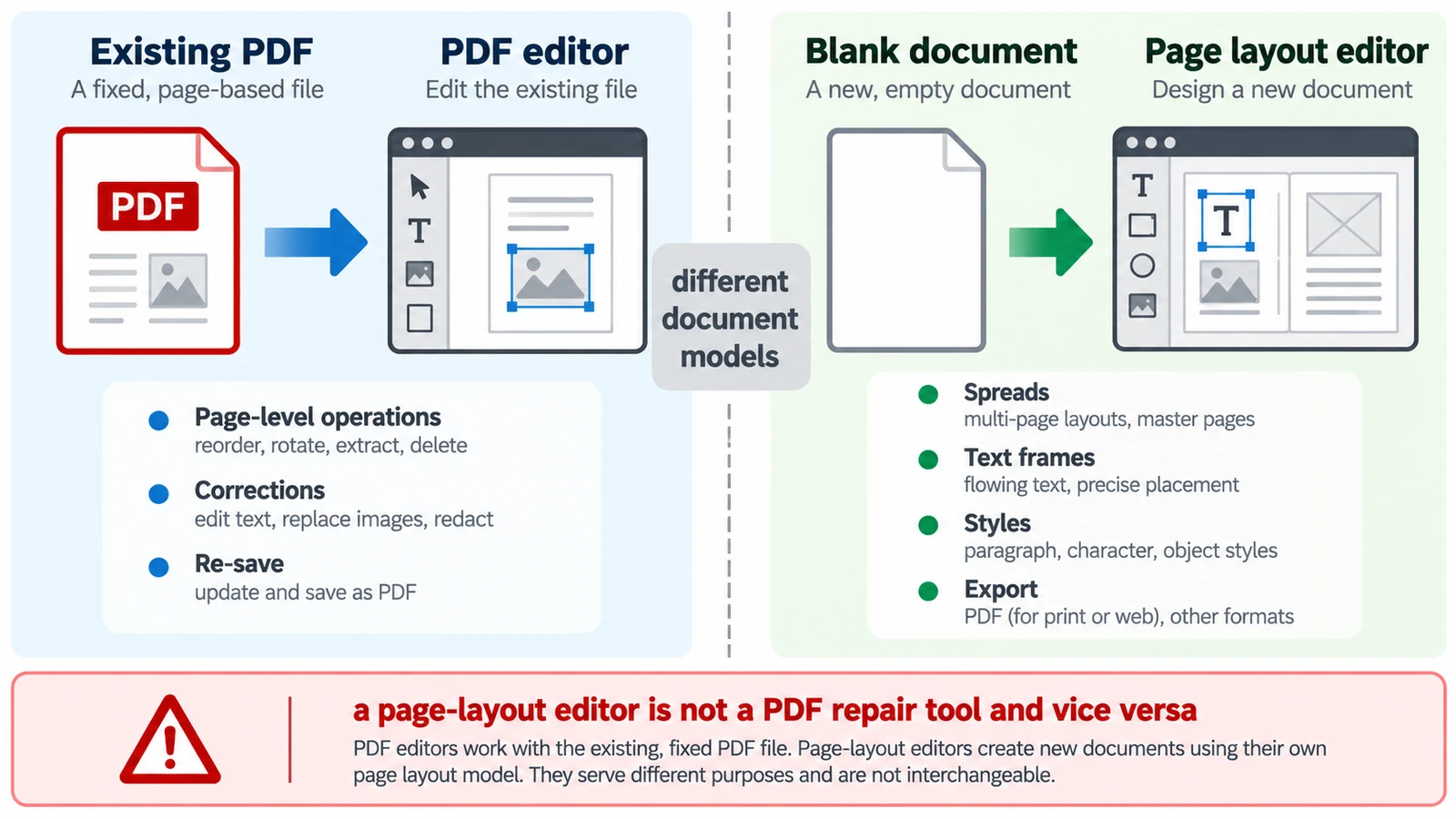
PDF Editor vs Page Layout Editor: Which Do You Need?
A PDF has no paragraphs to reflow, so a paragraph added mid-page does not behave as expected. Which tool belongs to which stage, and how the handoff between them works.
Documents & PDF PDF editing Page layout Workflow comparison Browser tools 5 min read
Published By Julia M. Gil
-
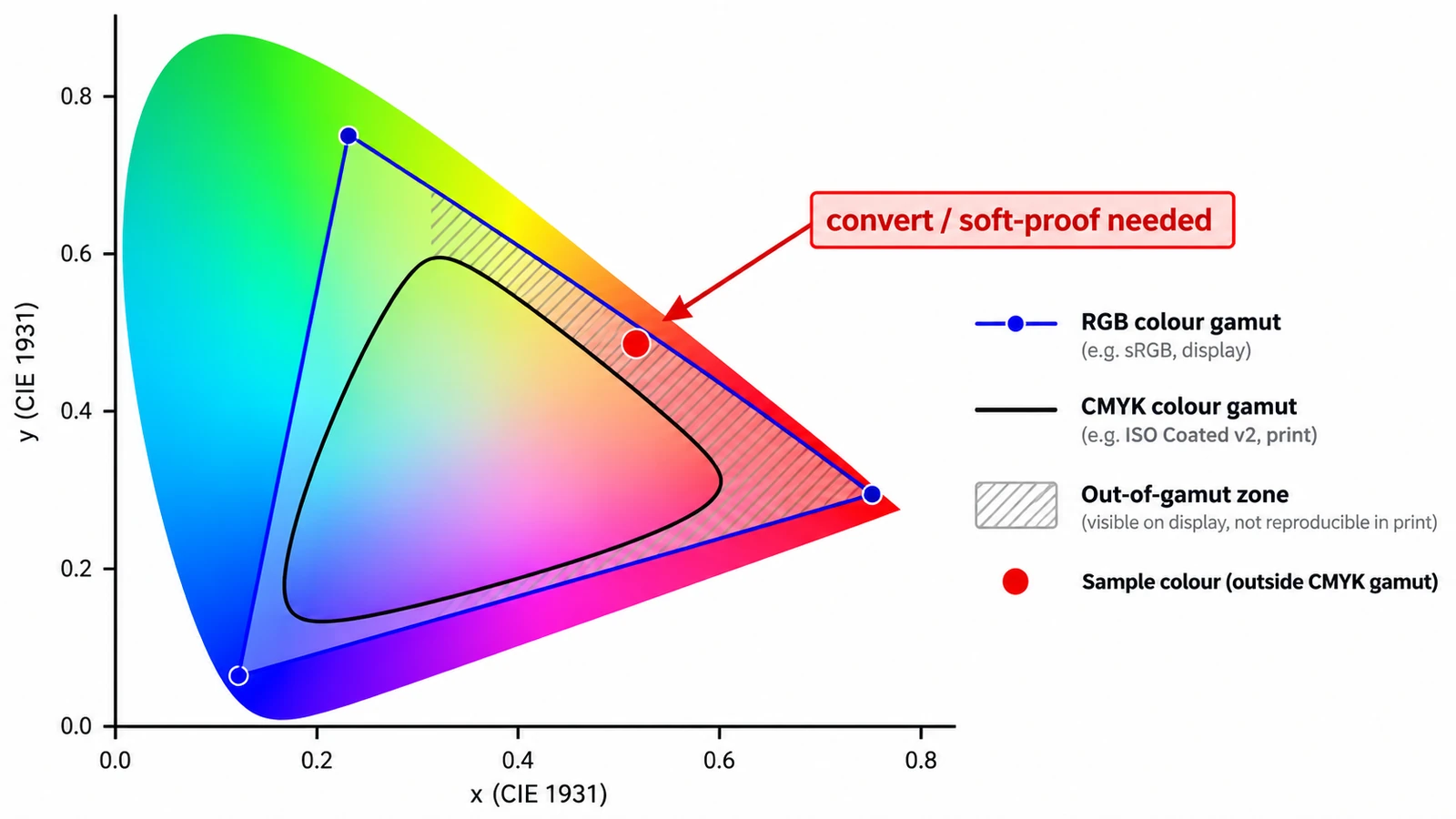
RGB vs CMYK: Which Color Mode Should You Use?
A screen adds light; a press subtracts ink. Those two sentences explain why a vivid green returns as olive, what each mode is for, and why CMYK resists screen judgement.
Documents & PDF Page layout Photo editing Workflow comparison File formats 4 min read
Published By Julia M. Gil
-
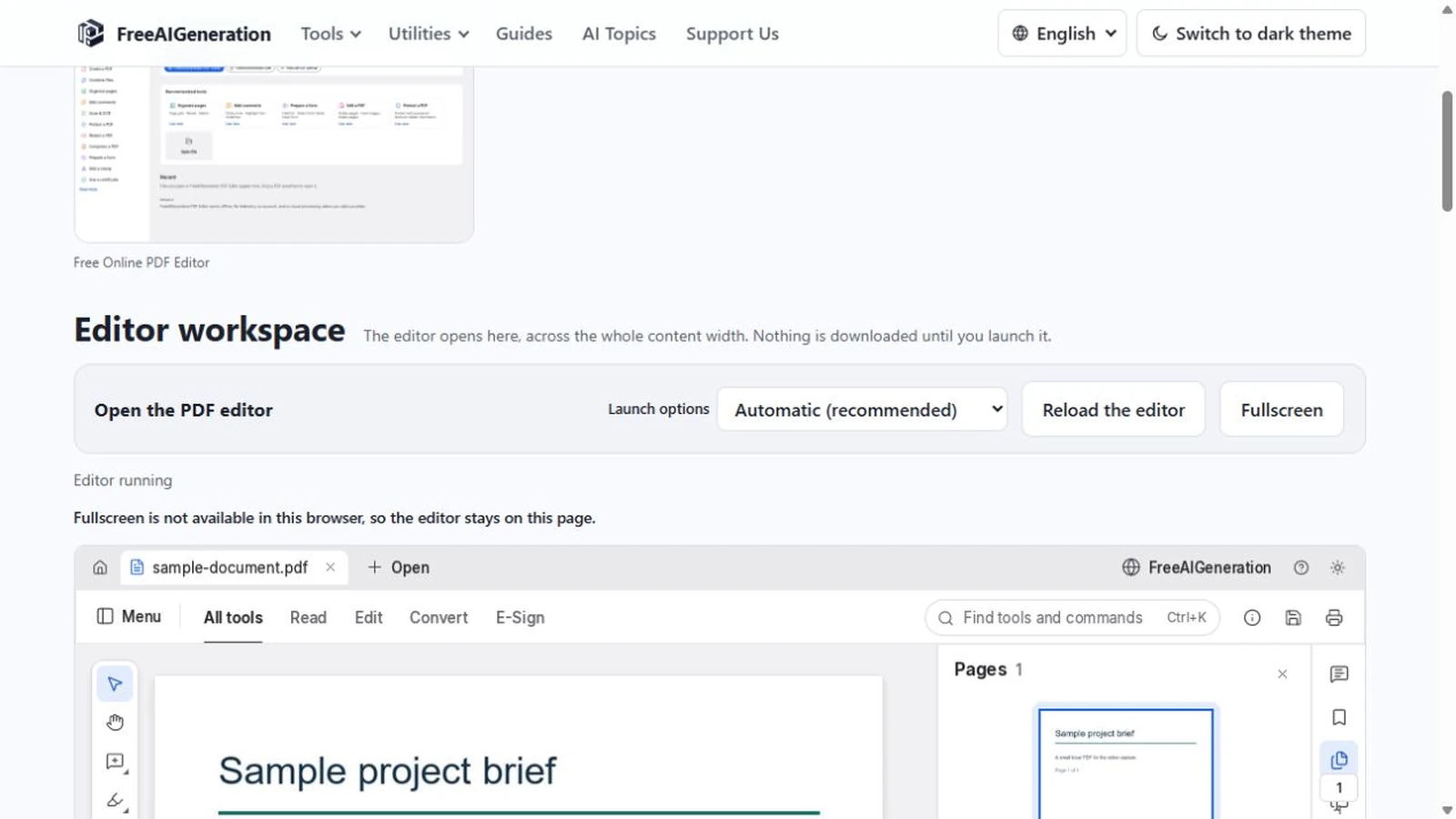
How to Edit a PDF Without Uploading It to a Server
Open, page through and save a PDF inside the browser tab, test the unverified menus on a duplicate, and see what the no-upload claim does and does not cover.
Documents & PDF PDF editing Local processing No upload Privacy 4 min read
Published By Julia M. Gil
Keep exploring
FreeAIGeneration is more than this article. The editors and calculators below are real, free and run in your browser.