How to Edit a PDF Without Uploading It to a Server
Open, page through and save a PDF inside the browser tab, test the unverified menus on a duplicate, and see what the no-upload claim does and does not cover.
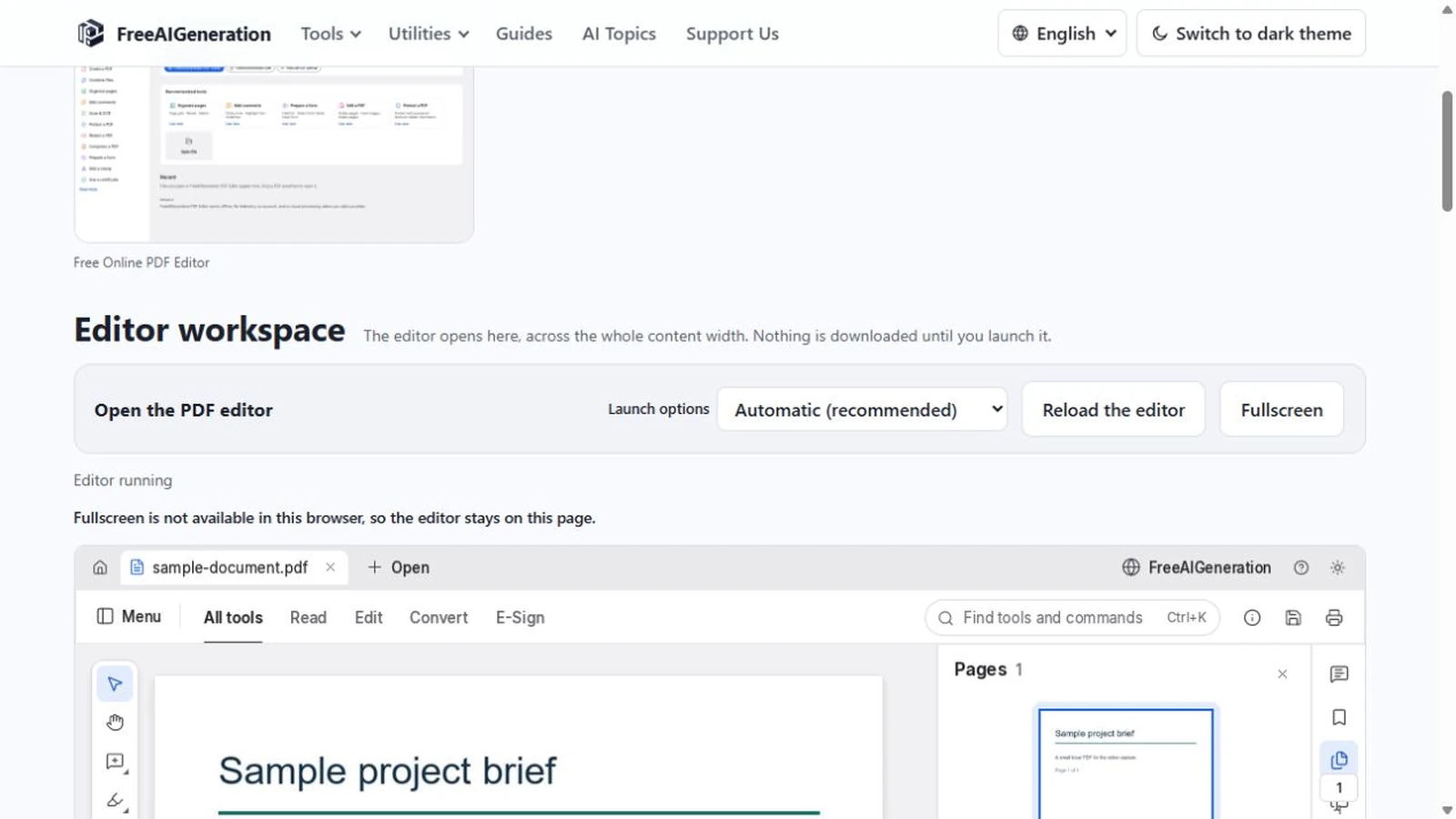
A request to edit a PDF without uploading it can mean three things: the document is edited inside the browser tab instead of sent to a service and returned, no account or library holds a copy, or, in the strictest version, nothing about the file leaves the machine.
A page that says “no upload” usually makes the first claim while readers hear the third. The PDF Editor below makes the first claim and can support it. What follows separates the interface exercised in the audited build from the menu entries that only advertise work.
What the verified surface includes
The PDF Editor is a browser build of PdfCraft, an open-source PDF workbench running inside the page, with no FreeAIGeneration account and no server copy of the document. The editor itself is a single WebAssembly file of about 40.6 MB that downloads on first launch, which is why that start takes a moment on a slow connection.
Verified in this version: a PDF opens, its pages can be moved through, and the file can be saved again as a browser download. In the audit the saved file was byte-identical to the one opened. The menus also list organising pages, commenting, form filling, protection, redaction and export to other formats. Those are upstream menu entries, not exercised here, so test them on a duplicate.
Launch the editor and open your file
Start at the PDF Editor and launch it. On a first visit the editor has to arrive before the document can, and the launch panel names the download size before it begins. There is no account step and nothing to install, so on a slow connection treat that first launch as a step of its own.
Then open the PDF with the editor’s file picker. Use a duplicate rather than your only copy: it costs one file copy, and a bad save cannot take the original with it.
Read the pages before changing anything
Page navigation in this build is keyboard driven. PageDown and the arrow keys move the view, and the page indicator follows, reading something like 1 of 2. Zoom sits beside the page counter, so the scale is visible.
If the change is page order, a sideways scan or a page that should not be there, the rearrangement workflow covers how to plan it. If the change is a sentence that has to reflow, no PDF tool can do that: a PDF stores positioned marks instead of paragraphs with styles, as the comparison with a page layout editor explains.
Save a copy and check the copy
From the duplicate, follow the save path in order.
- Do the work, then choose Save. The document comes back as a browser download.
- Allow downloads for the site, and check the browser’s download list if the file does not appear.
- Reopen the download from disk, not the editor view, and read the changed pages and their neighbours.
- Keep the original until the copy opens cleanly in your usual reader.
The download is the deliverable and the copy you control. Nothing is saved back to a server; the app’s browser-local recovery copy is not a substitute, so a change you have not downloaded can be lost when the tab closes or reloads. The audited round trip returned the opened file byte for byte, so the save does not quietly recompress anything.
When the change is not on the verified surface
The menus list more than was tested; the cheapest test of a listed operation is a duplicate. Open a fresh copy, try exactly one operation, save, then reopen the download and inspect what it was meant to change, plus the page count and the pages either side. If the saved file shows the change, you have a method you can repeat; if it does not, discard the copy.
Text that has to reflow belongs in the source document that produced the PDF. If an unverified operation is the whole reason you opened the tool, choose a documented route instead of a menu that might not perform it. A menu entry is evidence that somebody wrote a menu.
What the no-upload claim covers
“Without uploading” describes where the document is processed: by an editor running inside the page, with no FreeAIGeneration account and no server-side copy. It does not describe every request the page makes. The editor has to be downloaded, and a manual update check can contact GitHub when you ask it to. That is narrower than the absolute reassurance some pages print, and it is what this build supports.
With no server-side copy, the downloaded file is the record you control. Printing to a system printer is not available in the web build, so save and print from your reader. The interface is painted into a single canvas, so text is not selectable and screen readers cannot read the toolbar. WebGPU and clipboard access need https or localhost, with a WebGL2 fallback that was exercised in this build.
For the wider question, are online photo, video and PDF editors private sets out the questions worth asking. For this editor the sequence stays the same: duplicate, save, open the download, keep the original.
Frequently asked questions
What can I edit in this version?
What was verified in the audited build is opening a PDF, moving through its pages and saving the file as a browser download. The menus also list page organisation, comments, form filling, protection, redaction and export to other formats, and those entries were not exercised here, so test them on a duplicate before relying on them.
What does editing a PDF without uploading it mean here?
It describes where the document is processed: by an editor running inside the page, with no FreeAIGeneration account and no copy of the document on a server. The editor itself still has to be downloaded, about 40.6 MB on first launch, and its manual update check can contact GitHub when you trigger it.
Where does the saved file go, and what happens if I close the tab?
Save ends in a browser download to your own machine: allow downloads for the site and check the browser's download list if the file does not appear. Nothing is saved back to a server. The app can keep a browser-local recovery copy, but the download is the only copy you control, so unsaved changes can be lost when the tab closes or reloads.
Try these FreeAIGeneration tools
Related articles
-
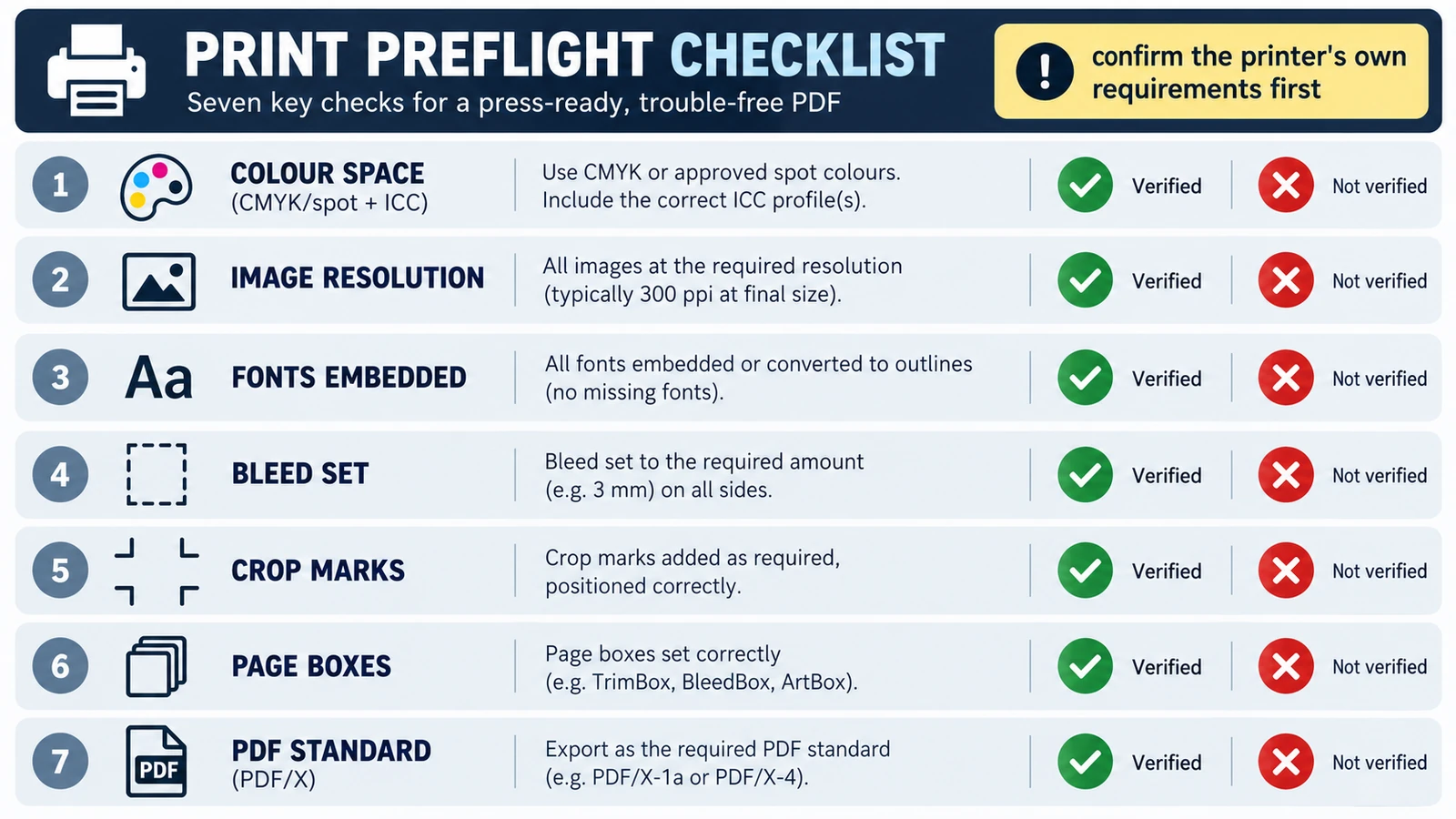
How to Prepare a Print-Ready PDF
Printers reject a file for its trim size, short bleed, colour space or a substituted font, not because it is a PDF. Five checks, and where the browser stops.
Documents & PDF Page layout PDF editing File formats Import & export 5 min read
Published By Julia M. Gil
-
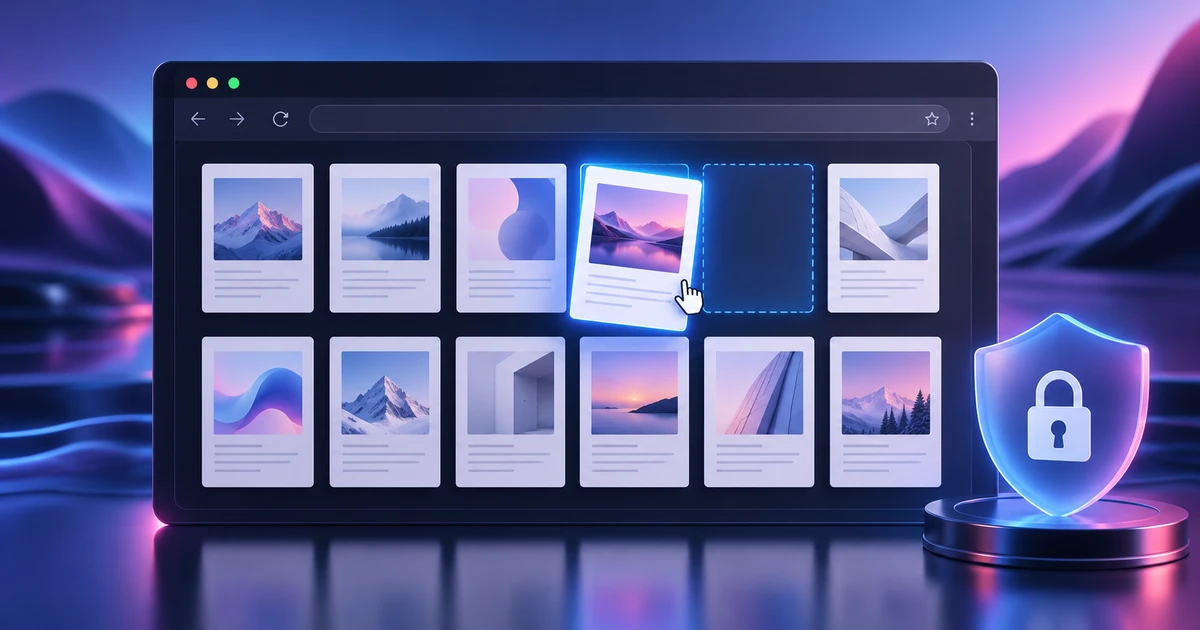
How to Rearrange PDF Pages Without Uploading Your File
Rearrange, rotate, delete and insert PDF pages in your browser while keeping the file local, then extract, split or combine pages when needed.
Documents & PDF PDF editing Browser tools No signup Workflow comparison 4 min read
Published Updated By Julia M. Gil
-
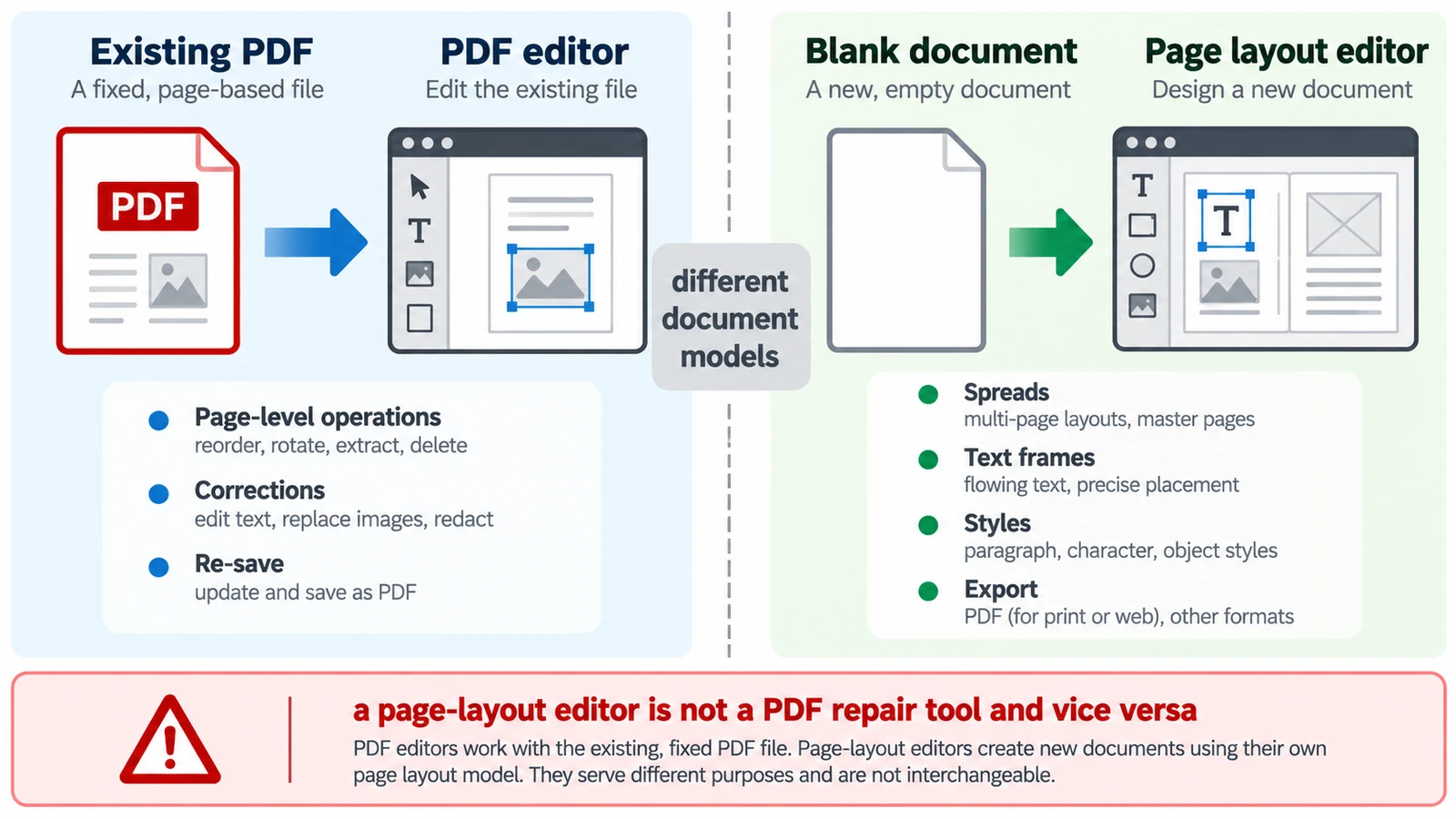
PDF Editor vs Page Layout Editor: Which Do You Need?
A PDF has no paragraphs to reflow, so a paragraph added mid-page does not behave as expected. Which tool belongs to which stage, and how the handoff between them works.
Documents & PDF PDF editing Page layout Workflow comparison Browser tools 5 min read
Published By Julia M. Gil
Keep exploring
FreeAIGeneration is more than this article. The editors and calculators below are real, free and run in your browser.