How to Rearrange PDF Pages Without Uploading Your File
Rearrange, rotate, delete and insert PDF pages in your browser while keeping the file local, then extract, split or combine pages when needed.
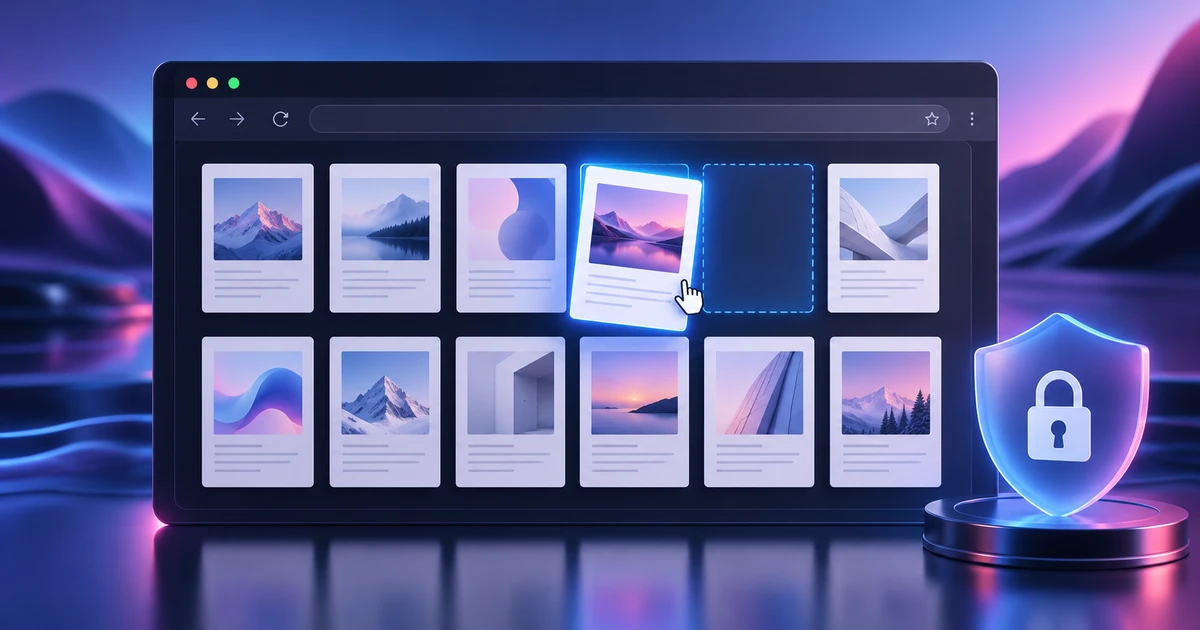
A PDF often arrives almost finished: all the right pages are there, but the order is wrong, one page is upside down, an appendix needs to move forward or a blank page has slipped into the export. You do not need to rebuild the document to fix that. A page-level editor can rearrange PDF pages while leaving the actual page content intact.
The privacy question matters too. If the document contains a contract, client proof, financial record or unreleased design, uploading it to an unknown conversion service is a poor default. PDFCraft is designed around in-browser work, so the useful workflow is not “upload, wait, download”; it is “open, organize, verify, save.”
Start by reading the page map, not the text
Open the PDF and switch to the page thumbnails or page organizer. Before moving anything, scan the document as a sequence.
Look for four common problems:
- pages that are clearly out of order;
- pages with the wrong orientation;
- duplicates or accidental blanks;
- sections that should be extracted into a separate document.
This overview prevents a familiar mistake: moving one page, then discovering that the next five pages belonged with it. Think in sections before you think in individual thumbnails.
Move pages in groups when the structure is clear
If a chapter, appendix or spread needs to move, select the whole range and move it together. Group moves preserve local order and reduce the chance of separating a heading from the pages it introduces.
For a small document, dragging thumbnails is usually fastest. For a longer report, it helps to note the intended sequence first. For example:
- Cover
- Executive summary
- Main report
- Case study
- Appendix
- Terms
Then compare the actual PDF against that map. You are solving an ordering problem, not visually shuffling pages until the file “looks about right.”
Rotate pages without changing their position
Scanned documents often contain a few landscape or upside-down pages. Rotate those in place before doing any large reordering. That way orientation problems do not distract you while checking sequence.
Rotation should affect the page view, not the page number. After rotating, verify that the thumbnail and the full page agree. Some scanned PDFs contain an internal rotation flag rather than physically rotated pixels, so a visual check is more useful than assuming the operation behaved the way you expected.
Delete only what is truly disposable
A blank page between sections may be intentional for print. A page that looks duplicated may contain a slightly different legal footer. A low-resolution proof page may still be needed as part of an approval record.
Before deleting, ask whether you are correcting the document or creating a new derivative. If you may need the removed pages later, use extraction or splitting instead of deletion.
That distinction is especially useful with client deliverables. Keep one clean source PDF, then create purpose-specific outputs from it rather than repeatedly editing the only copy.
Insert pages from another PDF deliberately
When adding a cover, replacement page or signed form, check three things before saving:
Page size. An A4 page inserted into a US Letter document will be visibly different.
Orientation. Portrait and landscape pages can coexist, but the choice should be intentional.
Visual continuity. The inserted page may use different margins, color or typography. Page order can be technically correct while the document still feels inconsistent.
If the inserted material comes from a brochure or layout project, finish the editorial structure there first. The guide to designing a brochure online covers that upstream workflow.
Know when to extract, split or combine
Page reordering is one operation in a larger family of document assembly tasks:
- Extract when you need a copy of selected pages while preserving the source.
- Split when one PDF should become several independent files.
- Combine when several PDFs belong in one final package.
- Reorder when the content is already in one file but the sequence is wrong.
Choose the operation that matches the intended deliverable. Combining three files and then deleting half the pages is usually less clear than extracting the required sections first.
Why local browser processing changes the risk profile
A page organizer does not need cloud storage to provide value. When the PDF is processed locally in the browser, sensitive content can remain on your device during the editing session. That is a meaningful distinction for confidential documents.
Local processing is not a magic security guarantee—your device, browser extensions and download folder still matter—but it removes an unnecessary transfer step. For many routine edits, the safest upload is the one you never make.
Verify the document like a reader
After the page work is finished, do not stop at the thumbnail grid. Read the PDF from page 1 to the end at normal zoom and confirm:
- page numbers progress logically;
- references such as “see next page” still make sense;
- spreads or facing pages have not been separated;
- inserted pages are legible and correctly oriented;
- bookmarks or links still point where expected;
- the final filename clearly distinguishes the revised version.
Then save the result and open the exported file once more. The final PDF, not the editor state, is the deliverable.
For projects that move through several creative tools before becoming a PDF, the browser creative workflow shows where page organization belongs in the larger handoff.
Reordering pages is simple when you treat the PDF as a structured sequence rather than a stack of thumbnails. Work locally when privacy matters, move sections deliberately and verify the exported document from the reader’s point of view.
Frequently asked questions
Can I rearrange PDF pages without uploading the document?
Yes, when the editor processes the PDF locally in the browser. In that setup the file can stay on your device while page operations are performed in the current session.
Does rearranging pages change the quality of the PDF?
Page reordering itself should not require rasterizing or recompressing page content. Quality loss usually appears only if the workflow converts pages to images or performs a separate compression step.
When should I split a PDF instead of deleting pages?
Split or extract pages when you may need the removed material later or want to create several deliverables from one source. Delete pages only when the discarded pages are genuinely unnecessary in the final file.
Try these FreeAIGeneration tools
Related articles
-
How to Edit Video Online with a Multi-Track Timeline
Learn how to edit video online with a real multi-track workflow: three-point edits, precision trims, audio, color, captions and export in FilmCraft.
Creative workflows Video editing Browser tools Multi-track timeline 5 min read
Published By Julia M. Gil
-
How to Open and Edit AI Files Online
Open AI files online, inspect what remains editable, change vector paths and text, and export safely while understanding vector-file compatibility limits.
Creative workflows Vector editing AI files Browser tools 5 min read
Published By Julia M. Gil
-
How to Open and Edit PSD Files Online Without Flattening Layers
Open and edit PSD files online while preserving layers where supported. Learn what to check for masks, adjustments, smart objects and filters before export.
Creative workflows PSD editing Layered images Browser tools 4 min read
Published By Julia M. Gil
Keep exploring
FreeAIGeneration is more than this article. The editors and calculators below are real, free and run in your browser.