How to Edit SVG Files Online in Your Browser
An SVG is geometry written as text. What opening one in the browser exposes, the order to work in, where the browser boundary sits, and the mistakes that cost time.
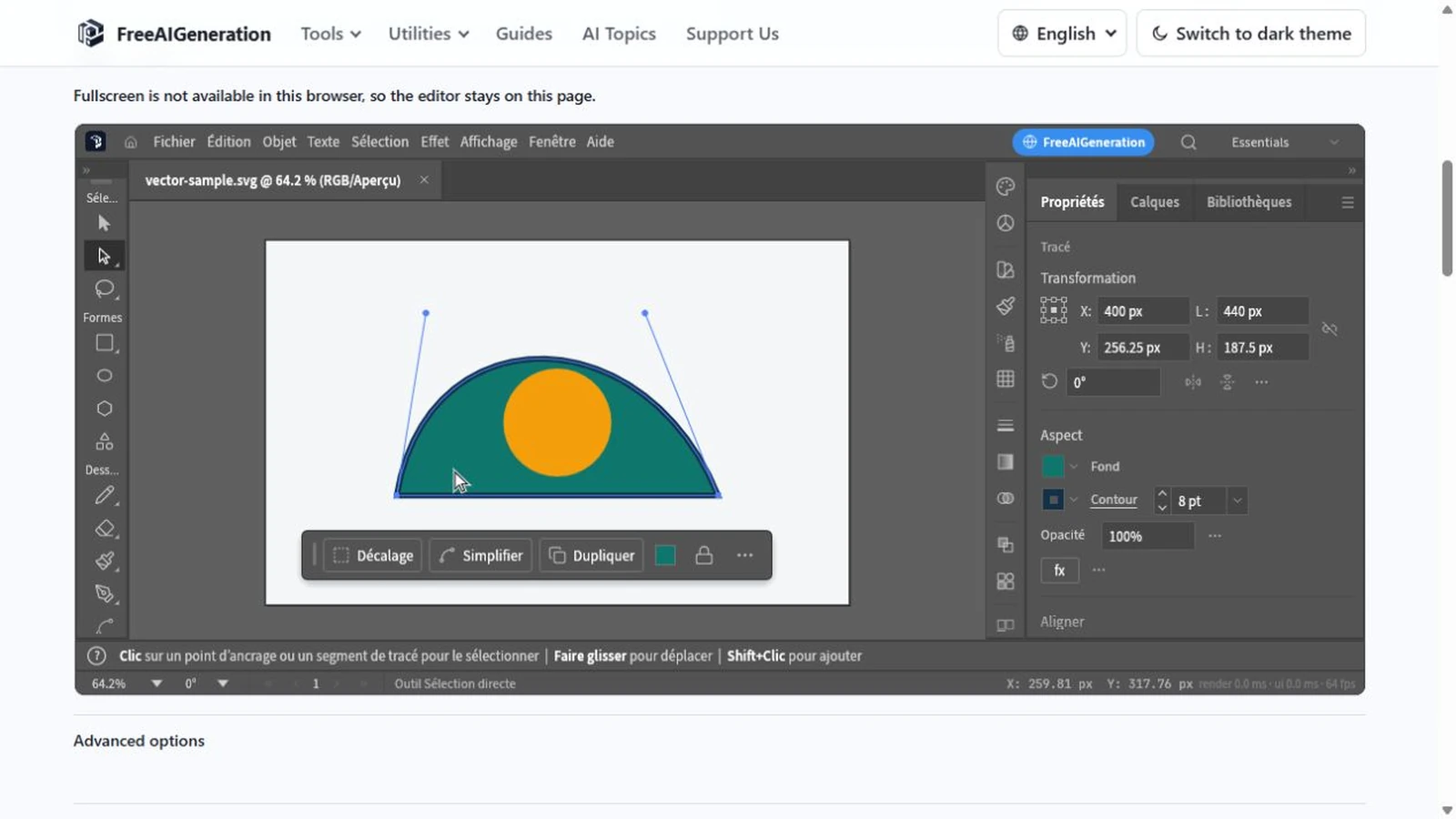
An SVG that needs one small correction is rarely a mystery file. Open it in a text editor and you will find coordinates, paint values and a viewBox: geometry written as text. To edit SVG files online in your browser is to have that same text read back as shapes you can drag, and the useful question is whether the tool treats it as geometry or flattens it into pixels first.
The Vector Editor reads SVG as vector geometry. What follows is the orientation pass: what the editor opens, what the first run asks of you, and where the browser stops being the whole story.
What opening an SVG actually means
SVG is an XML language for 2D vector graphics, and the specification allows one document to mix vector and raster content. The W3C’s SVG 2 is a Candidate Recommendation Snapshot; SVG 1.1 Second Edition is the version implemented most completely in practice, which is why real files still lean on its rules.
The practical consequence is that an SVG carries two independent pieces of information: what the shapes are, and how large they are shown. A viewBox maps user coordinates onto the viewport, so the same 24 × 24 user-unit icon displayed at 2,400 px is scaled 100× without a number in the file changing. Editing means editing those numbers — nodes, handles, path commands, paint values — not repainting pixels.
That is the difference between this and a raster workflow. A raster editor enlarges an image by inventing pixels. A vector renderer draws the shapes again at whatever size you ask for.
What it opens, and what it does not
Import is SVG, PDF and .ai. On the editing side the editor works on Bézier geometry: nodes and handles, shapes, type, gradients, layers, boolean and Pathfinder operations, clipping masks. Export is SVG, PDF, PNG, JPEG or WebP, handed to the browser as a download.
Two limits belong in the first paragraph of any plan. EPS is not part of either set, so a PostScript-based logo has to be converted elsewhere before it comes here. And .ai and PDF import are behaviors the upstream project documents rather than something measured in this build, so treat a complex file as an item to check after import: open it, compare it against the original, and see whether the groups and text arrived the way you expected.
Upstream describes this release as alpha. That is fair calibration. The geometry tools are real; a long session is still something to save early and often.
The first run, in order
Press launch on the tool page. Nothing arrives before you do — the app frame is created after that action, and a large engine downloads on the first launch, which on a slow connection is a visible wait.
Then allow downloads for the site. This is the step people skip, and it fails quietly: the export is produced, the browser blocks the save, and the work looks lost when it is not.
Open the file, and read three things before moving anything: the viewBox, whether the text is live type or outlines, and whether an embedded raster is hiding inside the document. Each one changes what the rest of the session can do.
Before you drag a node
Keep the original. Copy it on disk before importing, because the downloaded result is the only save the browser gives you.
Check the units. A path written in points and a path written in pixels both open, and both look correct until something has to line up with a layout grid.
Decide early whether text must stay editable. Live text keeps the characters selectable and editable; once it becomes paths, that information is gone for good.
Where the browser boundary sits
The editor runs in the browser tab and needs no FreeAIGeneration account. Read that precisely: there is no account, no autosave and no document library on the site’s side. Saving and exporting hand the file to your browser as a download, and the download is the record of the work.
The rhythm is closer to a desktop application than to a web app with a project list. Close the tab without downloading and the session is gone. Browser storage is per-origin and can be cleared, so anything worth keeping belongs on your own disk.
Mistakes that cost the most time
Overwriting the only copy of the source is the expensive one, and it is entirely avoidable.
Assuming a complex file opens as it last looked is the second. Text reflowing after import is usually a font reference problem rather than a fault in the editor.
Exporting to PNG out of habit is the third. When the destination wants vector output, choosing PNG throws the geometry away at the last step.
Paint values, type and path data are a separate subject: changing SVG colors, text and paths takes them one property at a time. If the container itself is still undecided, the SVG, AI and EPS comparison settles that before any editing starts.
Frequently asked questions
Does the editor open EPS files?
No. EPS is in neither the import nor the export set; the editor opens SVG, PDF and .ai files, and exports SVG, PDF, PNG, JPEG or WebP.
Why does Arabic text show up as boxes?
The pinned build ships no Arabic-capable font, so Arabic characters draw as empty boxes while Latin, CJK and emoji text render normally. The editor's own interface is not available in Arabic either.
Is the work saved if I close the tab?
No. There is no autosave and no document library on the site's side, so download the file before closing the tab.
Try these FreeAIGeneration tools
Related articles
-
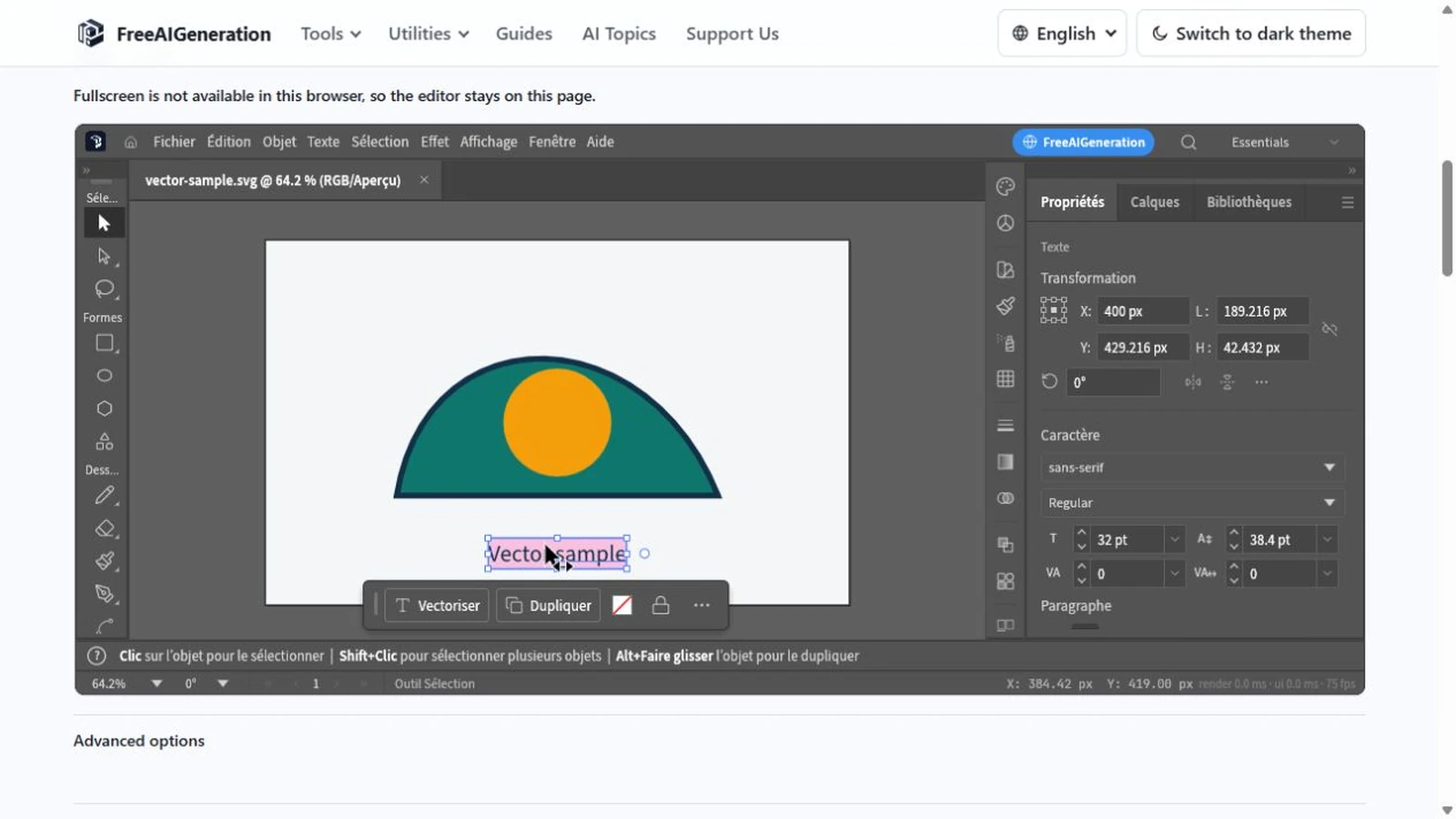
How to Change SVG Colors, Text and Paths Online
Recolouring an SVG can leave a ring of the old colour behind: fill and stroke are different properties. Covers paint values, type, path geometry and export checks.
Creative workflows Vector editing Browser tools No signup SVG editing 4 min read
Published By Julia M. Gil
-
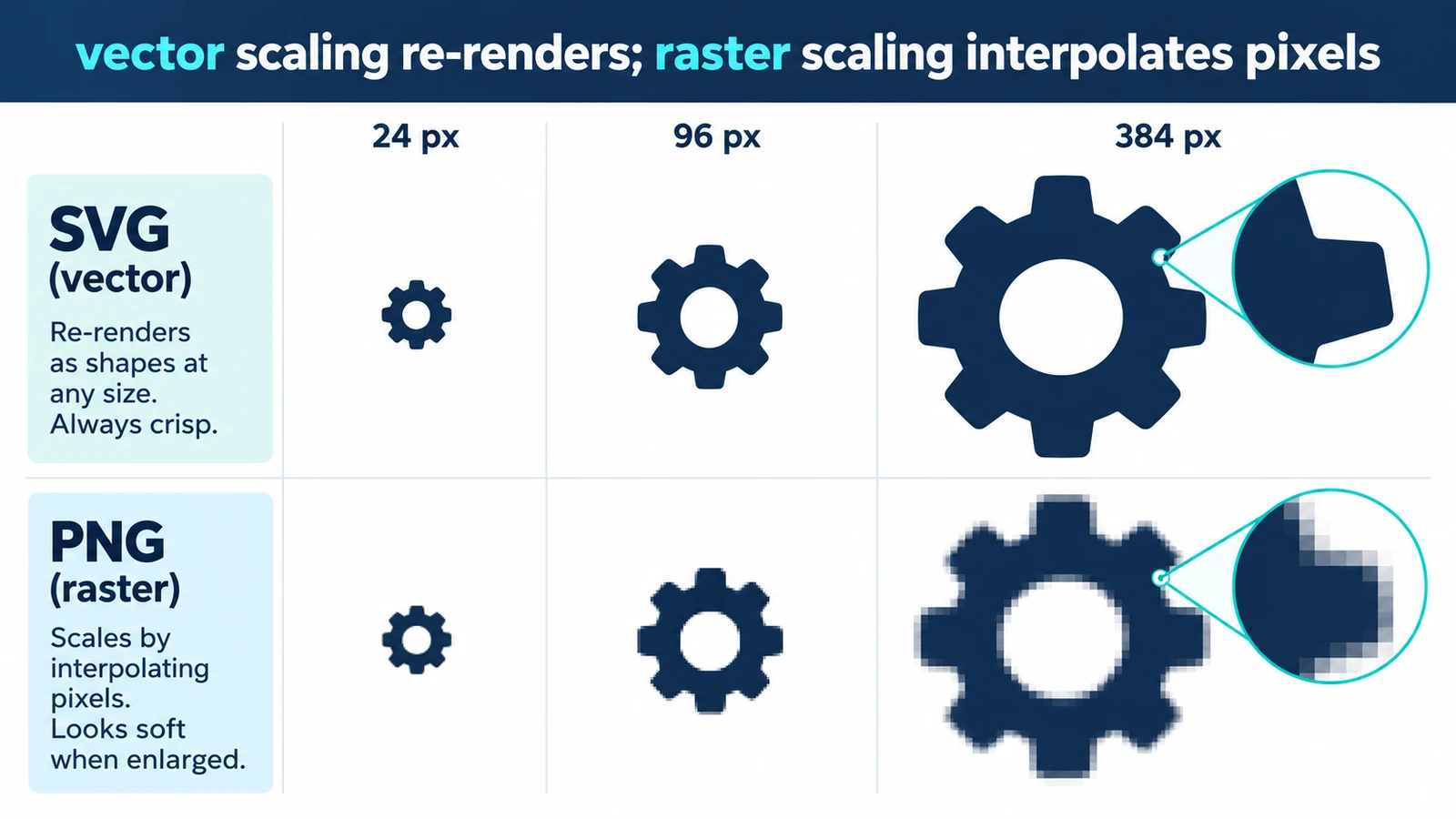
How to Resize an SVG Without Losing Quality
Resizing a vector usually changes nothing in the drawing, because display size is set outside it. Where quality can still disappear, and a short check before you ship.
Creative workflows Vector editing Browser tools No signup SVG editing 3 min read
Published By Julia M. Gil
-
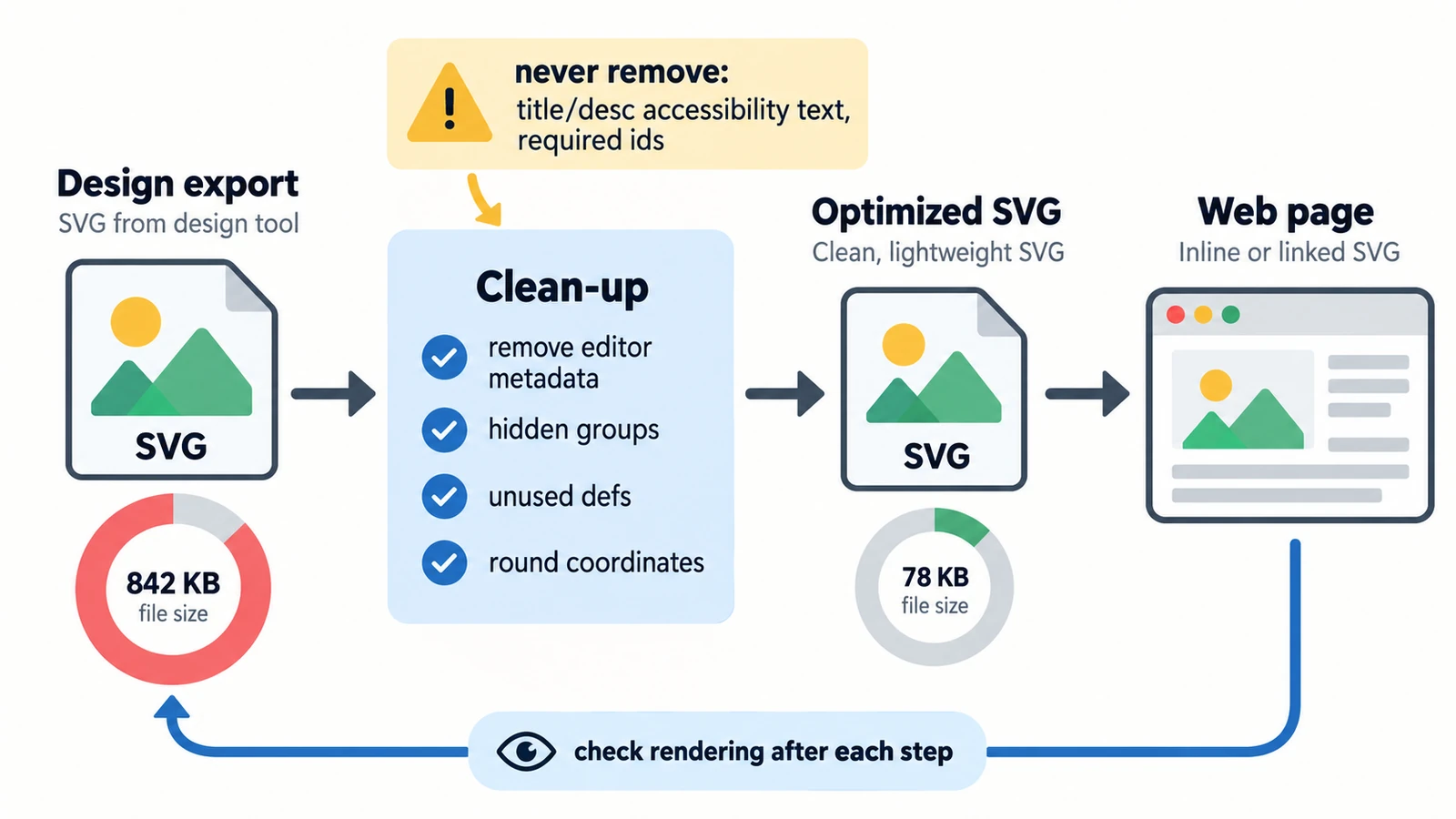
How to Prepare and Optimize SVG Files for the Web
Six kilobytes of nothing is usually excess precision. Separating what the file says from what the network carries, plus embedded rasters, serving and a visual check.
Creative workflows Vector editing SVG editing Image optimization Import & export 3 min read
Published By Julia M. Gil
Keep exploring
FreeAIGeneration is more than this article. The editors and calculators below are real, free and run in your browser.