MP4 vs MOV vs WebM: Which Video Format Should You Use?
MP4, MOV and WebM are containers, not codecs, so the wrapper does not decide quality. What each is for, where quality is actually decided, and how an editor handles them.
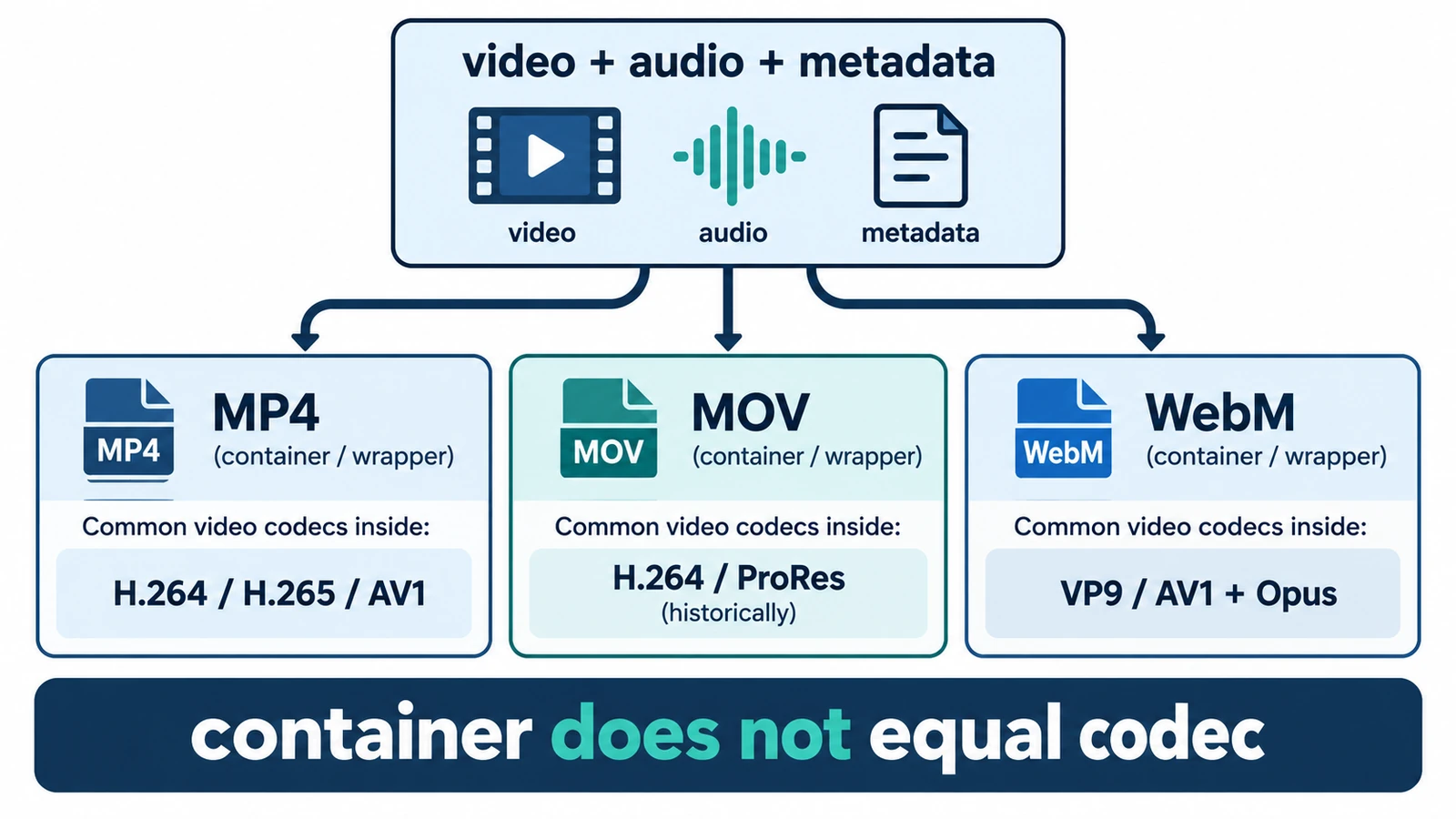
MP4, MOV and WebM are the same kind of object, which is the first thing the question usually gets wrong. They are containers: files that hold tracks, each track carrying a stream of encoded data. None of them says what the picture inside was encoded with, and that is the decision that actually determines quality, compatibility and file size.
MP4 vs MOV vs WebM is therefore not a comparison of codecs. It is a comparison of wrappers, and once you separate the wrapper from what it wraps, most of the confusing advice about video formats falls away.
The container does the packaging
A container holds a video track, an audio track or several of each, plus metadata: duration, frame rate, timecode, language tags, chapter points. It does not compress anything. The compression is done by a codec — H.264, HEVC, VP9, AV1 — and the container simply records how the resulting stream is arranged.
That is why a file named .mp4 can hold H.264, HEVC or AV1, and why the extension alone tells you very little about whether a device will play it. It is also why the common claim that MOV is uncompressed is false. MOV is a container from Apple’s QuickTime family; it can carry lightly compressed or heavily compressed video, and its reputation for size comes from the codecs and settings chosen in the workflows that use it.
What each wrapper is for
MP4 is standardised as ISO/IEC 14496-14 and built on the ISO base media file format. It is the most broadly supported container in consumer playback and the one most delivery pipelines expect.
MOV is Apple’s QuickTime container. It is common in editing and acquisition workflows, and some tools write metadata into it that other containers carry less conveniently.
WebM is a profile of Matroska, documented in RFC 9559, designed for the web and normally paired with VP8, VP9 or AV1 video. Its natural home is a browser, and support outside browsers is thinner than MP4’s.
The practical ranking follows from that: MP4 plays almost everywhere, MOV plays where Apple-flavoured tooling exists, and WebM plays where a browser is doing the decoding.
Where the real quality decision lives
Container choice does not change how good a frame looks. Bitrate and codec do. A 1920 × 1080 clip at 8 Mbit/s for 60 seconds is 8,000,000 × 60 ÷ 8 = 60,000,000 bytes, about 60 MB or 57.2 MiB; the same clip at 16 Mbit/s is 120 MB. Both files could be MP4 with H.264 inside, and the second one would not be twice as good — it would carry more data.
This is where most format arguments go wrong. People compare an MP4 with a MOV that used different encoder settings, conclude that one container is better, and change the wrong thing. The wrapper determines who can open the file. The codec and bitrate determine how it looks at a given size.
What a browser editor actually does with them
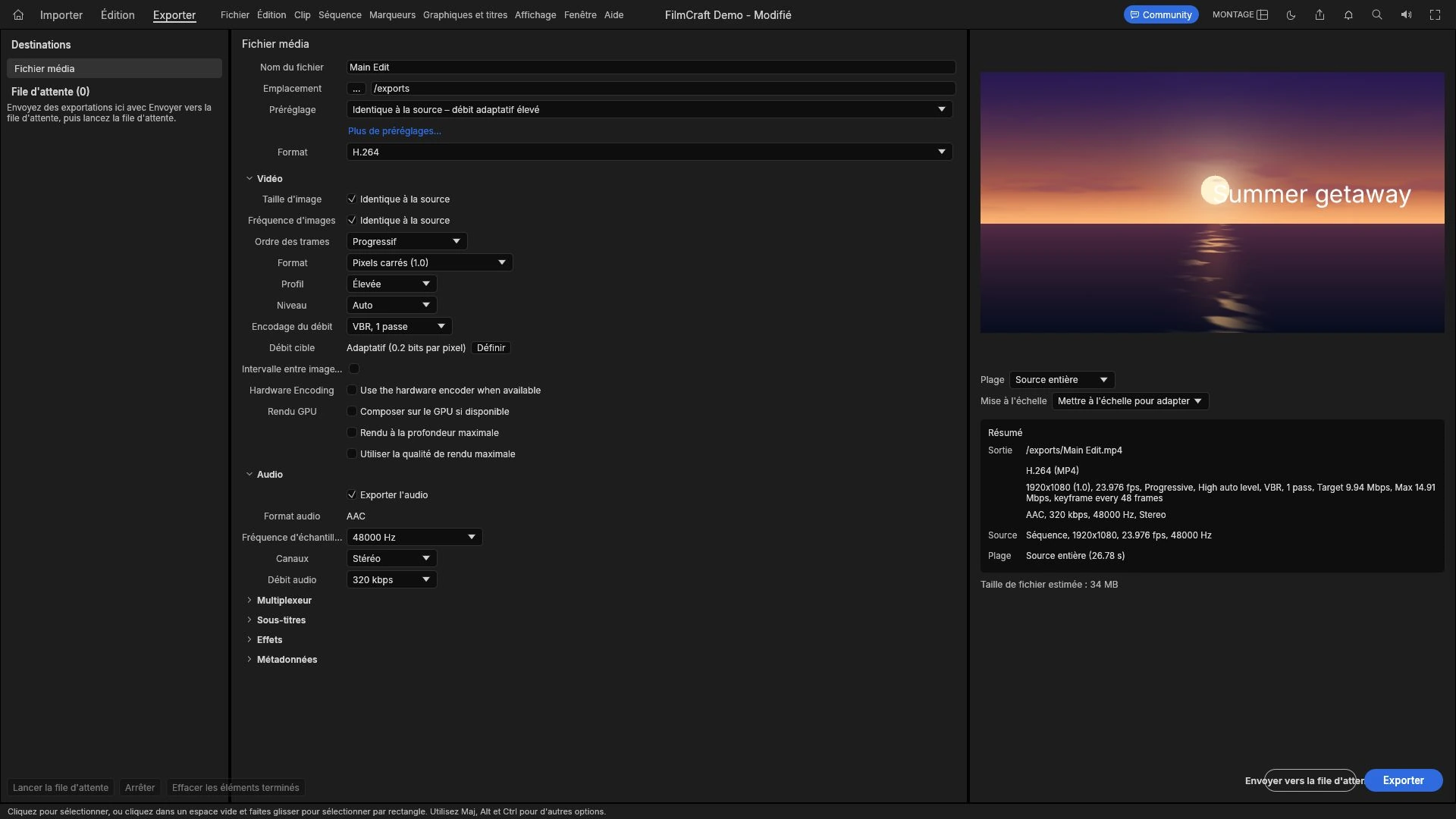
On the audited build the Video Editor imported WebM/VP9 video, and export in practice produced an H.264 MP4. Decoding uses the codecs your browser provides, so which files open depends on the browser rather than on the editor alone.
Two consequences follow for planning. The editor is not a format converter with a full menu of outputs: MOV, WebM, ProRes, HEVC and AV1 exports are not things to assume. And because the browser decodes, a codec your browser does not implement will not open, however common it is elsewhere. H.265 and AV1 export would need hardware access browsers do not expose to a page, which is why an H.264 result is the realistic output rather than a limitation the editor has chosen out of caution.
Choosing in practice
Deliver an MP4 with H.264 when the file has to play anywhere and a platform will re-encode it anyway.
Use WebM when the target is a web page and you control the browser environment.
Use MOV when the next step is another editing or finishing tool that expects it, rather than for delivery.
Keep the camera original when the file is an archive. Transcoding into any of these containers throws away what the original held, and no later choice gets it back.
The size arithmetic behind those decisions — how resolution, frame rate and bitrate interact — is worked through in video resolution vs bitrate, which is the better place to tune quality. The delivery side, where aspect ratio and duration matter more than the wrapper, is covered in exporting video for YouTube, Instagram and TikTok.
Try the workflow in the free Video Editor: import a clip, place it on the timeline, and export an H.264 MP4 to see what the browser produces.
Frequently asked questions
Is MP4 a codec?
No. MP4 is a container standardised as ISO/IEC 14496-14. The codec inside it might be H.264, HEVC or AV1, and the extension alone does not tell you which.
Is MOV uncompressed video?
No. MOV is Apple's QuickTime container and can hold compressed video at many bitrates; its large files usually come from the codec and settings used, not from the wrapper.
Which formats can the Video Editor export?
Export in practice produced an H.264 MP4 on the audited build. MOV, WebM, ProRes, HEVC and AV1 outputs are not features to assume.
Try these FreeAIGeneration tools
Related articles
-
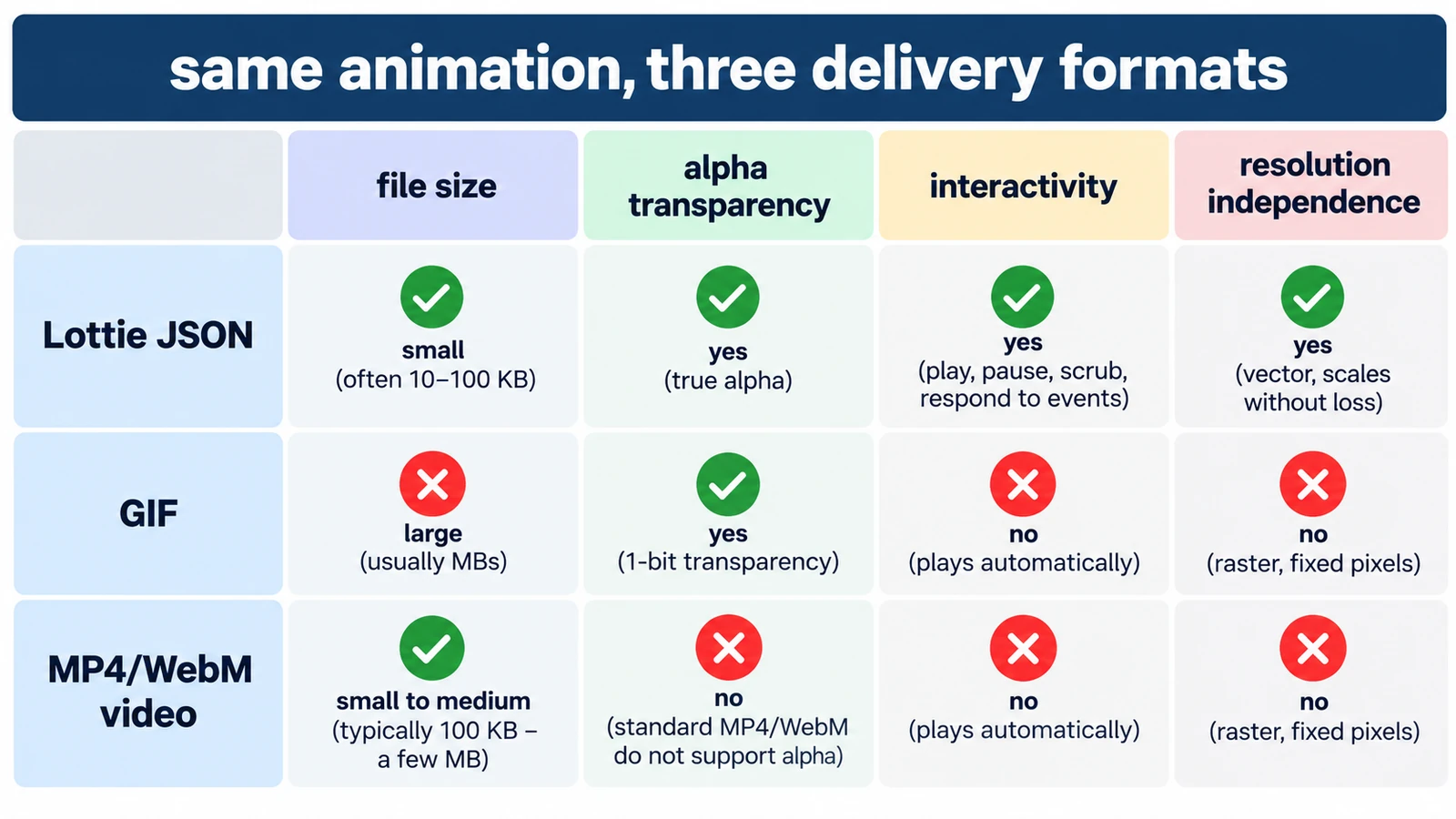
Lottie vs GIF vs MP4: Which Animation Format Should You Use?
GIF spends colour, Lottie spends structure, MP4 spends computing power. What each costs in transparency, size and editability, and which format earns its place where.
Creative workflows Motion graphics Lottie File formats Workflow comparison 5 min read
Published By Julia M. Gil
-
How to Export Video for YouTube, Instagram and TikTok
Every platform decodes and re-encodes what you send, so the file is a master, not a final artefact. Aspect ratio, duration, audio, and sizing a file that survives.
Creative workflows Video editing Browser tools No signup Import & export 4 min read
Published By Julia M. Gil
-
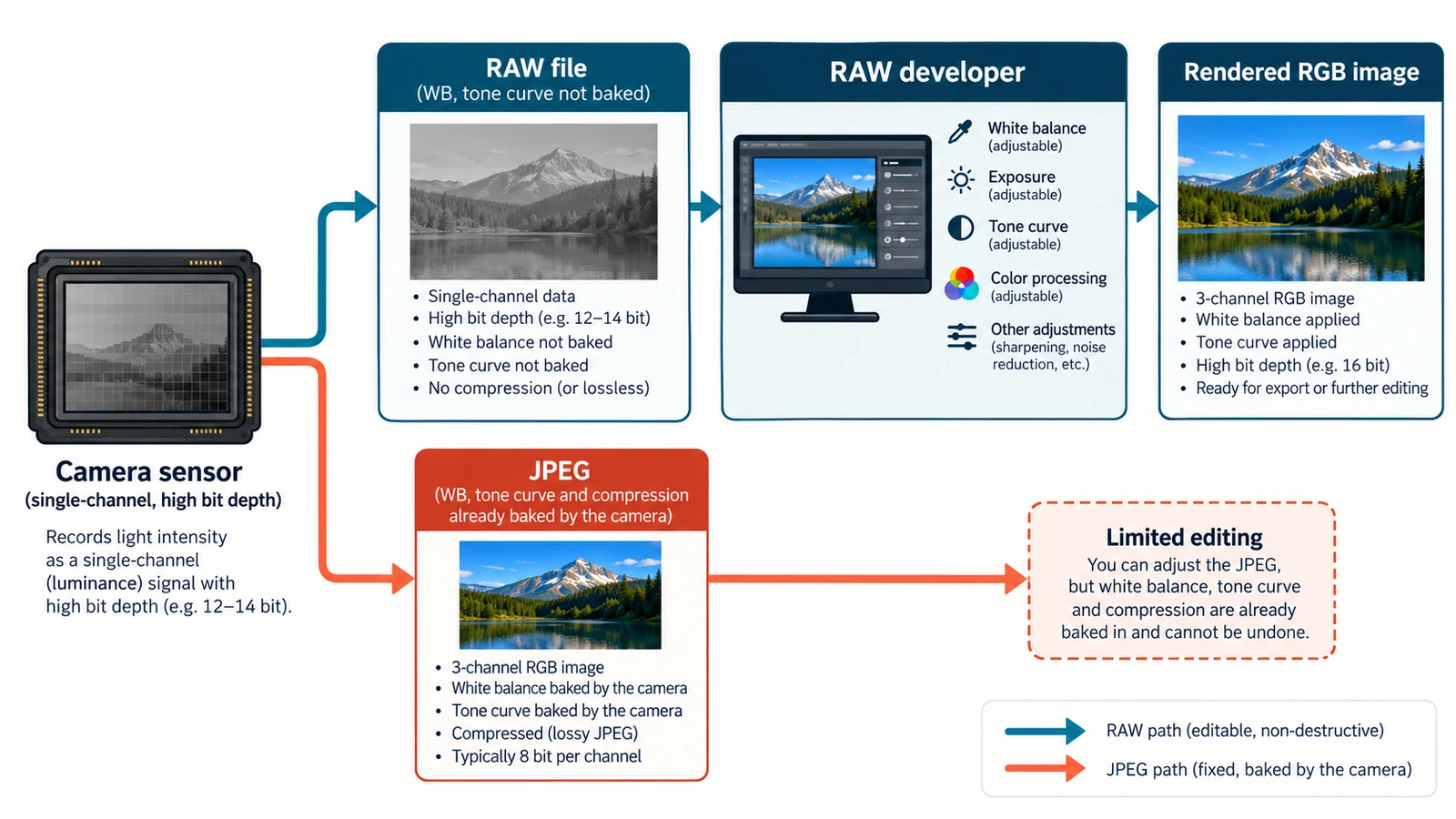
RAW vs JPEG: Which Format Should You Edit?
One exposure, two records: sensor readings and a finished rendering. The gain is bit depth rather than resolution, and the trade-offs decide what stays fixable later.
Creative workflows RAW editing File formats Non-destructive editing Workflow comparison 4 min read
Published By Julia M. Gil
Keep exploring
FreeAIGeneration is more than this article. The editors and calculators below are real, free and run in your browser.