How to Export Video for YouTube, Instagram and TikTok
Every platform decodes and re-encodes what you send, so the file is a master, not a final artefact. Aspect ratio, duration, audio, and sizing a file that survives.
Every platform you upload to will decode your file and encode it again. That single fact should change how much effort goes into matching a specification table: the file you send is a master, not a final artefact, and the platform’s own encoder gets the last word.
Exporting video for YouTube, Instagram and TikTok is therefore mostly a delivery decision. Aspect ratio, duration and audio determine whether the file arrives intact; the container and the bitrate determine how much of your detail survives the trip.
What the platform actually does
Uploads are transcoded. The service decodes what you sent and re-encodes it into the renditions it serves, which is why a file that looked perfect locally can arrive looking softer. Sending a higher-quality master delays that loss; trying to match a platform’s internal bitrate from outside is guesswork.
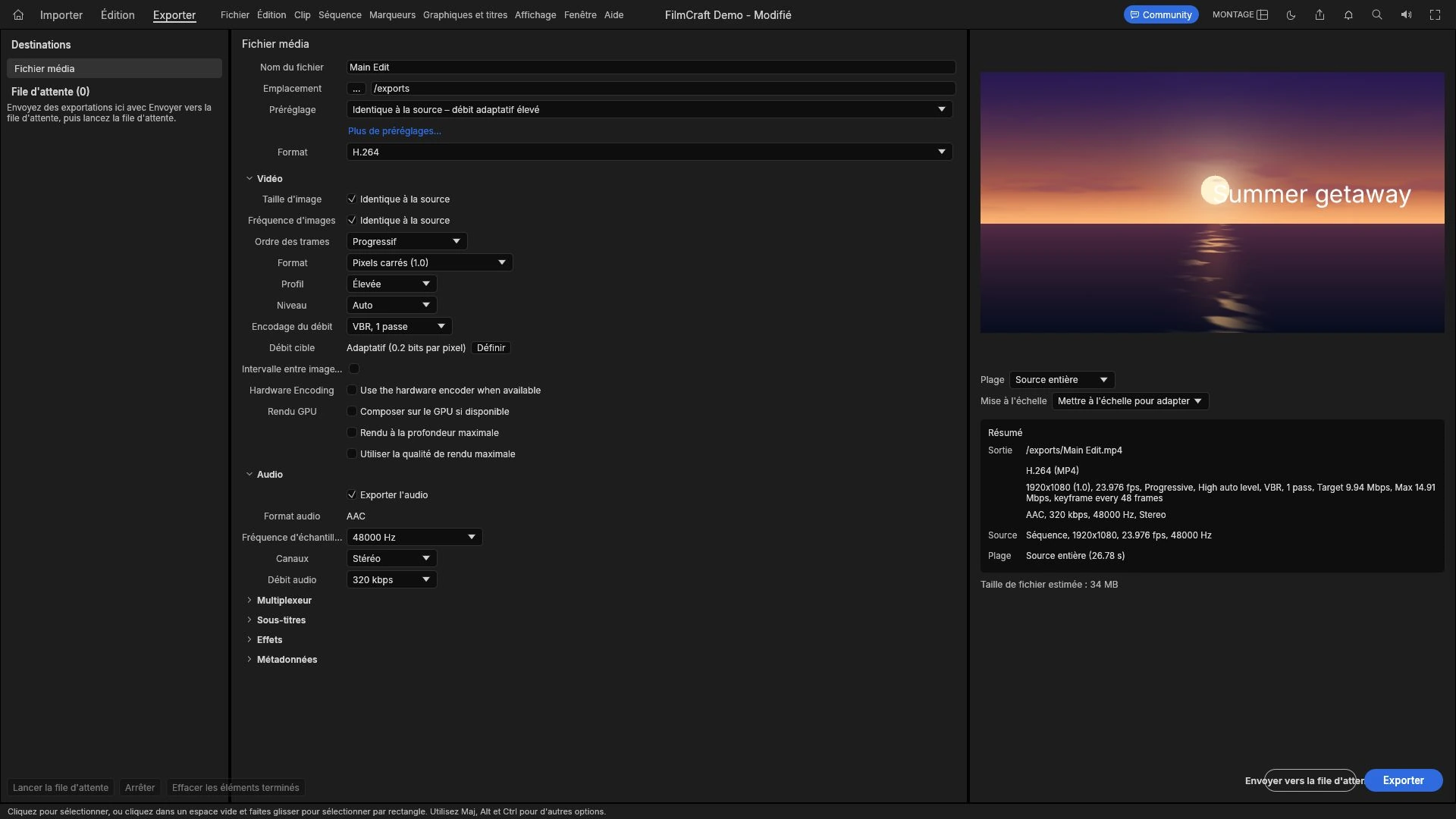
YouTube documents the practical version of this: it recommends MP4 with H.264 video and AAC audio. That is the target the editor already produces in practice, so the main export decisions are already made for you.
For Instagram, TikTok and Vimeo, no spec table is quoted here on purpose. Their guidance changes, and a number copied into an article ages faster than the article does; check the platform’s own help centre for the current limits.
Aspect ratio decides more than bitrate
A 1920 × 1080 frame and a 1080 × 1920 frame hold the same 2,073,600 pixels. What differs is the shape, and a shape mismatch is visible in a way that a small bitrate difference never is.
A 16:9 master placed in a 9:16 slot gets one of two treatments: cropped, losing the sides, or letterboxed, leaving bars. Neither is a delivery problem you can fix after upload, which is why the shape has to be decided before the edit rather than at export.
Practical rule: cut the vertical version natively. Reframing one sequence is acceptable for a talking head; for anything with two subjects, graphics or text, a second export at the vertical shape gives a better result than a crop.
Duration and audio
Duration is set by the platform’s audience more than its limits. A vertical feed rewards a piece that makes its point early, while a long-form platform tolerates an establishing minute. Exporting one length for both usually satisfies neither.
Audio gets less attention than it deserves because a feed may play without sound. If the piece depends on speech, a version with on-screen text or captions carries the message whether or not the viewer has the sound on. Balance the mix so dialogue survives the platform’s loudness handling, which is out of your hands.
What to export from the editor
The audited build exported an H.264 MP4, encoded in the browser, with the render advancing at roughly 30 ms per interface frame. A long sequence therefore takes minutes, and the tab has to stay open while it finishes; imported media is only readable while that tab is open, so closing it mid-render ends the export.
The upstream project documents an Export mode with destinations for Media File, YouTube, Vimeo, TikTok, Instagram and FTP. That is upstream’s own documentation rather than a promise about this build, so plan on a media file that you upload yourself. Uploading is your action either way; it is not something the editor does for you.
H.265 and AV1 export would need hardware access that browsers do not expose to a page, so an H.264 result is the realistic output.
Sizing a delivery file
File size is bitrate × duration ÷ 8, so sixty seconds at 12 Mbit/s is 12,000,000 × 60 ÷ 8 = 90,000,000 bytes, about 90 MB of video. AAC audio at 128 kbit/s adds 16,000 bytes per second, 960,000 bytes for the same minute, bringing the total to roughly 91 MB.
That number is what goes up the connection, and it is worth knowing before a deadline. It also explains why a longer master is not automatically better: an eight-minute upload at 12 Mbit/s is around 720 MB, and the platform will compress it to the same place anyway.
Delivery mistakes to avoid
Quoting a bitrate table from a forum is the first. Platform guidance moves, and a stale number is worse than none.
Uploading a 16:9 edit into a vertical slot is the second, and it cannot be repaired at the platform.
Leaving audio unchecked is the third. Dialogue that is intelligible on headphones can disappear on a phone speaker.
Assuming a “one-click” destination exists because an upstream menu lists one is the fourth. Confirm the export you get, then upload it.
The container question — what MP4, MOV and WebM actually are — is separated in MP4 vs MOV vs WebM. If the file looks soft after upload, the reason is usually upstream of the platform: video resolution vs bitrate works through the arithmetic.
Take a finished cut into the free Video Editor, export the H.264 MP4, and upload the file the tab hands back as a download.
Frequently asked questions
Does the editor upload to YouTube or TikTok for me?
Uploading is your action. The upstream project documents an Export mode with destinations including YouTube, TikTok and Instagram, but the reliable path is to export a media file and upload it yourself.
What does YouTube recommend for uploads?
MP4 with H.264 video and AAC audio, which is the shape of the export the editor produced in practice on the audited build.
Why does a vertical video crop my edit?
A 16:9 frame and a 9:16 frame hold the same 2,073,600 pixels in different shapes, so a horizontal master in a vertical slot is either cropped at the sides or letterboxed.
Try these FreeAIGeneration tools
Related articles
-
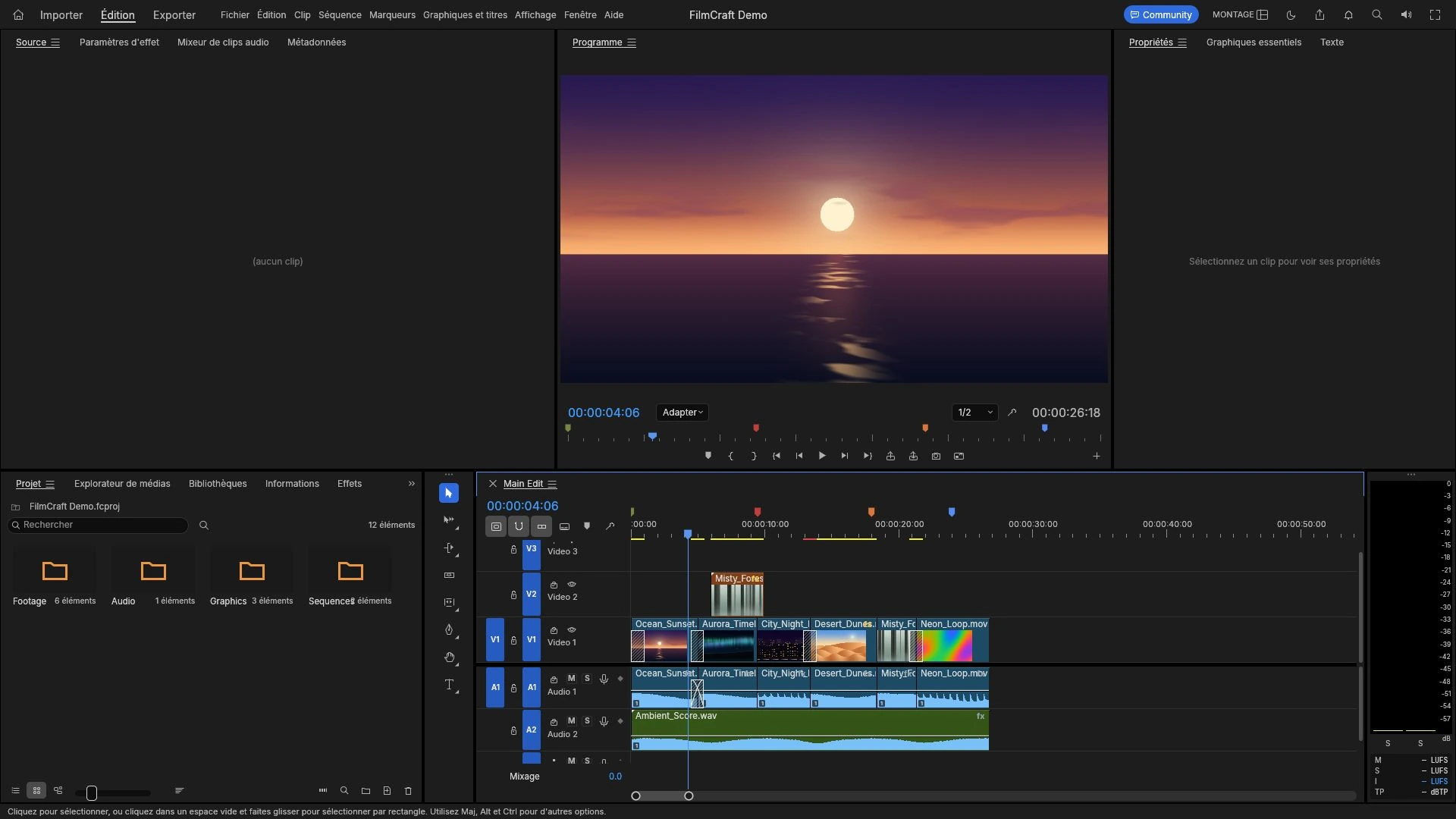
How to Add Audio or a Voice-Over to a Video Online
Import a recorded voice-over, place it against the picture on the timeline, set a level that survives a laptop speaker, and listen to the exported MP4.
Creative workflows Video editing Browser tools No signup 4 min read
Published By Julia M. Gil
-
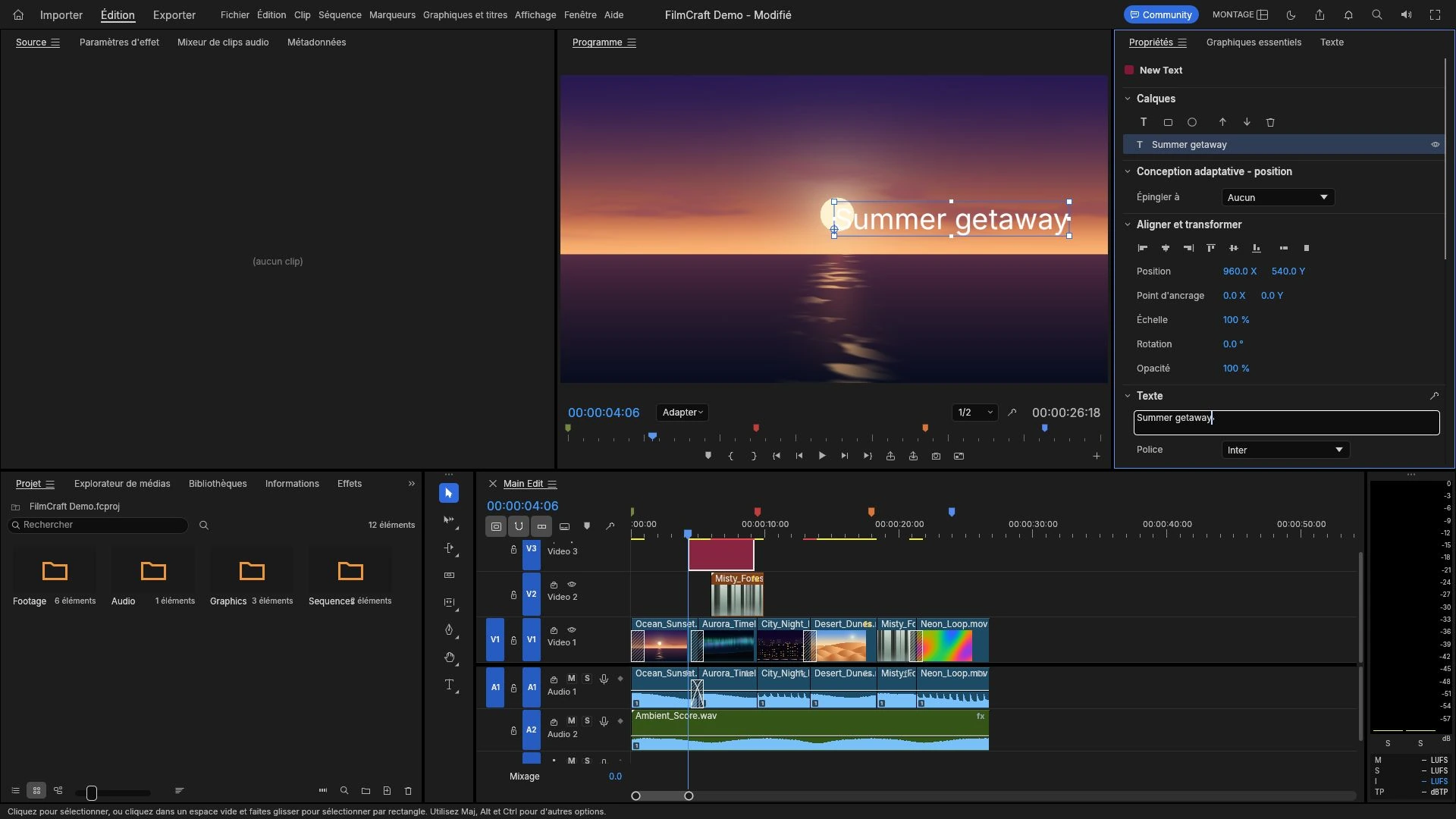
How to Add Text and Titles to a Video Online
A title layer sits where every viewer looks and cannot be fixed after export. Where to place it, how to time it in frames, sizing, and mistakes worth catching early.
Creative workflows Video editing Browser tools No signup 4 min read
Published By Julia M. Gil
-
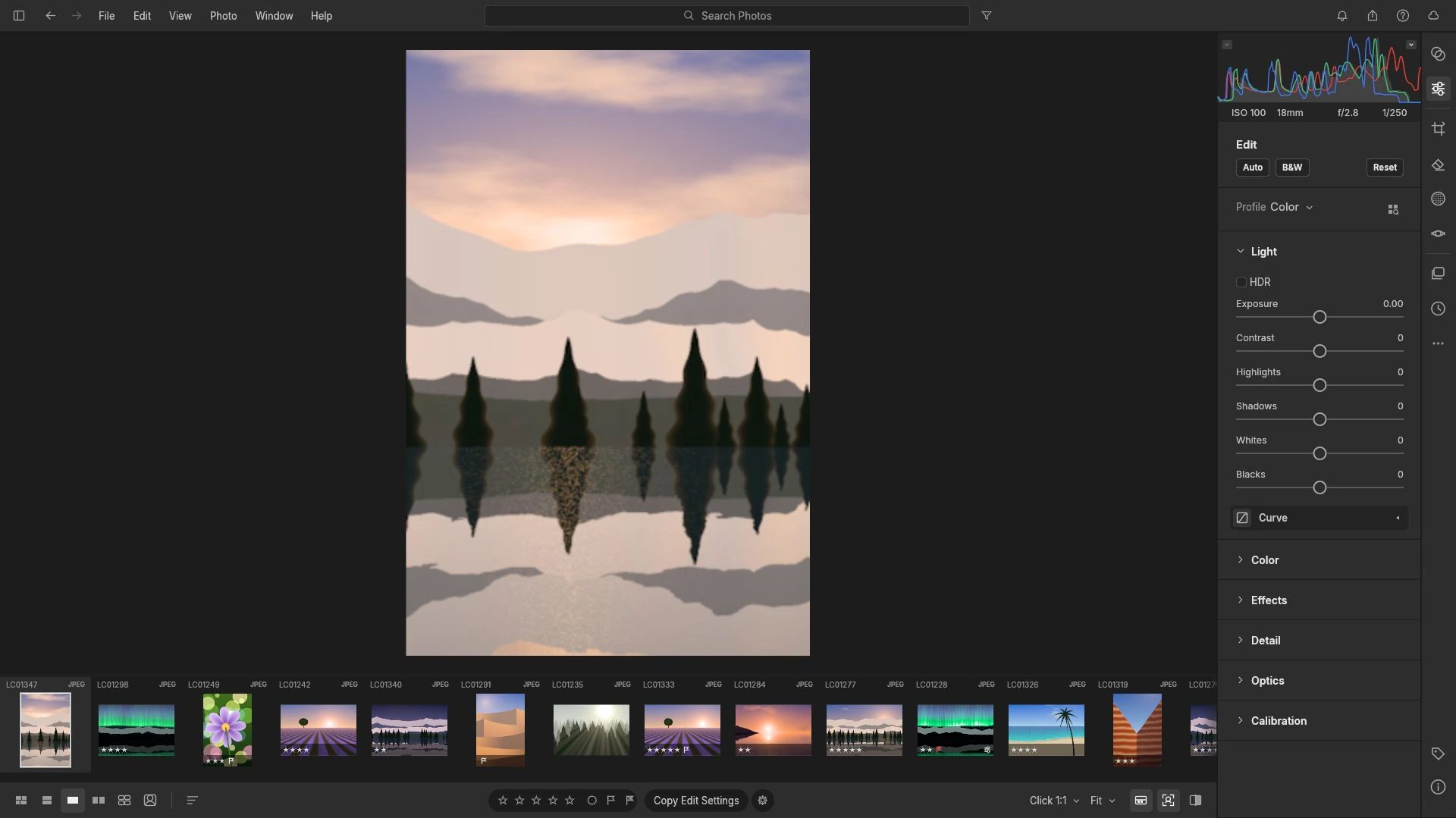
How to Open CR2, CR3, NEF and ARW Files Online
CR2, CR3, NEF and ARW are four vendor containers, and having the file is only half the question. Test one frame for a real decode before importing a whole shoot.
Creative workflows RAW editing Browser tools No signup File formats 4 min read
Published By Julia M. Gil
Keep exploring
FreeAIGeneration is more than this article. The editors and calculators below are real, free and run in your browser.