How to Open and Edit AI Files Online
Open AI files online, inspect what remains editable, change vector paths and text, and export safely while understanding vector-file compatibility limits.
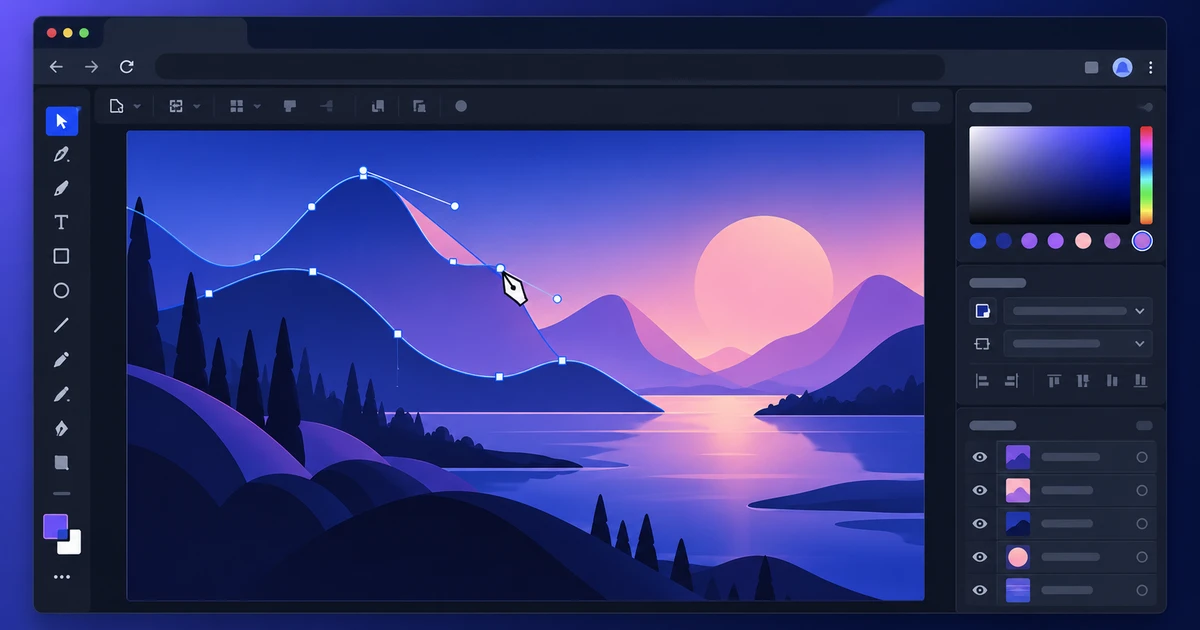
An .ai file is not a universal vector container in the same way SVG is. It is a document produced by a desktop vector editor, and the amount another editor can recover depends on what that application stored inside it. That is the first thing to understand if you want to open AI files online without access to a desktop vector editor.
The good news is that many AI files are saved with PDF-compatible content. Those files can expose a useful vector representation that another editor can read. The less convenient truth is that “opens successfully” does not automatically mean “every vector-editor feature remains live and editable.”
This guide uses VectorCraft as the browser editor and focuses on a practical question: what can you safely inspect, change and export without pretending that compatibility is perfect?
First, determine whether the AI file is PDF-compatible
A desktop vector editor can save AI documents with a PDF-compatible representation. When that option is present, other software has a much better chance of opening the artwork because it can read the PDF portion rather than decoding the application’s private editing model.
You usually do not need to inspect the file header manually. Try opening the document and observe what appears. A healthy import gives you recognizable artwork at the expected page size, with vector paths and text where possible. A poor import may show a flattened appearance, missing objects, substituted text or nothing useful at all.
If the file refuses to open, the problem may not be the browser. The AI document may simply lack a compatible representation.
Inspect before you edit
Do not make changes immediately. First compare the imported file against a reference image or PDF if one is available.
Check these areas:
- overall artboard size and orientation;
- number and position of major objects;
- fonts and line breaks;
- clipping masks;
- gradients and transparency;
- strokes, dashed lines and arrowheads;
- linked or embedded raster images;
- symbols, blends and other editor-specific constructs.
The import can look correct at a glance while still containing structural changes that matter later. A logo may appear identical even though several live effects have been expanded into plain paths. That is acceptable for some edits and a deal-breaker for others.
What usually survives best
Simple vector geometry travels well. Rectangles, circles, Bézier paths, fills, strokes and straightforward clipping often import cleanly. Text may remain editable if the font is available and the importer can map the text objects correctly.
This is the ideal case for a browser edit: change a color, correct a word, resize a mark, adjust a path or export a clean SVG without recreating the artwork.
A useful workflow is:
- Open the file in VectorCraft.
- Zoom into the most detailed areas.
- Select representative objects and confirm they are actual paths or text, not one flattened image.
- Make the smallest required edits first.
- Save a new version rather than overwriting your only source.
Small, targeted changes reduce the risk of discovering a compatibility problem after hours of work.
Where editor-specific data can be lost
An AI document can contain behavior that does not exist in another editor: live effects, appearance stacks, plugin data, editor-native meshes, special brushes, envelope distortions, variable-width constructions and other objects whose editable meaning is specific to one application.
Another editor may respond in one of several ways:
- preserve the visual appearance but flatten the feature;
- expand it into ordinary paths;
- simplify it;
- ignore it;
- rasterize part of the artwork.
None of those outcomes is automatically wrong. The important part is knowing which one happened before you promise an editable source file to someone else.
Edit paths and text with compatibility in mind
For text corrections, confirm the font first. A substituted font can change wrapping, spacing and logo geometry. If the original font is unavailable and the typography must remain exact, editing outlined text may be safer than retyping—but outlined text is no longer semantically editable text.
For path changes, keep anchor-point edits controlled. If an object arrived as an expanded appearance, it may contain far more paths than the original vector object. Moving one visible edge can involve several overlapping shapes.
When working with brand assets, duplicate the object before making destructive changes. That gives you a local fallback even if the import itself cannot reproduce the original application’s editing model.
Choose the export format from the next use case
After editing, do not automatically export another .ai file just because the source was AI. Ask what the recipient or next tool actually needs.
SVG is usually the strongest choice for web icons, logos and interface graphics when the artwork uses web-friendly vector features.
PDF is useful for print handoff, proofs and document workflows where appearance matters more than retaining every editing feature.
PNG or another raster format makes sense only when a fixed pixel image is the real deliverable.
If the vector artwork is headed into a brochure, the online brochure workflow explains how to place and manage it in a page layout. If you plan to animate the artwork, the guide to creating and exporting Lottie animations covers the constraints you should consider before building motion.
Keep the original AI file untouched
The safest rule is simple: the source AI file is an archive, not a test surface. Open it, inspect it, then save the browser-edited version separately.
That protects you from two different compatibility problems. First, the import may have simplified something you did not notice. Second, the export may not recreate the original application’s internal structure even if the visible result looks excellent.
A separate derivative lets you use the browser editor for what it is good at—inspection, practical vector changes and format conversion—without pretending it is a byte-for-byte substitute for a desktop vector editor.
For a complete example of how vector assets fit beside RAW photos, layered image editing, page layout and final PDF work, see the browser-based creative workflow.
The right way to edit AI files online is not to assume perfect compatibility. It is to inspect the imported structure, make deliberate changes, export for the actual destination and preserve the original source in case a feature did not survive the handoff.
Frequently asked questions
Can every AI vector file be opened in a browser vector editor?
No. Compatibility depends heavily on how the AI file was saved. Files that include PDF-compatible content are much easier for non-native software to inspect and import than files that rely only on editor-specific private data.
Will layers and effects stay editable after importing an AI file?
Not always. Basic vector paths, fills, strokes and some text often survive well, while editor-specific effects, appearance stacks, plugins, live objects or complex text behavior may be expanded, simplified or lost.
What should I export after editing an AI file online?
Choose the target format from the next step in the workflow. SVG is useful for web vectors, PDF for print or document exchange, and a native project format is preferable when you need to preserve editor-specific structure for later revisions.
Try these FreeAIGeneration tools
Related articles
-
How to Edit Video Online with a Multi-Track Timeline
Learn how to edit video online with a real multi-track workflow: three-point edits, precision trims, audio, color, captions and export in FilmCraft.
Creative workflows Video editing Browser tools Multi-track timeline 5 min read
Published By Julia M. Gil
-
How to Open and Edit PSD Files Online Without Flattening Layers
Open and edit PSD files online while preserving layers where supported. Learn what to check for masks, adjustments, smart objects and filters before export.
Creative workflows PSD editing Layered images Browser tools 4 min read
Published By Julia M. Gil
-
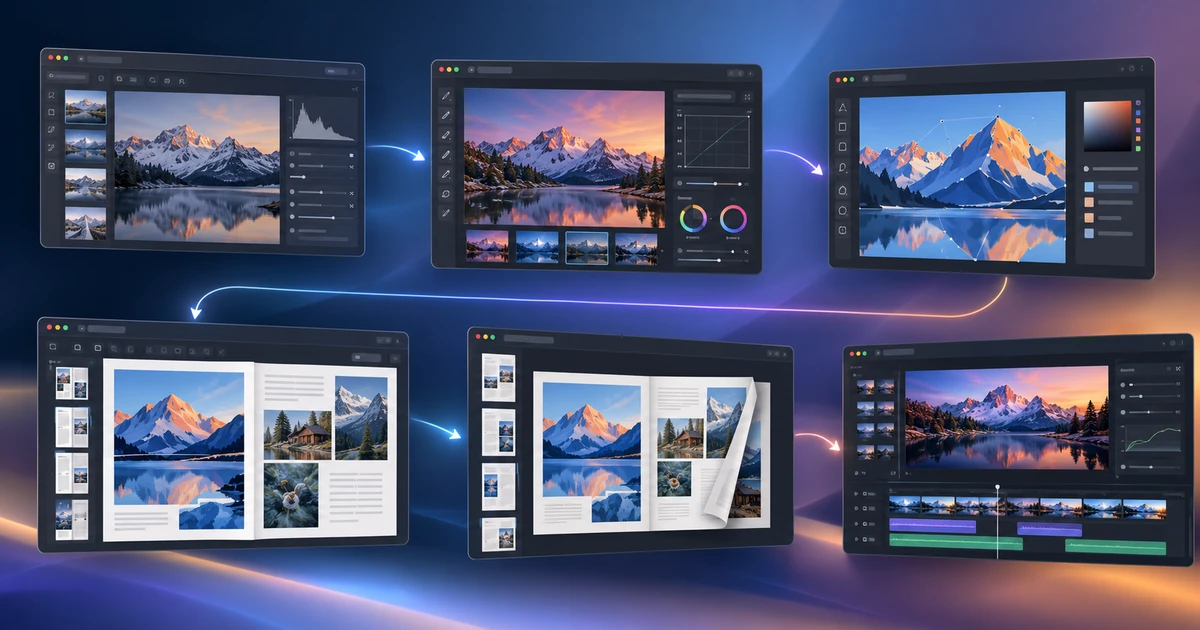
From RAW Photo to Finished Brochure: A Browser-Based Creative Workflow
Follow a complete browser-based design workflow from RAW development and retouching to vector assets, brochure layout and final PDF page checks.
Creative workflows Creative workflow Browser tools Publishing 4 min read
Published By Julia M. Gil
Keep exploring
FreeAIGeneration is more than this article. The editors and calculators below are real, free and run in your browser.