How to Open and Edit PSD Files Online Without Flattening Layers
Open and edit PSD files online while preserving layers where supported. Learn what to check for masks, adjustments, smart objects and filters before export.
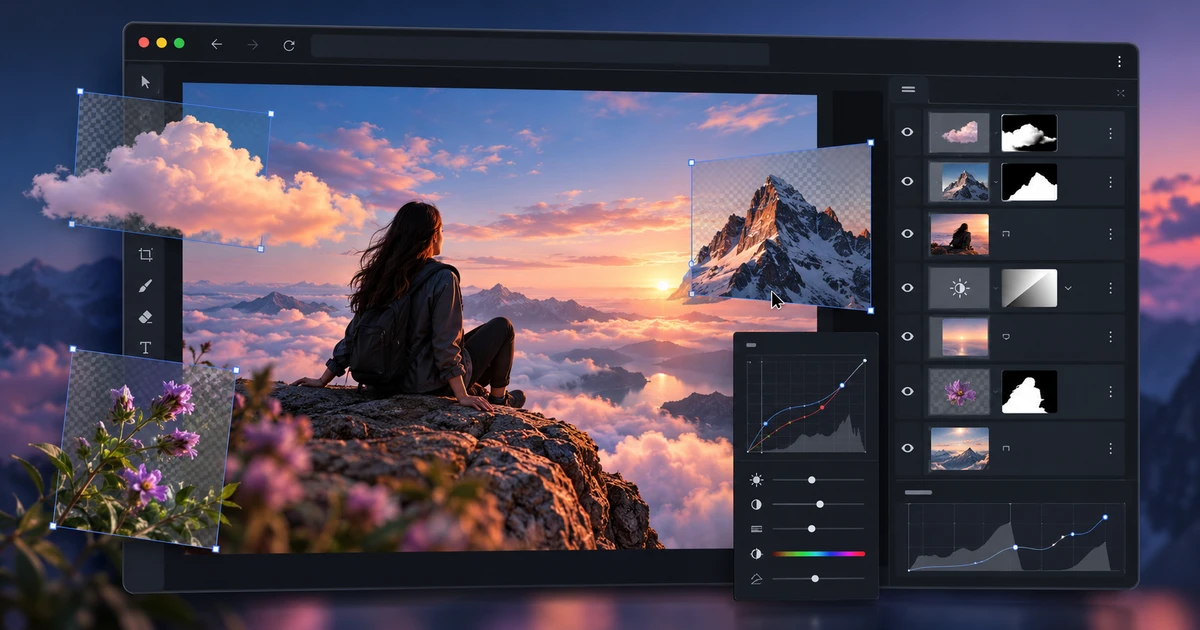
A PSD is valuable because it stores decisions, not just pixels. Layers, masks, adjustment layers, text and reusable objects let you revise a design without rebuilding it. So when you edit PSD files online, the real goal is not merely to make the image look right in the browser. It is to preserve as much useful structure as the file and editor can support.
This workflow uses PhotoCraft and starts with inspection rather than editing. That first minute can tell you whether the PSD is a good candidate for browser work or whether an important photo-editor-specific feature needs a different handoff.
Open the PSD and inspect the layer stack first
After opening the file, compare the canvas with the layer panel. You want to know whether the visible composition is still assembled from meaningful parts.
Check for:
- pixel layers and groups;
- text layers;
- layer masks and clipping masks;
- adjustment layers;
- blend modes and opacity;
- smart objects;
- live or smart filters;
- linked assets.
A file can look correct while some of these objects have already been simplified. If the final job only requires changing a date and exporting a JPEG, that may be fine. If the client expects the PSD to remain fully revisable, it matters enormously.
Separate visual fidelity from editability
There are two kinds of compatibility.
Visual compatibility means the imported image looks like the original.
Structural compatibility means the objects behind that appearance remain editable in a similar way.
A complex smart object may import as a perfectly accurate raster layer. Visually, that is excellent. Structurally, you can no longer open the object and replace its contents. The browser editor has preserved the result, not the original behavior.
Knowing which kind of compatibility you need helps you make the right decision early.
Edit non-destructively where the structure survives
When masks and adjustment layers are available, use them instead of erasing pixels or applying irreversible corrections directly to the image.
For example, if a product needs a brighter background, an adjustment layer with a mask is usually safer than permanently changing the base layer. If the change is rejected later, you can disable or revise it instead of restoring the source from another file.
The same principle applies to text. If it remains live, edit the text layer. If it has been rasterized, do not paint over the old text and hope the result survives close inspection. Rebuild that area deliberately or obtain a more compatible source.
Treat smart objects as a compatibility checkpoint
Smart objects often carry placed graphics, reusable mockups or transformed assets. They are also one of the first places where photo-editor-specific behavior may differ.
Select every smart object that matters to the requested edit and test what is actually possible. Can you replace its contents? Can you transform it without losing quality? Does the associated mask still work? If not, decide whether the visible imported result is sufficient.
Do not wait until the end of the job to discover that the one object you needed to replace is no longer editable.
Check filters and blend modes at 100 percent
Blur, sharpening, shadows and other effects can look close at fit-to-screen zoom while differing noticeably at full size. Review effect-heavy areas at 100 percent, especially edges, hair, glow effects and soft shadows.
Blend modes deserve the same attention. A mode that is unsupported or calculated differently can alter contrast and color in ways that are subtle on one layer but dramatic in the final composite.
Save a browser-native working copy before experimenting
Do not use the only PSD as your scratch file. Preserve the original and create a working version immediately.
That gives you a clean rollback point if:
- an imported feature turns out to be flattened;
- the export changes structure;
- a font substitution causes layout drift;
- the requested edit expands into a larger redesign.
Versioning is more useful than relying on a long undo history.
Export according to the next editor
If the next person needs layers, export or save in the most editable format PhotoCraft supports and then reopen that file to verify the structure. If the next step is print, delivery or web publishing, a flattened output such as PNG, JPEG or PDF may be the correct final format.
The important point is to distinguish working file from delivery file. One preserves flexibility; the other serves the destination.
If the starting image is a camera RAW file, do the exposure and white-balance development before the pixel-layer stage. The comparison in RAW editor vs photo editor explains why. For a full cross-tool workflow, continue with the browser creative workflow.
An online PSD editor is most useful when you judge it by what survives, not by how many feature names appear in a toolbar. Inspect the structure, preserve the original, edit non-destructively where possible and verify the exported file when layered compatibility matters.
Frequently asked questions
Can I edit a PSD online without flattening the layers?
Yes, when the browser editor can import the layered PSD structure. Basic pixel layers, groups and masks are often straightforward, while some photo-editor-specific objects may be simplified or rasterized.
Do smart objects remain smart objects in every online PSD editor?
No. Some editors preserve selected smart-object behavior, while others import the visible result as pixels or expanded layers. Always inspect important smart objects before making edits.
What should I check before exporting a PSD edited in the browser?
Verify layer order, masks, blend modes, text, adjustment layers, smart objects and filters, then reopen the exported file if layered editability matters. Visual similarity alone does not prove structural compatibility.
Try these FreeAIGeneration tools
Related articles
-
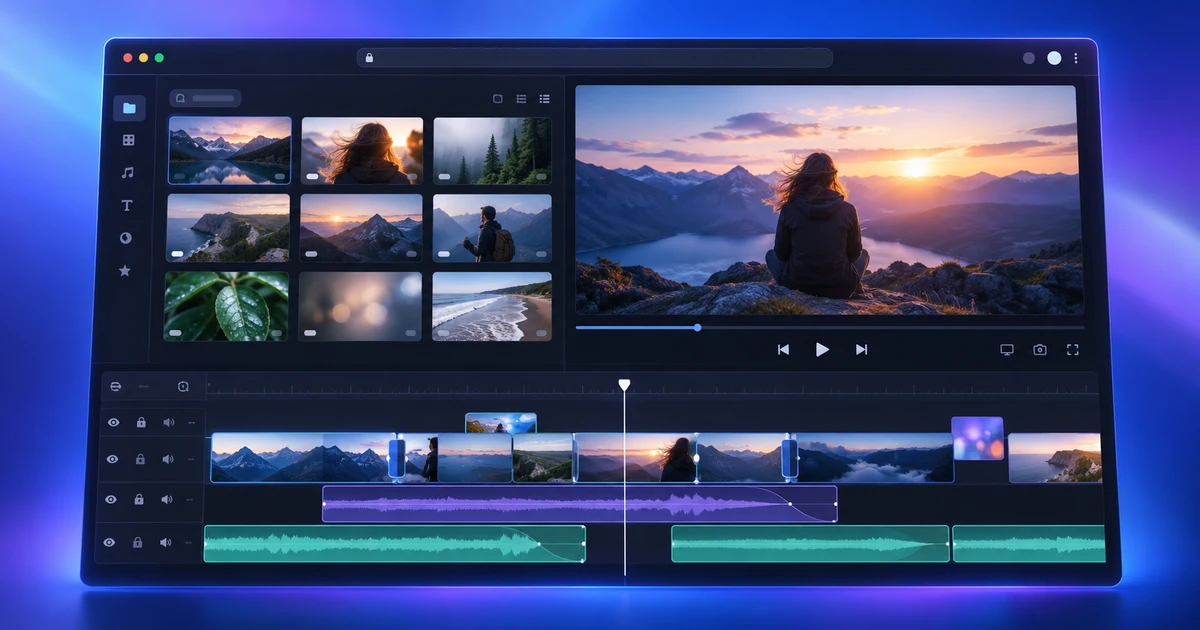
How to Edit Video Online with a Multi-Track Timeline
Learn how to edit video online with a real multi-track workflow: three-point edits, precision trims, audio, color, captions and export in FilmCraft.
Creative workflows Video editing Browser tools Multi-track timeline 5 min read
Published By Julia M. Gil
-
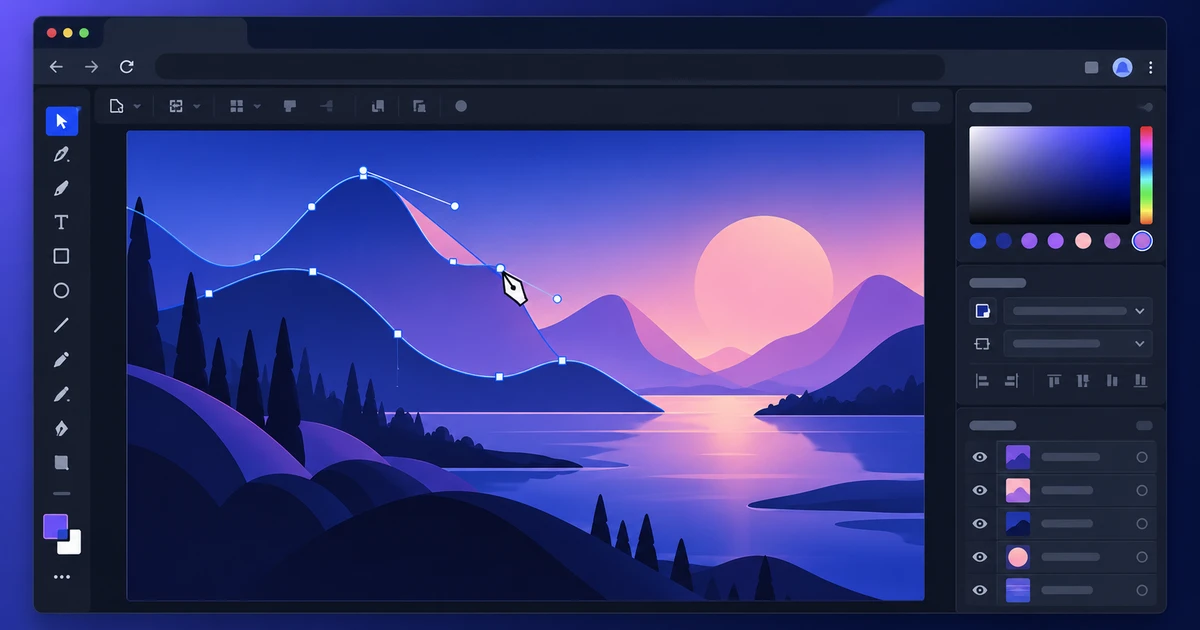
How to Open and Edit AI Files Online
Open AI files online, inspect what remains editable, change vector paths and text, and export safely while understanding vector-file compatibility limits.
Creative workflows Vector editing AI files Browser tools 5 min read
Published By Julia M. Gil
-
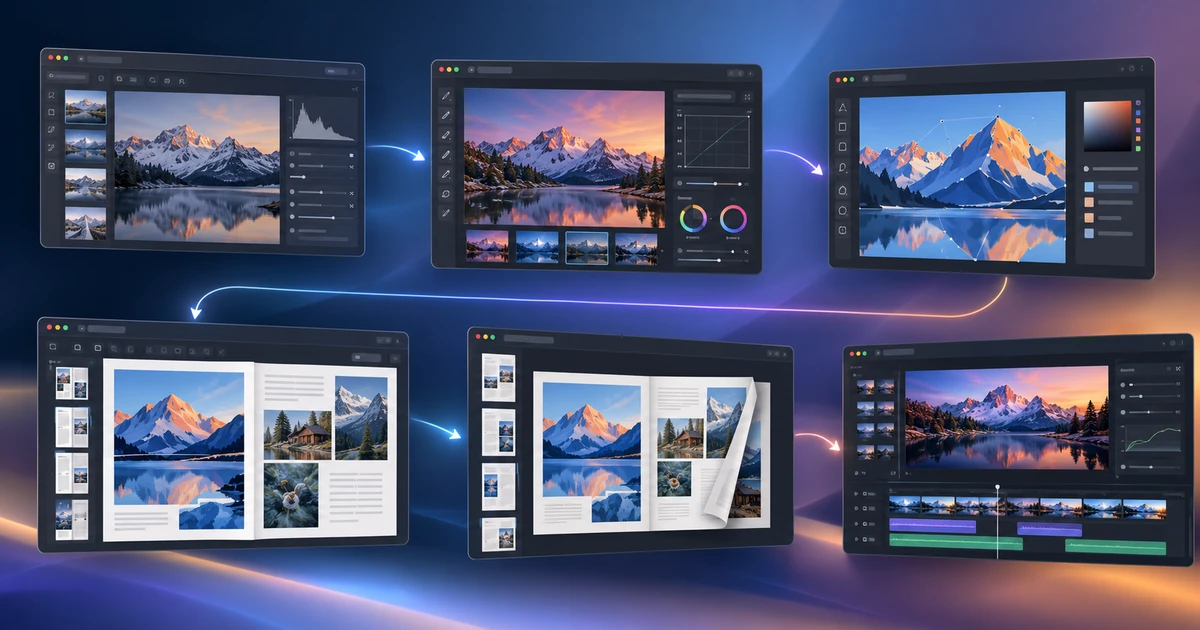
From RAW Photo to Finished Brochure: A Browser-Based Creative Workflow
Follow a complete browser-based design workflow from RAW development and retouching to vector assets, brochure layout and final PDF page checks.
Creative workflows Creative workflow Browser tools Publishing 4 min read
Published By Julia M. Gil
Keep exploring
FreeAIGeneration is more than this article. The editors and calculators below are real, free and run in your browser.