How to Add Audio or a Voice-Over to a Video Online
Import a recorded voice-over, place it against the picture on the timeline, set a level that survives a laptop speaker, and listen to the exported MP4.
The picture is usually finished before the voice exists. A voice-over take, an interview or a screen recording arrives as a separate file with its own length and its own idea of where the words start.
The browser Video Editor handles it in a short sequence: import the audio, place it against the picture on the timeline, set a level a listener can follow, export, and play the file you get back. The middle step takes the time, and it is done by hand.
Importing the take
Spoken audio is imported the same way as the picture: the media panel takes stills, audio and video, and the audio lands on the timeline beside the shots. PCM WAV is the format import was verified with, and being uncompressed it is the easiest to reason about.
Sample rate times bit depth times channels gives the data rate: 48 kHz at 16-bit mono is 48,000 × 16 × 1 ÷ 8 = 96,000 bytes per second, 5.76 MB a minute. Stereo doubles it, so a twenty-minute interview is around 230 MB.
Whether a compressed take opens is up to the browser rather than the editor. Codecs the browser supports are decoded by its own WebCodecs decoder, and everything else goes through the decoders built into the engine, so an MP3 or a phone recording may not play at all. Import it, play it, then decide how much of the edit depends on it. If it will not open, convert that take to PCM WAV.
Placing it against the picture
The audio sits on its own track, drawn as a waveform. Words appear as dense blocks and the gaps between them as thin lines, which tells you where a sentence begins.
Sync is manual. Place the clip, play the sequence, move the audio until the sound lands on the right frame, then trim the head and tail. Move the audio clip on its own wherever the editor lets you; dragging it with the video means redoing the alignment for everything that follows.
One behaviour that looks like a sync fault has a simpler cause. Audio starts suspended until the first click or key press on the page, and until then playback runs on the wall clock instead of the browser’s audio clock. Click into the page before judging timing.
Setting a level the voice survives
The voice has to sit above the rest of the mix. Bring the spoken track up until it is clearly the loudest sustained element, then listen somewhere unkind: a laptop speaker, a phone at half volume. A voice judged only on headphones arrives quiet on a phone.
If your build exposes a fade at the head and tail of a clip, a short one stops a voice from starting and ending mid-breath. It is a courtesy rather than a repair: a line that was too quiet does not become audible by fading in.
When there is no take yet
Two optional extras cover the case where nothing has been recorded. Speech-to-text produces a transcript, and narration voices read text aloud. Both download a model from Hugging Face, after a confirmation dialog that names the source, the size and the licence, which for the narration model is Apache-2.0.
Treat both as conveniences with a cost. They need a download, they need the tab open, and a generated line will not sound like a take you recorded.
Listening to the export
Export produces an MP4 whose video is H.264, with the audio carried in the same container. The timeline is a preview; the file is the deliverable, and the way to judge it is to play it in an ordinary player.
Two places fail first: the opening seconds, where a trimmed word begins mid-syllable, and the end, where the voice stops before the picture does. Listening once without watching is worth a minute, because a level jump is easier to hear than to see.
Export is stepped at roughly 30 ms per interface frame, so a long sequence runs for minutes with progress in the header. Imported media stays readable only while the tab is open, so export before you close the page.
Before a long session
Codec support belongs to the browser, so the same file can open in one and not another. The export in practice is H.264, because H.265 and AV1 export need a hardware encoder browsers do not expose to a page. The browser version runs single-threaded, so render previews and proxies report an error instead of running slowly, and a large project is slower here than in a desktop application.
The voice lands on the timeline before any level matters, and how multi-track video timelines work covers the lanes, the playhead and how sequence length adds up across tracks. MP4 vs MOV vs WebM separates the container from the codec, and exporting video for YouTube, Instagram and TikTok covers what happens to the file afterwards.
The free Video Editor is where the take goes: import it, place it against the picture, and check the exported file.
Frequently asked questions
Which audio file should I prepare?
PCM WAV is the audio format import was verified with in this browser build. Whether a compressed file opens depends on the browser's codecs, so import it and play it before planning an edit around it; if it will not open, convert that take to PCM WAV.
How do I line the voice up with the picture?
By hand. Place the clip on the timeline, move it until the sound matches the picture, and trim the head and tail. Where the editor lets you move the audio clip independently of the video clip, move the audio only.
Why does playback look out of sync before I click?
Audio starts suspended until the first click or key press on the page, and until then playback runs on the wall clock instead of the browser's audio clock. Click into the page before judging sync.
Try these FreeAIGeneration tools
Related articles
-
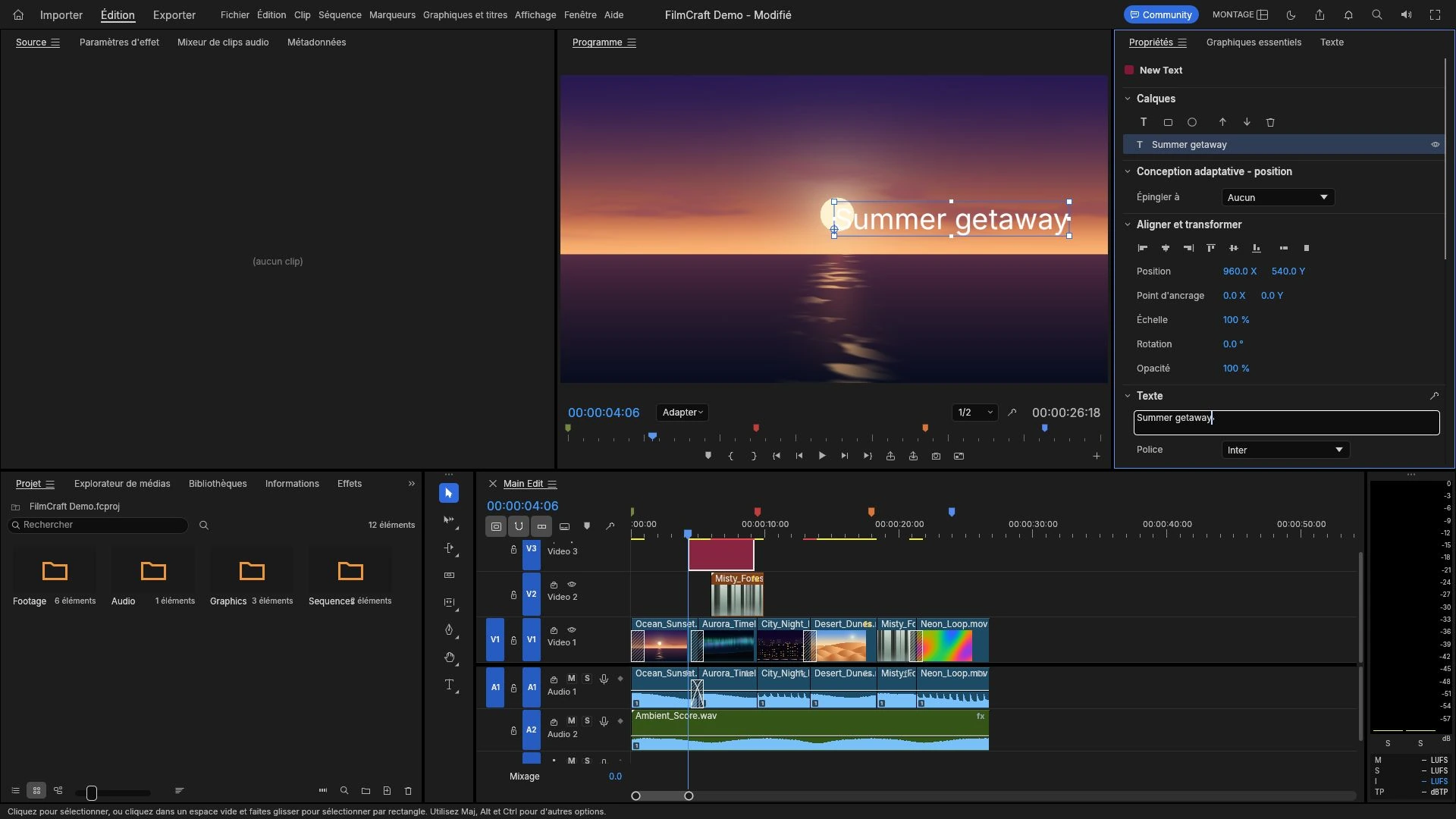
How to Add Text and Titles to a Video Online
A title layer sits where every viewer looks and cannot be fixed after export. Where to place it, how to time it in frames, sizing, and mistakes worth catching early.
Creative workflows Video editing Browser tools No signup 4 min read
Published By Julia M. Gil
-
How to Export Video for YouTube, Instagram and TikTok
Every platform decodes and re-encodes what you send, so the file is a master, not a final artefact. Aspect ratio, duration, audio, and sizing a file that survives.
Creative workflows Video editing Browser tools No signup Import & export 4 min read
Published By Julia M. Gil
-
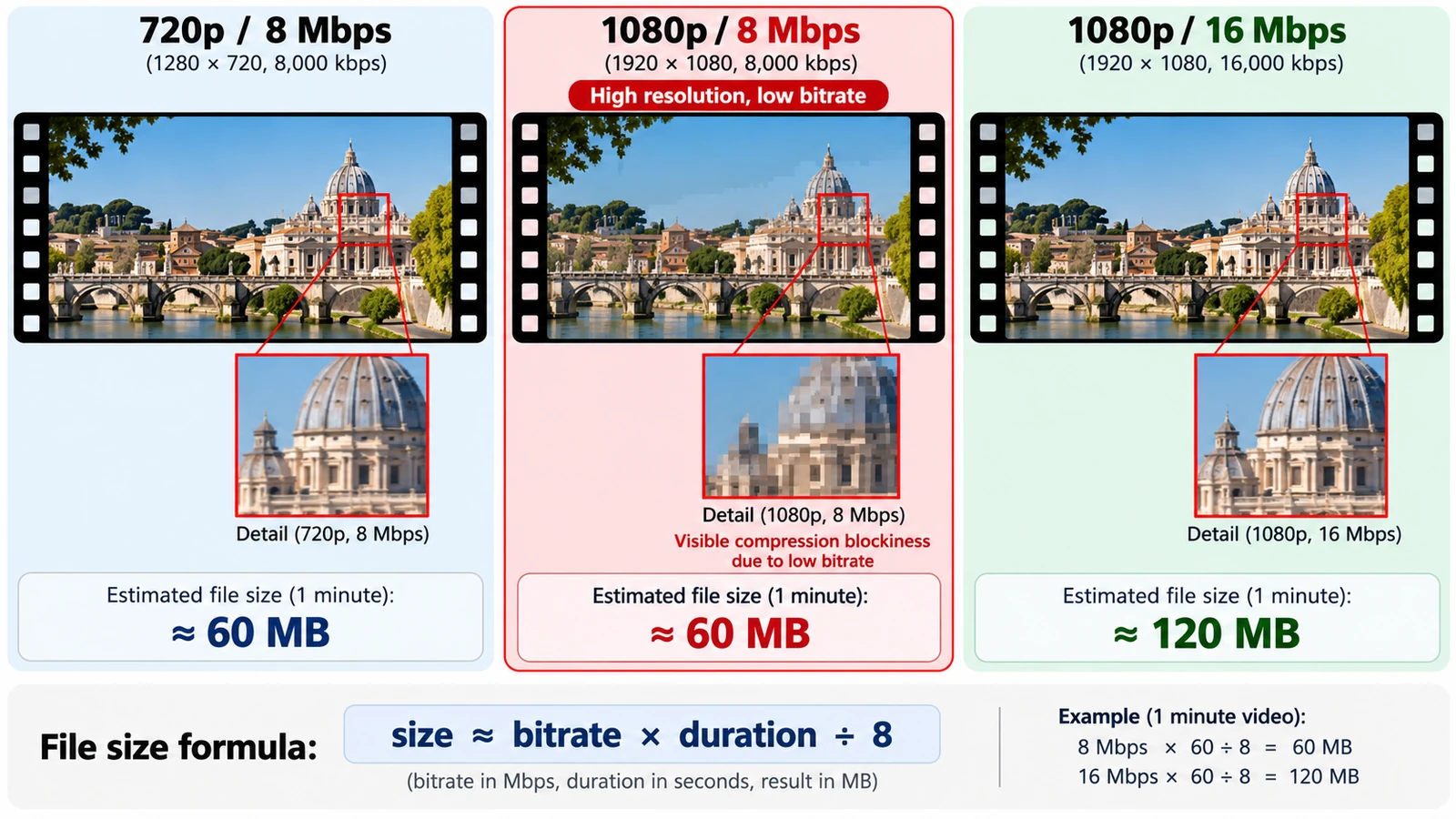
Video Resolution vs Bitrate: What Actually Affects Quality?
Bits per pixel per frame settles most arguments: divide bitrate by pixel count and frame rate. What each setting controls, and how to size a file before export.
Creative workflows Video editing Browser tools No signup Workflow comparison 4 min read
Published By Julia M. Gil
Keep exploring
FreeAIGeneration is more than this article. The editors and calculators below are real, free and run in your browser.