How to Add Text and Titles to a Video Online
A title layer sits where every viewer looks and cannot be fixed after export. Where to place it, how to time it in frames, sizing, and mistakes worth catching early.
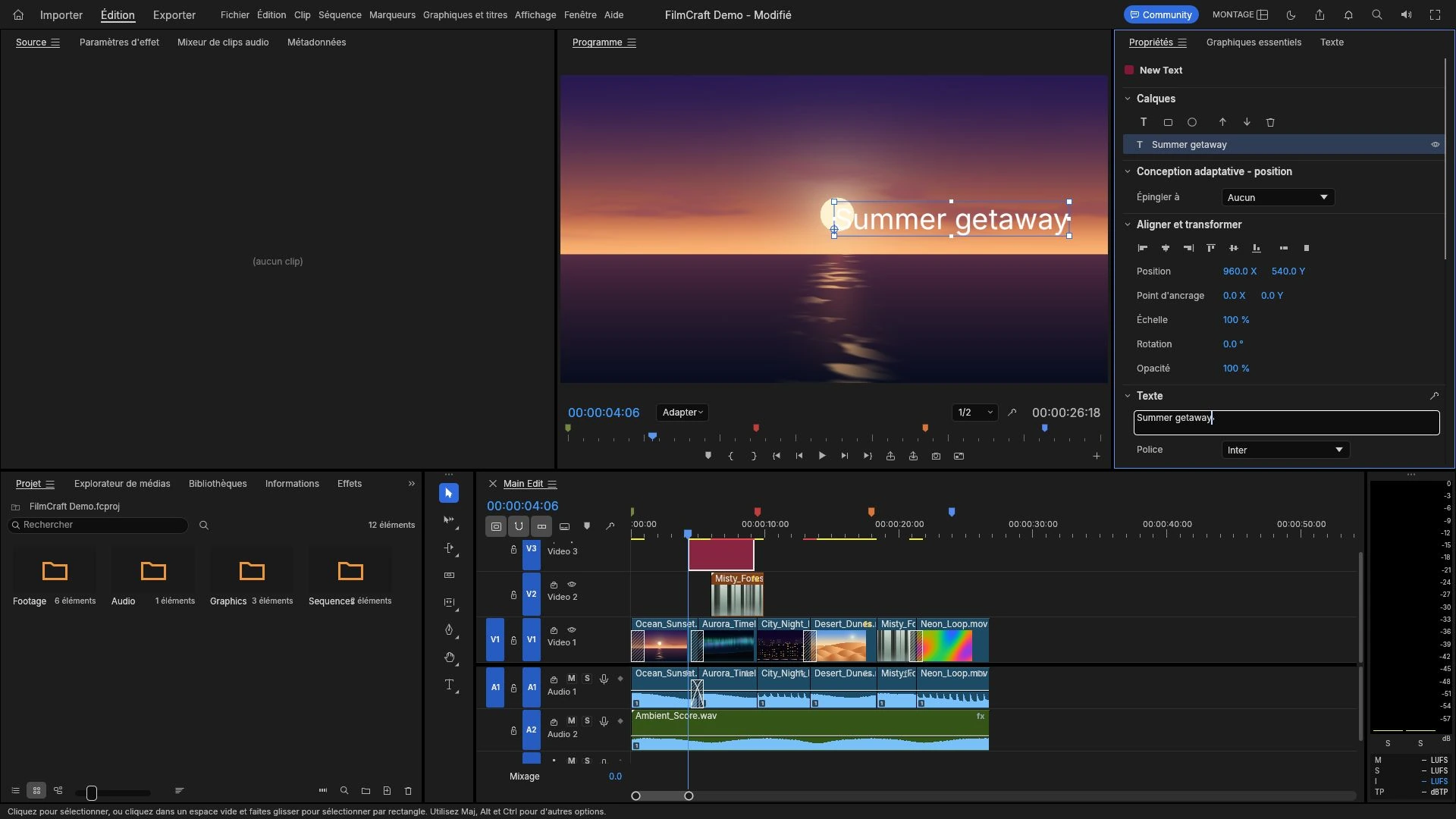
A title is the cheapest element in a video and the easiest to ruin. It sits over the picture where every viewer looks, and it is the one layer you cannot fix after the file leaves your hands if you baked it into the frames.
Text over video takes two very different forms, and a browser editor gives you both ideas even though they behave unlike each other: pixels in the frame, or timed text the player renders. Decide which one you need before typing anything.
Two kinds of text, one timeline
Burned-in text is rasterised into the picture at render resolution. The editor draws the letters, the renderer turns them into pixels of the output frame, and the finished file carries them. A caption track is different: timed text stored alongside the picture, which a player can show, hide or translate.
A 1920 × 1080 frame holds 2,073,600 pixels, and a 720p frame holds 921,600. Burned-in type is drawn against that grid, which is why a title that looks crisp at one resolution can look soft at another and why a caption track — being text the player renders — does not have the same problem. Choose the form before you design the type.
Where the title sits
Placement is a composition decision with a technical floor. Keep the text inside the area the finished frame will actually show after any cropping, and keep it off the faces. A lower third over a speaker’s mouth is a distraction, not a stylistic choice.
The useful convention is a title band at the bottom with a margin, set at a consistent height for the whole piece. Two titles at slightly different heights read as an error, not as variety. If a caption track will sit at the bottom as well, reserve that space rather than letting the two layers collide.
Timing set in frames
In and out points are whole frames, so timing is arithmetic rather than feel. At 30 fps, a four-second lower third is 120 frames, and a 15-frame fade is 15 ÷ 30 = 0.5 seconds. At 24 fps the same four seconds is 96 frames.
That matters when a title has to end exactly on a cut. Set the out point on the cut rather than a frame before it, because a one-frame flash of text is more visible than a slightly early exit.
Reading time is the other half of timing. A viewer needs the length of the phrase plus a beat; a title held for a musical bar is usually still on screen after everyone has read it. If a lot of text is required, more screen time is the answer rather than smaller type.
Sizing that survives the export
Text is set in pixels against the render resolution, so a change of output size scales it. Set at 1080p and exported at 720p, a 48-pixel title becomes 32 pixels, because 1280 ÷ 1920 = 0.667.
The practical rule is to size type as a fraction of frame height, not as an absolute number. A title at roughly one twentieth of the frame height stays readable after a downscale. Then export one test frame at the delivery size before committing to the whole sequence.
What the text surface offers
The working surface of the Video Editor, as documented, is the timeline, the monitors and the Properties panel, with the embedded fonts Inter, Noto Serif, JetBrains Mono and BIZ UD available to type set in the editor.
Beyond that, the upstream project documents OpenType shaping, Type, Shape and Pen tools, keyframable text layers, and caption tracks with SRT, WebVTT and SCC import and export, including burn-in. Those are upstream’s own documents rather than behaviour confirmed here, so treat them as the feature set to check on the build you open rather than as a promise.
The distinction matters for planning. If the deliverable needs toggleable captions, confirm the caption track exists before designing around it. If it needs letterforms the bundled fonts do not cover, set one title and look at it before setting forty.
Mistakes worth catching early
Choosing burned-in text for something that has to be switchable is the first mistake. Hard titles cannot be translated or restyled by a player, so a version with them is a separate deliverable from one with captions.
Sizing type by eye on a monitor at 100 percent is the second mistake. The viewer’s screen is smaller and further away than yours.
Timing a title to the clip rather than to the sentence is the third. The words should be on screen before the viewer needs them and should leave after the last syllable.
Leaving text where a platform’s interface covers it is the fourth, and a conservative margin avoids it.
Getting a title into the right relationship with the picture is partly a structural question: how multi-track video timelines work covers the lanes, the playhead and how duration is computed across tracks. If the piece is mostly spoken, the voice-over matters as much as the words, and adding audio or a voice-over to a video covers levels and placement on the audio lane.
Type the first title in the free Video Editor, look at it at the size you will deliver, and only then build the sequence around it.
Frequently asked questions
What is the difference between burned-in titles and a caption track?
Burned-in text is rasterised into the picture at render resolution and cannot be changed afterwards, while a caption track stores timed text that a player can show, hide or translate.
How long should a lower third stay on screen?
Long enough to read the phrase plus a beat. At 30 fps a 15-frame fade is half a second, so measure the hold in frames rather than by feel.
Why does my title look smaller after export?
Text is set against the render resolution. A 48-pixel title set at 1080p becomes 32 pixels at 720p, because 1280 ÷ 1920 = 0.667.
Try these FreeAIGeneration tools
Related articles
-
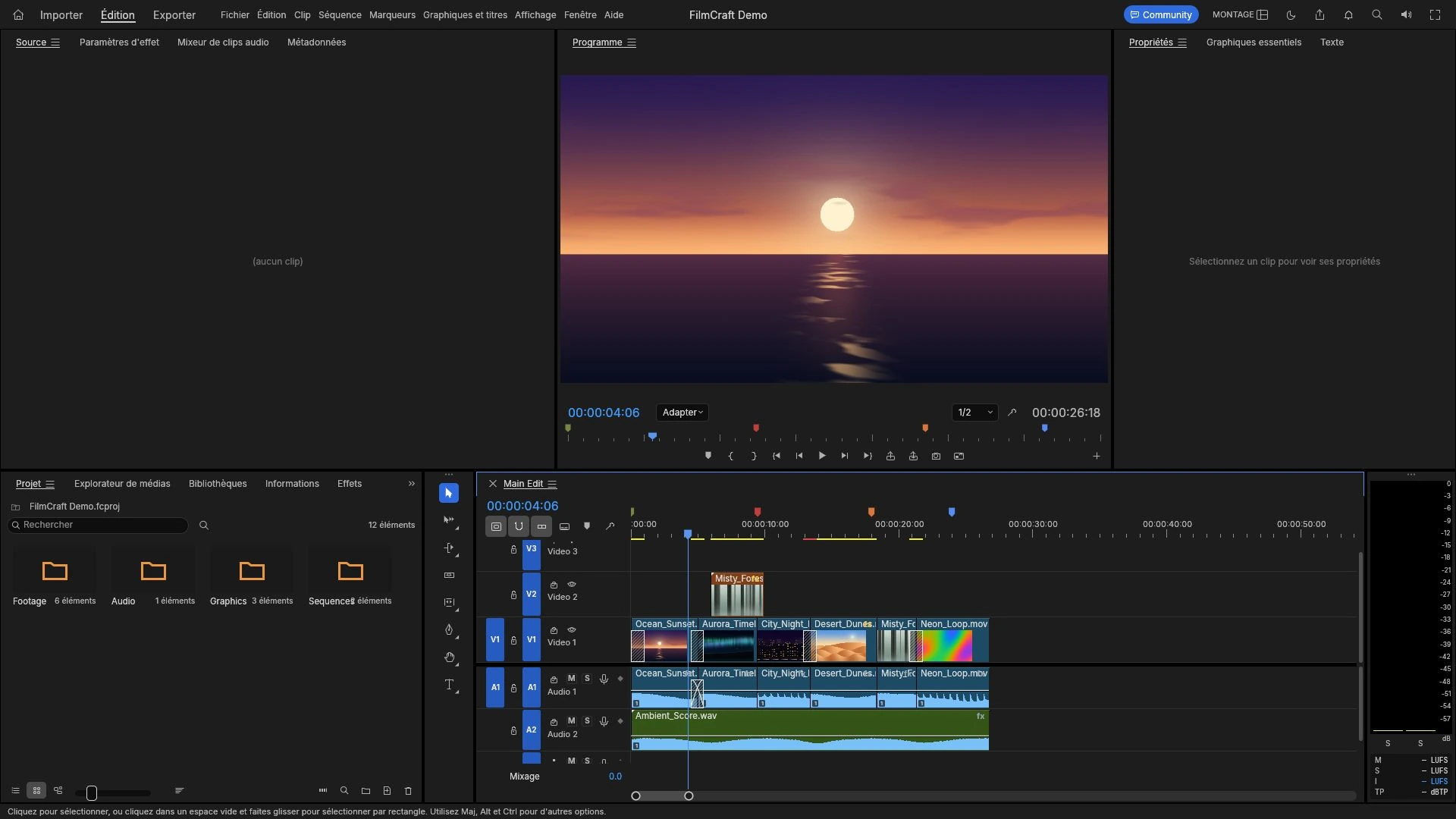
How to Add Audio or a Voice-Over to a Video Online
Import a recorded voice-over, place it against the picture on the timeline, set a level that survives a laptop speaker, and listen to the exported MP4.
Creative workflows Video editing Browser tools No signup 4 min read
Published By Julia M. Gil
-
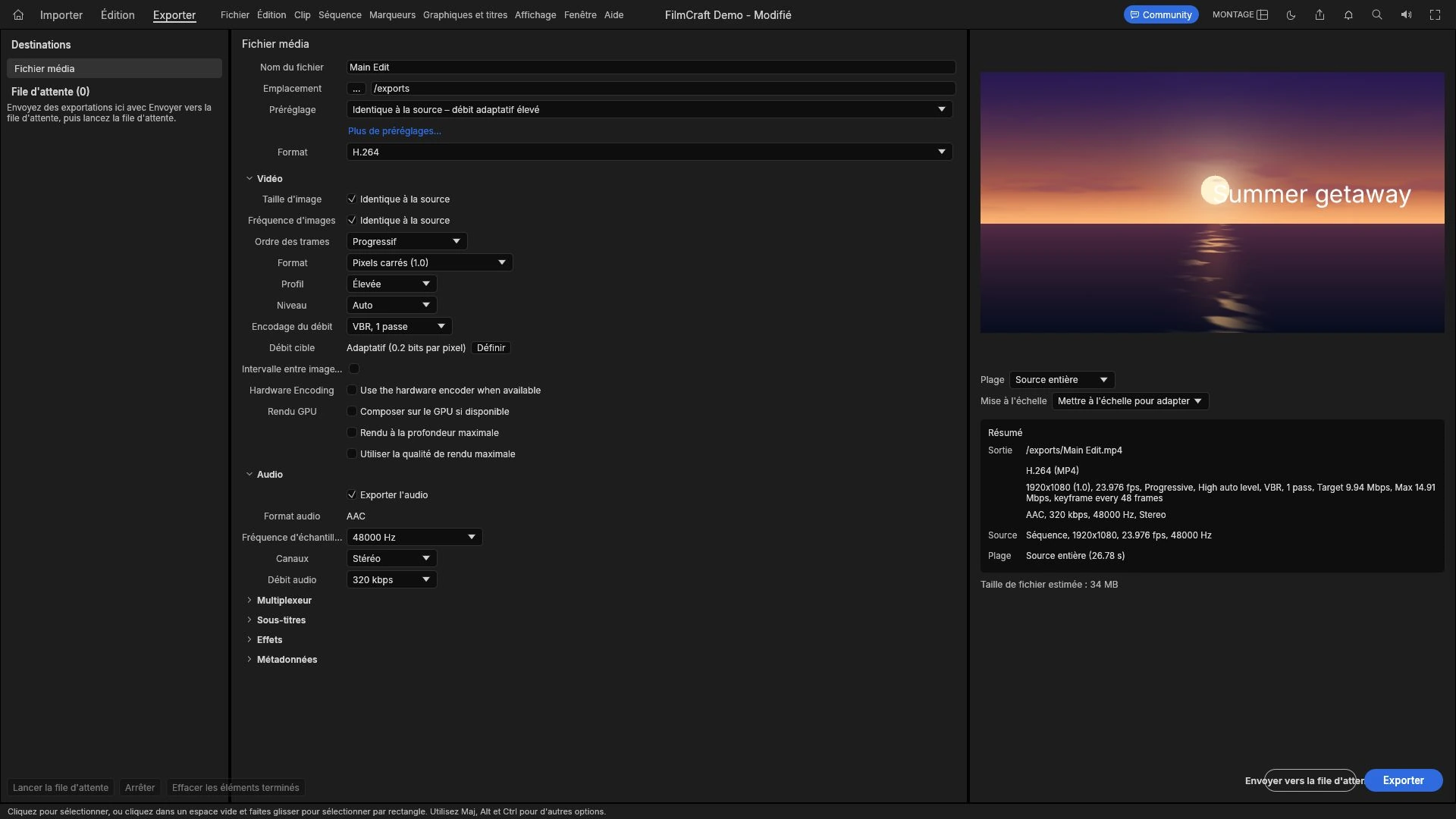
How to Export Video for YouTube, Instagram and TikTok
Every platform decodes and re-encodes what you send, so the file is a master, not a final artefact. Aspect ratio, duration, audio, and sizing a file that survives.
Creative workflows Video editing Browser tools No signup Import & export 4 min read
Published By Julia M. Gil
-
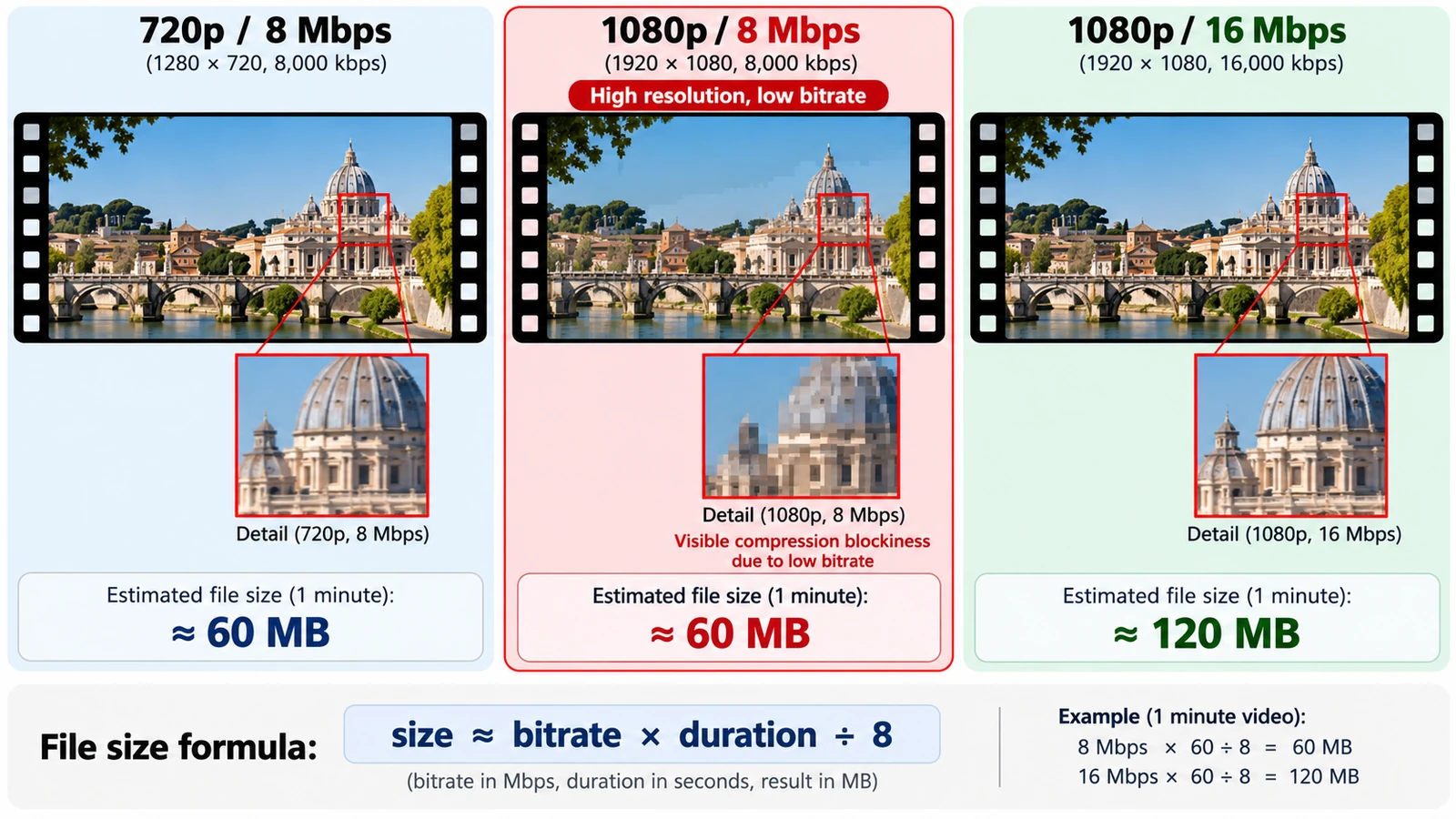
Video Resolution vs Bitrate: What Actually Affects Quality?
Bits per pixel per frame settles most arguments: divide bitrate by pixel count and frame rate. What each setting controls, and how to size a file before export.
Creative workflows Video editing Browser tools No signup Workflow comparison 4 min read
Published By Julia M. Gil
Keep exploring
FreeAIGeneration is more than this article. The editors and calculators below are real, free and run in your browser.